Electronics / Monitors
AcuRite 1036RX 5-in-1 Color Weather Station Display Manual
Comprehensive instruction manual for the AcuRite 1036RX 5-in-1 Color Weather Station Display, covering setup, PC Connect configuration, and system specifications.
Table of contents
Product Overview
The AcuRite 1036RX 5-in-1 Color Weather Station Display is a sophisticated monitoring device designed to provide real-time weather data. It features a high-contrast color display that shows wind speed, direction, outdoor temperature, humidity, rainfall, and barometric pressure. The unit includes a built-in Weather Ticker that provides scrolling information and alerts.
Initial Setup
Upon powering the display unit, it is essential to configure the time and date to ensure accurate historical data logging. Use the navigation buttons to access the setup menu. The display also supports custom measurement units, allowing users to toggle between standard (mph, Fahrenheit) and metric (kph, Celsius) systems. The device features a self-calibrating forecasting algorithm that pulls data from the 5-in-1 sensor to generate personalized weather predictions.
PC Connect Functionality
The PC Connect feature allows users to access weather data on a computer or remotely via the AcuRite app. To use this, install the PC Connect software on your computer before connecting the display unit via the provided USB cable. There are four distinct USB modes available, ranging from simple data logging to internet bridge modes that stream data to online sources. Users must select the appropriate mode on the display unit to match their desired data usage, such as storing data for later download or continuous online streaming.
Maintenance and Troubleshooting
The display unit is powered by an AC adapter. If the device does not operate correctly, ensure the power connection is secure and that the outdoor sensor is within the 330ft (100m) wireless range. The display includes low battery indicators for both the unit and the sensor. For advanced troubleshooting, users can consult the AcuRite Knowledge Base or contact customer support. Regular maintenance involves ensuring the sensor remains clear of debris and that the display unit is placed in a location with good signal reception.
Practical help
Common problems
PC Connect not receiving data
Ensure the display is powered on, the USB cable is connected, and the correct USB mode is selected on both the display and the software.
Inaccurate weather forecast
The unit uses a self-calibration process; allow time for the learning mode icon to disappear as it gathers data.
Before use
- Register the product online for warranty service
- Connect the AC power adapter
- Set the current time and date
- Select preferred measurement units (Standard/Metric)
- Install PC Connect software on your computer
- Select the appropriate USB mode for your needs
Specs in practice
- Wireless Range
- Up to 330ft (100m) depending on home construction materials.
- Operating Frequency
- 433 MHz for wireless communication.
- Display Memory
- 512 kilobytes, non-expandable.
Images and diagrams
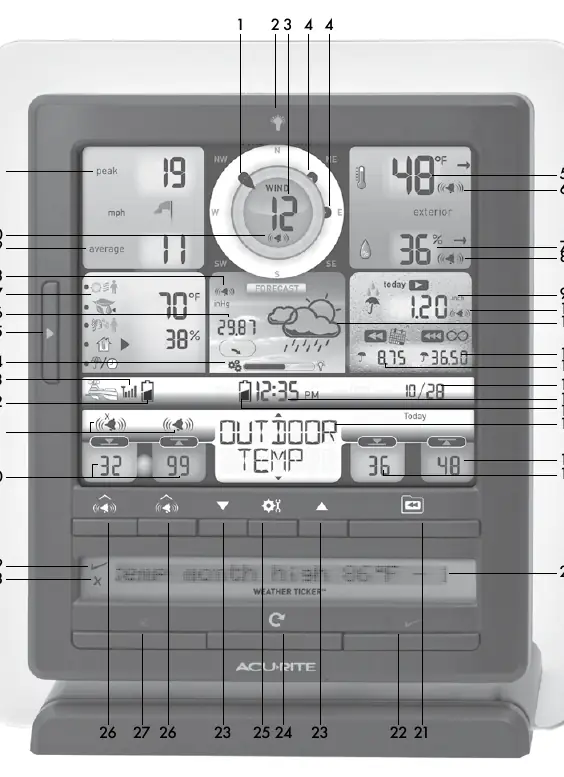
- The display unit features a central wind speed and direction indicator.
- The Weather Ticker at the bottom provides scrolling messages and alerts.
- Navigation buttons (arrows, gear icon) are located below the main screen for settings adjustments.
- The USB port is located inside the battery compartment on the back of the display.
Model compatibility
- PC Connect requires Windows XP, Vista, 7, or 8.
- High-speed internet is required for advanced online features and mobile app integration.
Related manuals
Related manuals from the same brand or category.
Electronics / Monitors
AcuRite 13131W2 Atomic Alarm Clock
AcuriteElectronics / Monitors
AcuRite Atomic Alarm Clock 13131A3 Instruction Manual
AcuriteElectronics / Monitors
AcuRite 13019W2 Intelli-Time Alarm Clock
AcuriteDocuments / Warranty Safety
Acurite 00887 Digital Thermometer with 10-foot Temperature Sensor Probe and Humidity Instructions
AcuriteSoftware / Apps Services
AcuRite 09150M SmartHUB Instruction Manual
AcuriteGeneral / Accessories
AcuRite Carabiner Flashlight User Guide
AcuriteHvac / Thermostats Controls
AcuRite 08550W Weather Alert Radio User Guide
AcuriteDocuments / Warranty Safety
AcuRite 13239CCDI Projection Alarm Clock with Atomic Clock
Acurite
Manual page author
Emily Carter
User documentation editor
Prepares concise manual descriptions and highlights the most useful setup, operation, and maintenance information for readers.