User Manual for ATEN CS22U 2-Port USB Cable KVM Switch
Quick start guide for the ATEN CS22U 2-Port USB Cable KVM Switch. Includes hardware installation steps, system requirements, and port connection diagrams.
Quick answers from the manual
Quick answer
- To install the CS22U, power off all devices, connect the console peripherals (keyboard, mouse, monitor) to the switch, connect the KVM cables to the computers, and then power on the computers. p. 5
Key actions
- Connect console peripherals to the CS22U p. 5
- Connect KVM cables to computers p. 5
First start
- Power off all equipment before beginning the installation procedure. p. 5
Where to find it in the PDF
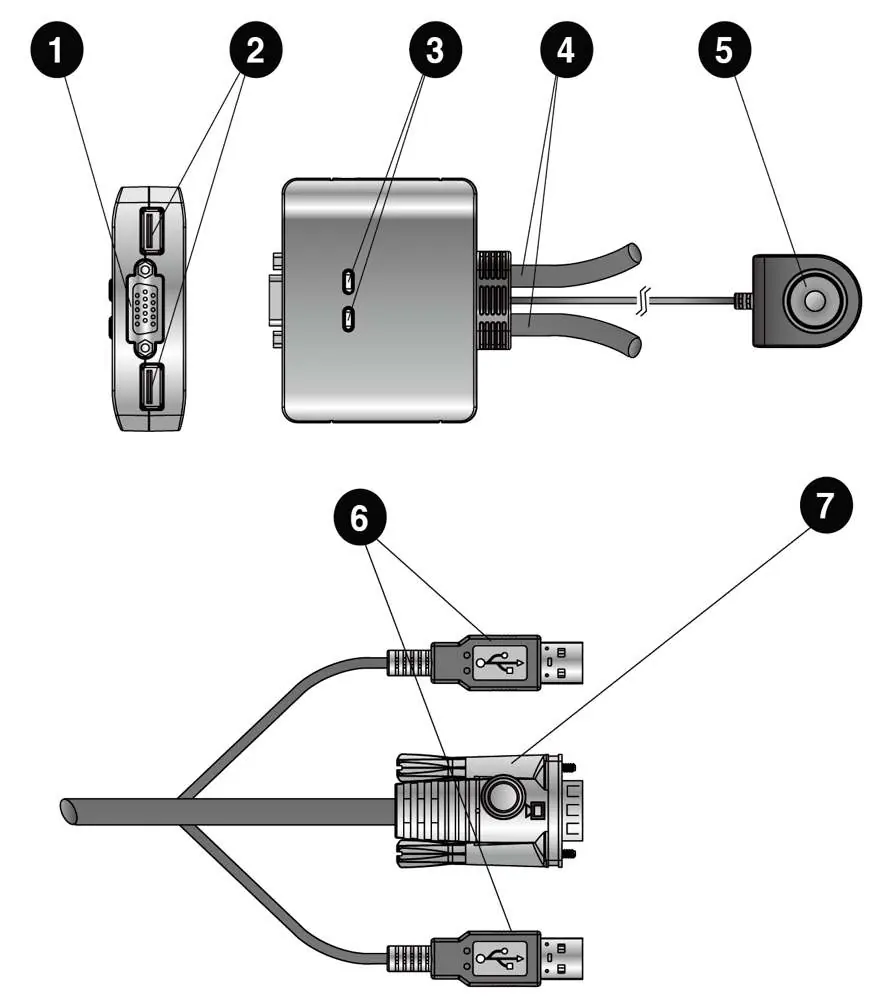
- Hardware Review p. 3
- Hardware Installation p. 4, 5
Table of contents
Manual images
Click an image to enlargeQuick guide from the manual
This guide provides instructions for setting up the ATEN CS22U 2-Port USB Cable KVM Switch. Ensure all equipment is powered off before beginning installation to prevent damage from power surges or static electricity.
System requirements
Console
- VGA, SVGA, XGA, SXGA, or multisync monitor capable of the highest resolution used in the installation.
- USB keyboard.
- USB mouse.
Computers
- VGA, SVGA, XGA, SXGA, or multisync video port.
- USB Type A ports.
Hardware installation
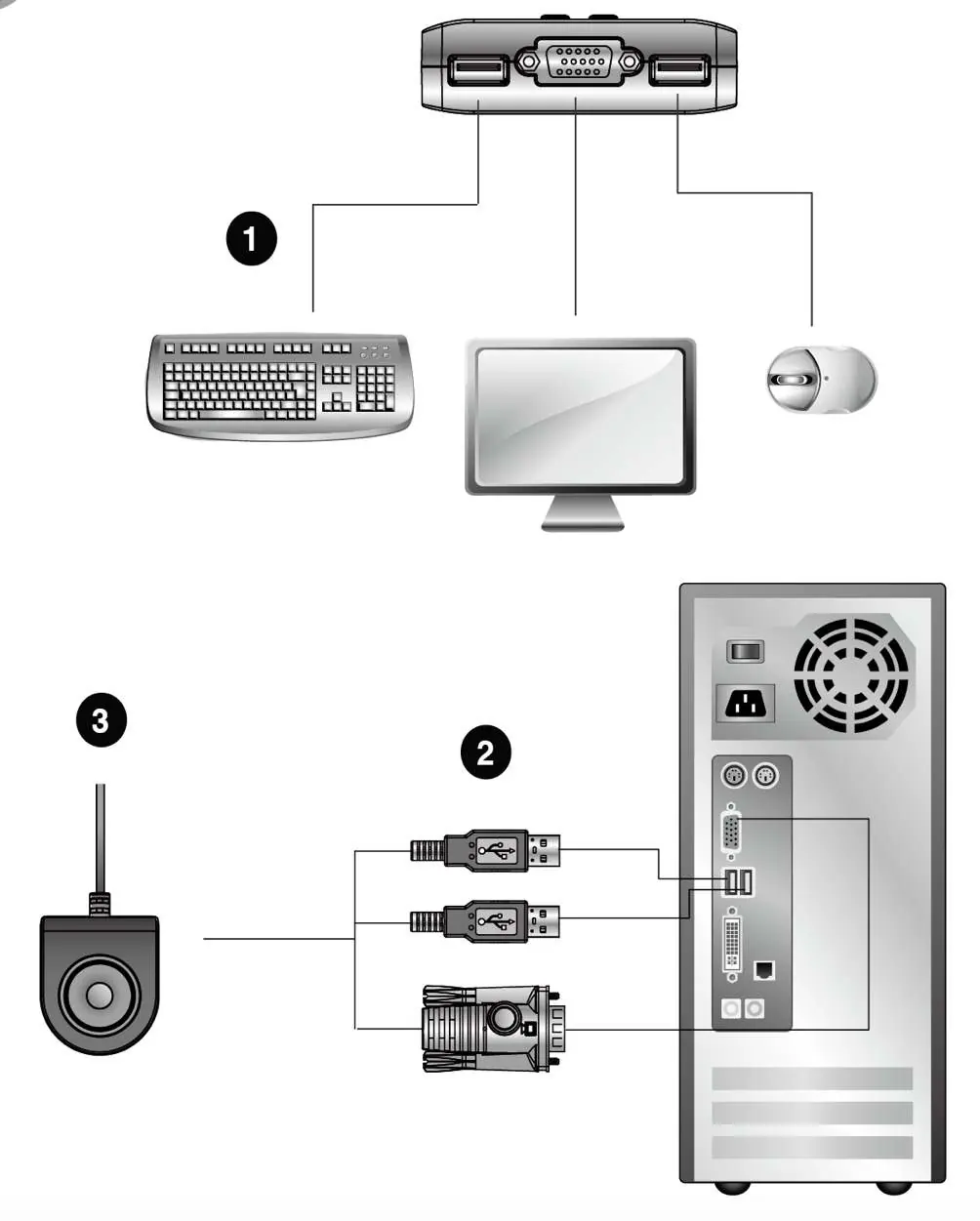
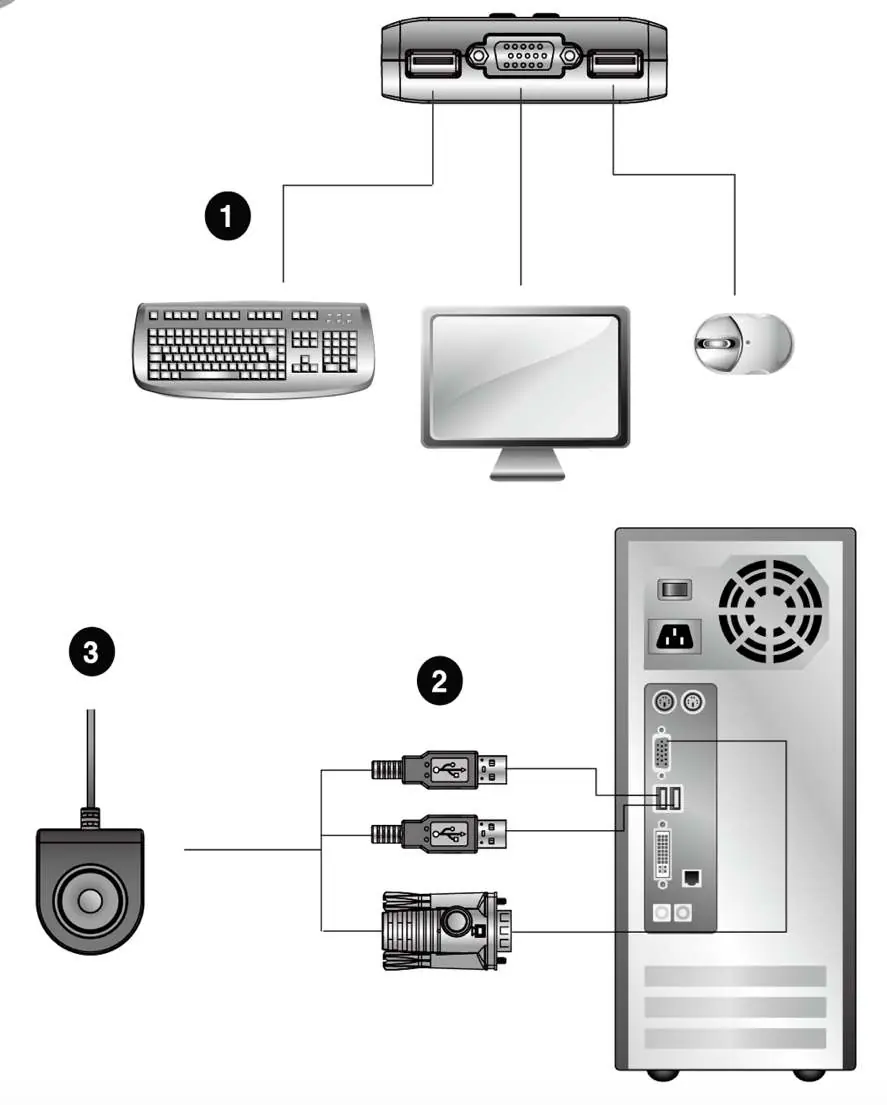
- Ensure all equipment to be connected is powered off.
- Connect your keyboard, monitor, and mouse to the corresponding ports on the CS22U. The USB keyboard and mouse ports are labeled with icons.
- Connect the USB and video connectors of the attached KVM cables into their respective ports on the computers.
- Position the Remote Port Selector within reach on your desktop.
- Turn on the power to the computers.
Safety and maintenance
To prevent damage to your installation from power surges or static electricity, it is important that all connected devices are properly grounded.
Practical help
Common problems
Ensure all devices are properly grounded and that all equipment was powered off during the initial connection process.
Before use
- Power off all equipment before starting installation
- Ensure all devices are properly grounded
- Verify monitor resolution compatibility
- Check for available USB Type A ports on computers

Manual page author
Michael Turner
Technical manual editor
Reviews PDF manuals for structure, safety notes, and practical product details so readers can find the right information quickly.