Avaya 1608-I IP Desk Phone User Guide
Comprehensive user guide for the Avaya 1608-I IP Desk Phone, covering call handling, contact management, call logs, and system settings.
Table of contents
Overview
The Avaya 1608-I is a professional IP desk phone designed for efficient communication. It features a clear display, programmable call/line appearance buttons, and dedicated keys for common tasks like conferencing, transferring, and managing contacts.
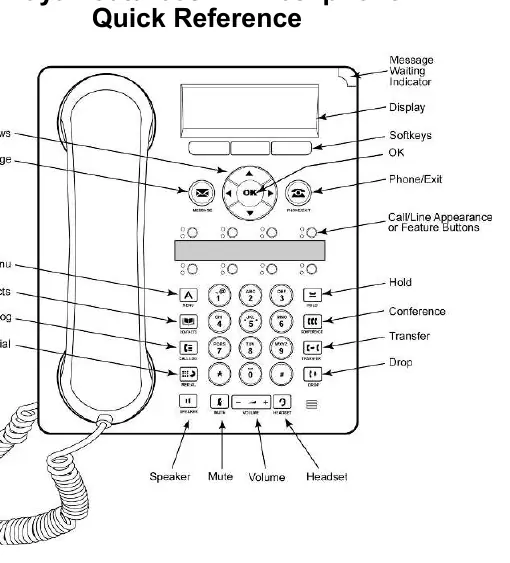
Basic Operation
Answering and Making Calls: To answer, lift the handset, press the Speaker or Headset button, or use the Answer softkey. To make a call, lift the handset or press a line button and dial the number.
Call Handling:
- Hold: Press the Hold button to pause a call. Use the Resume softkey to return.
- Transfer: Press the Transfer button, dial the destination number, and press Transfer again to complete.
- Conference: While on a call, press the Conference button, dial the next participant, and press Join to merge calls.
- Forwarding: Use the CFrwd feature button to redirect calls to another number.
Contacts and Call Log
The phone allows you to manage a personal contact list and view call history.
- Contacts: Access via the Contacts button. You can add, edit, or call contacts directly from the list.
- Call Log: Press the Call Log button to view missed, answered, or outgoing calls. You can easily add numbers from the log to your contacts.
Avaya Menu and Settings
The Avaya Menu provides access to system-wide configurations:
- Screen/Sound: Adjust brightness, contrast, and ring patterns.
- Call Settings: Configure visual alerts, redial options, and audio paths.
- Advanced Options: Change display language, manage network parameters, and perform backups.
- Log Out: Securely log out of the device when not in use.
LED Indicators
The phone uses LED lights to indicate status:
- Call/Line Appearance: Steady green indicates an active call; slow blinking green indicates an incoming call; fast blinking green indicates a call on hold.
- Feature Buttons: Steady green indicates an active feature; blinking red indicates the feature is currently shown on the display.

Manual page author
David Miller
Documentation analyst
Organizes user manual content into clear summaries, with attention to model details, product context, and everyday usability.