Belkin CONNECT 11-in-1 Multiport Dock INC004 User Guide
Learn how to set up and use your Belkin CONNECT 11-in-1 Multiport Dock (INC004) as a functional laptop stand to organize your workspace.
Table of contents
Manual images
Jump to the sectionProduct Overview
The Belkin CONNECT USB-C 11-in-1 Multiport Dock (INC004) is an all-in-one connectivity solution designed to expand the capabilities of your USB-C laptop. It allows for seamless connection to various peripherals, including monitors, projectors, SD cards, ethernet networks, and USB storage devices.
Using as a Laptop Stand
The device features a unique wedge-shaped design that serves a dual purpose: it acts as a functional laptop stand while keeping your workspace organized. By placing the dock underneath your computer, you can angle your laptop for more comfortable use and route all peripheral cables out the back, reducing clutter.
Setup Instructions
To utilize the dock as a laptop stand, follow these steps:
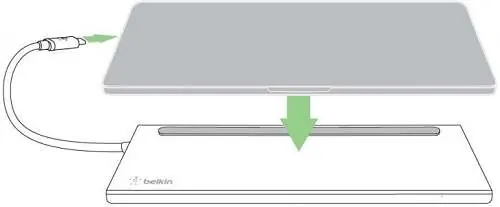
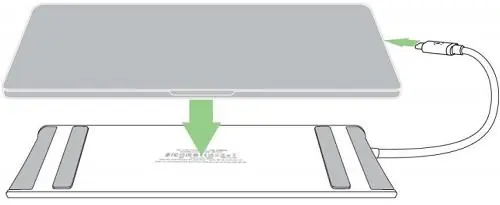
- Place your laptop directly onto the top panel of the dock.
- Connect the dock's integrated USB-C cable to the USB-C port on your laptop.
Note: The design of the Belkin INC004 is reversible. If the position of your laptop's USB-C port makes connection difficult, you can flip the dock over to better suit your specific laptop configuration.
Manufacturer information
Belkin
Practical help
Common problems
The dock is designed to be reversible. Flip the dock over to change the orientation of the built-in cable relative to your laptop's USB-C port.
Before use
- Ensure your laptop is equipped with a USB-C port.
- Clear a space on your desk for the wedge-shaped dock.
- Verify that the laptop is placed securely on the top panel of the dock.

Manual page author
Michael Turner
Technical manual editor
Reviews PDF manuals for structure, safety notes, and practical product details so readers can find the right information quickly.