Belkin CONNECT USB-C 11-in-1 Multiport Dock INC004
Quick guide for the Belkin CONNECT USB-C 11-in-1 Multiport Dock INC004. Learn how to use the device as a laptop stand and connect your peripherals.
Table of contents
Manual images
Click an image to enlargeQuick Start Guide
The Belkin CONNECT USB-C 11-in-1 Multiport Dock (INC004) is an all-in-one solution designed to connect your USB-C laptop to multiple devices, including monitors, projectors, SD cards, ethernet networks, and USB thumb drives.
Using as a Laptop Stand
The dock features a unique wedge-shaped design that allows it to function as a laptop stand. This helps angle your laptop for improved ergonomics and keeps your workspace tidy by hiding the dock underneath the computer and routing ports to the back.
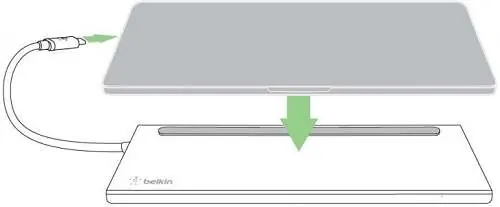
- Place your laptop on the top panel of the dock.
- Connect the dock's built-in cable to your laptop's USB-C port.
Orientation
The design of the INC004 allows it to be flipped over. This feature is useful to better accommodate the specific placement of the USB-C port on your laptop, ensuring the built-in cable reaches comfortably.
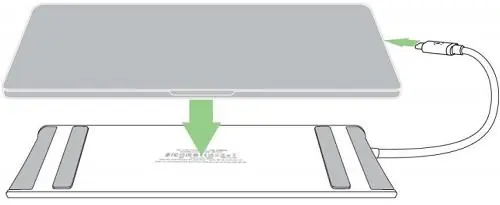
Manufacturer information
Belkin
Practical help
Common problems
Flip the dock over to change the orientation and better suit your laptop's USB-C port placement.
Before use
- Ensure your laptop is equipped with a USB-C port.
- Place the dock on a flat, stable surface.
- Position the laptop on the top panel of the dock.
- Connect the built-in cable to the laptop's USB-C port.

Manual page author
Michael Turner
Technical manual editor
Reviews PDF manuals for structure, safety notes, and practical product details so readers can find the right information quickly.