BRIO 500 1080p HDR Webcam User Guide
Comprehensive setup and usage guide for the Brio 500 1080p HDR webcam, covering mounting, connection, Show Mode, and software configuration.
Table of contents
Manual images
Jump to the sectionProduct Overview
The Brio 500 is a high-quality 1080p HDR webcam designed for professional video conferencing. It features an ultrawide-angle lens with a 90-degree field of view and dual noise-reduction microphones to ensure clear audio and video. The device includes a built-in privacy shutter that can be easily opened or closed using a dial on the side of the camera.
Setup and Mounting
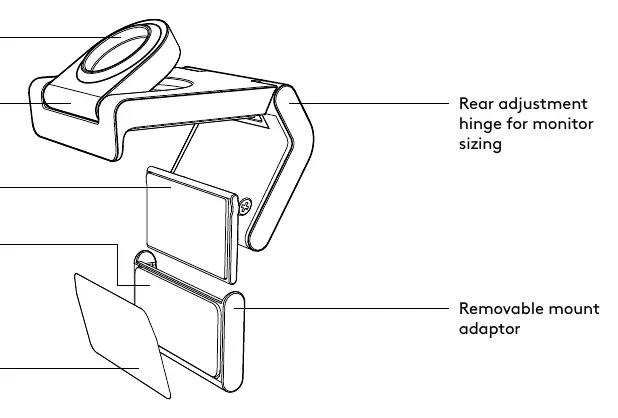
The Brio 500 comes with a versatile mounting clip that uses a micro-suction pad for secure attachment to monitors. To set it up, clean the back of your monitor, remove the protective film from the micro-suction pad, and press the mount firmly against the monitor. The mount is adjustable to fit various monitor sizes. For alternative setups, the webcam can be removed from the mount and attached to a standard tripod using the 1/4-inch thread on the bottom of the mounting clip.
Connection and Usage
Connect the webcam to your computer, laptop, or docking station using the integrated USB-C cable. Once connected, the LED activity light will indicate the status of your video and audio. A white light indicates the video is on, while a yellow light indicates the audio is active when the video is off. A breathing lilac light signifies a firmware update is in progress.

Show Mode
The Brio 500 features a unique Show Mode that allows you to easily share physical items, sketches, or work-in-progress during video calls. By tilting the camera downward, the image automatically adjusts to show your desktop. When the mount is secured with the micro-suction pad, you can tilt the camera with one hand. If not using the suction pad, hold the mount steady with one hand while tilting the camera with the other.
Software and Maintenance
For optimal performance, download the Logi Tune software from the official website. This application allows you to customize your webcam settings, including field of view, zoom, auto-framing, and image adjustments. It also provides essential firmware updates. To maintain the micro-suction pad, rinse it with water to remove debris and let it air dry to restore its adhesive strength. Do not use cloth or tissue to dry the pad.
Practical help
Common problems
Rinse the pad with water to remove debris and let it air dry completely to restore suction.
Ensure the USB-C cable is securely connected and download the Logi Tune software to update firmware.
Before use
- Clean the back of the monitor to remove dust or dirt.
- Remove the protective film from the micro-suction pad.
- Ensure the USB-C port is available on your computer or docking station.
- Download the Logi Tune software for optimal performance.
Specs in practice
- Field of View (dFOV)
- The viewing angle of the lens, adjustable between 90°, 78°, and 65° via software.
- LED Activity Light
- Visual indicator for camera and microphone status (White: Video ON, Yellow: Audio ON/Video OFF).
Images and diagrams
- The front view highlights the privacy shutter dial, lens, and microphones.
- The mount design overview shows the tilt adjustment hinge and the micro-suction pad mechanism.
- The connection diagram illustrates the USB-C cable insertion into a computer port.
- The Show Mode diagram demonstrates tilting the camera to capture the desktop surface.
Model compatibility
- Compatible with devices featuring a USB-C port.
- Mounting clip is compatible with most monitors using the micro-suction pad or adjustable hinge.
- Supports standard 1/4-inch tripod threads for external mounting.

Manual page author
Emily Carter
User documentation editor
Prepares concise manual descriptions and highlights the most useful setup, operation, and maintenance information for readers.