Firmware Update Guide for Brook Auto Catch Watchic
A step-by-step guide on how to update the firmware for the Brook Auto Catch Watchic using the Pocket Auto Watch app. Includes instructions for app installation, device connection, and the update process.
Quick answers from the manual
Quick answer
- To update the firmware, download the 'Pocket Auto Watch App', enable Bluetooth and GPS on your phone, connect the device, and select 'Yes' when prompted for an update. p. 2, 3
Key actions
- Download the Pocket Auto Watch App p. 2
- Connect the device via the app p. 2
- Start the firmware update p. 3
First start
- Enable Bluetooth and GPS, then run the app to connect. p. 2
Show 1 more answers Show less
Where to find it in the PDF
- Firmware Update Steps p. 2, 3
Table of contents
Manual images
Click an image to enlargeQuick guide from the manual
This document provides instructions for updating the firmware on the Brook Auto Catch Watchic. The process requires a smartphone with the Pocket Auto Watch App installed and an active Bluetooth and GPS connection.
Preparation
Before starting the update, ensure your smartphone is ready:
- Download the Pocket Auto Watch App from the Apple App Store (iOS) or Google Play Store (Android).
- Enable Bluetooth on your smartphone.
- Enable GPS Location services on your smartphone.
Firmware Update Procedure
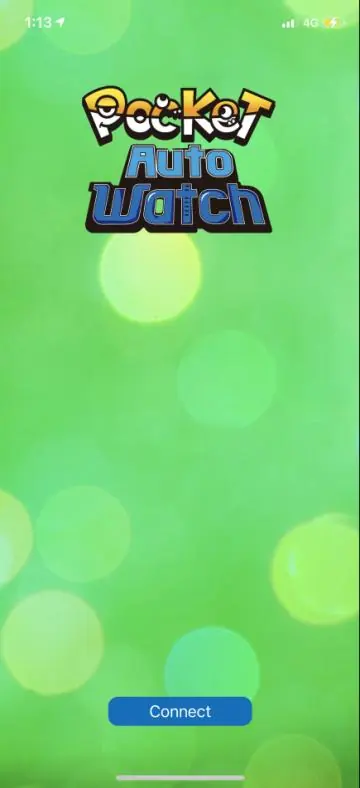
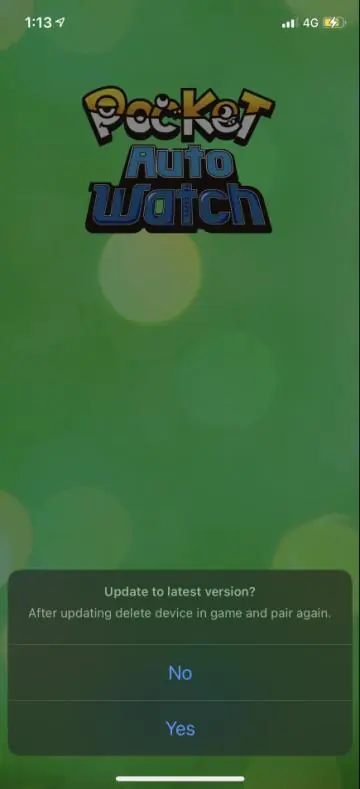
- Open the Pocket Auto Watch App on your smartphone.
- Click the Connect button within the app to pair your Brook Pocket Auto Watchic.
- If a firmware update is available, the app will display an update message. Click Yes to begin the process.
- Wait for the progress bar to complete. Do not close the app or disconnect the device until the update process is finished.
Practical help
Common problems
Ensure that both Bluetooth and GPS Location services are enabled on your smartphone before opening the app.
Ensure the device is successfully connected to the app first. If it is connected and no message appears, the device may already be on the latest firmware.
Before use
- Download the Pocket Auto Watch App
- Enable Bluetooth on your phone
- Enable GPS Location on your phone
- Ensure the device is charged and nearby

Manual page author
David Miller
Documentation analyst