Copeland Site Supervisor 15.6-Inch Display
User guide for the Copeland 15.6-inch remote display interface, covering installation, connection to Site Supervisor controllers, and initial setup procedures.
Table of contents
Product Overview
The Copeland 15.6-Inch Display (P/N 818-7241) serves as a remote user interface for Site Supervisor controllers. It connects via an Ethernet network, allowing users to perform critical system actions such as managing lighting overrides, controlling heating and cooling stages, monitoring system status, and viewing alarms.
Safety Precautions
Warning: This device is not a safety component and must not be used as such. Observe the following safety guidelines:
- Disconnect all electrical power before performing maintenance.
- Do not open the display housing or the rear panel while power is applied.
- Ensure correct supply voltage before connection.
- Maintain proper wire polarity to prevent damage to the controller or display.
- Protect the unit from water, moisture, and extreme temperature fluctuations to avoid condensation.
- When using an external power supply, isolate the device power from other electrical equipment within the panel.
Technical Specifications
- Screen Size: 15.6-Inch
- Resolution: 1920 x 1080
- Mounting: 75mm x 75mm Wall Mount
- CPU: Quad Core Cortex A9, 1.8GHz
- Memory: 2GB RAM, 16GB Internal Memory
- OS: Android 6.0
- Connectivity: Ethernet, WiFi 802.11b/g/n
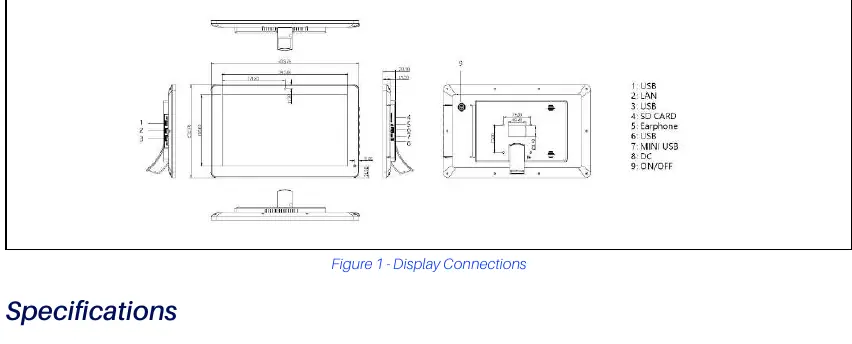
- Dimensions: 404 x 253 x 33.5mm
Installation and Setup
To connect the display to the Site Supervisor:
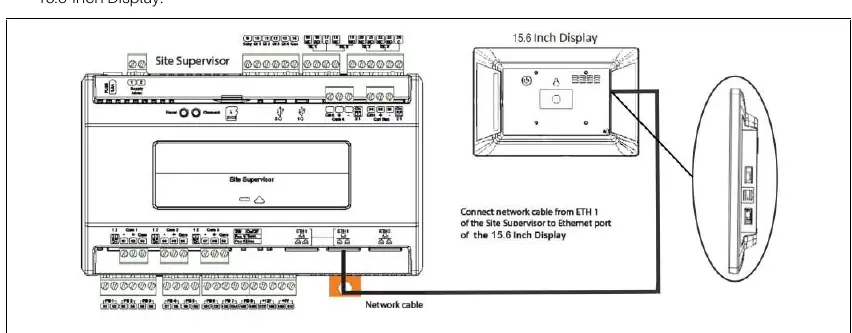
- Connect the power supply to the display.
- Connect a network cable from the ETH1 port of the Site Supervisor to the Ethernet port on the display.
- Access the interface by pressing the menu icon followed by the browser icon.
- For initial setup, log in using the default credentials (username: user, password: pass).
- If the system version is 2.06 or higher, you will be prompted to change the password immediately.
- Follow the Setup Wizard prompts to configure localization settings and enter the Site Name to complete the installation.