Quick Start Guide for D-Link DGS-1016S Network Switch
Get started with your D-Link DGS-1016S unmanaged switch. This guide covers installation, power requirements, and connection diagrams to help you set up your network quickly.
Table of contents
Quick Start Guide
This guide provides the essential steps for setting up your D-Link DGS-1016S unmanaged switch. Ensure you have the necessary Ethernet cables and a stable power source before beginning installation.
Device Connections
To set up your network switch, follow these connection steps:
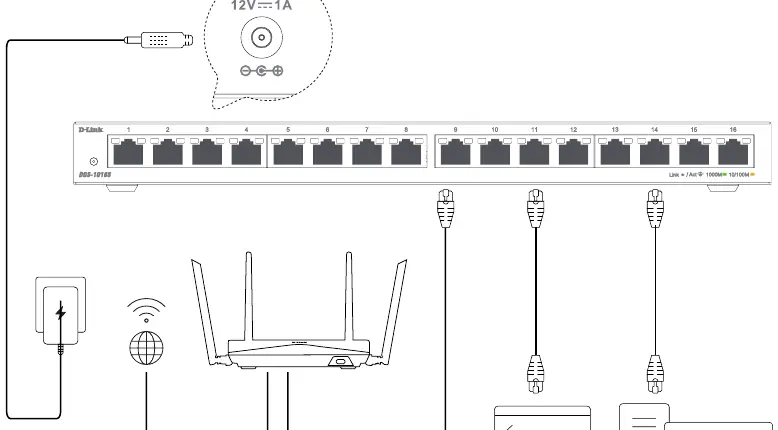
- Power Connection: Connect the provided power adapter to the power input port on the back of the switch. The required power input is 12V 1A.
- Internet Source: Connect an Ethernet cable from your router or modem to any of the available ports on the switch.
- Network Devices: Connect your computers, laptops, or other network-enabled devices to the remaining ports on the switch using Ethernet cables.
LED Indicators
The switch features LED indicators to help you monitor the status of your connections:
- Link/Act: Indicates the status of the connection.
- 1000M (Green): Indicates a Gigabit connection.
- 10/100M (Amber): Indicates a 10/100 Mbps connection.
Support and Warranty
For further assistance, technical support, or warranty information, please visit the official D-Link support website at http://www.dlink.com/support or the warranty page at http://www.dlink.com/warranty.
Official resources from the manual
Manufacturer information
D-Link Corporation
Practical help
Common problems
Check if the Ethernet cable is securely plugged into both the switch and the device. Verify the LED indicator for that port is lit.
Ensure the power adapter is firmly connected to the switch and a wall outlet. Verify the power adapter matches the 12V 1A specification.
Before use
- Verify you have the correct power adapter (12V 1A).
- Ensure you have sufficient Ethernet cables for all devices.
- Place the switch on a flat, stable surface with adequate ventilation.
- Check that your router or modem is powered on and functioning.

Manual page author
Emily Carter
User documentation editor
Prepares concise manual descriptions and highlights the most useful setup, operation, and maintenance information for readers.