Digitus USB Type-C to VGA Adapter DA-70853
Quick guide for the Digitus USB Type-C to VGA Adapter (DA-70853). Learn how to connect your device, check technical specifications, and understand operating requirements.
Table of contents
Manual images
Click an image to enlargeQuick guide from the manual
The Digitus USB Type-C to VGA Adapter (DA-70853) is designed to connect a USB-C enabled computer to a VGA monitor or projector. It supports resolutions up to Full HD (1080p) and is compatible with Windows, Mac, and Google Chrome operating systems. The device is powered directly via the USB bus, requiring no external power supply.
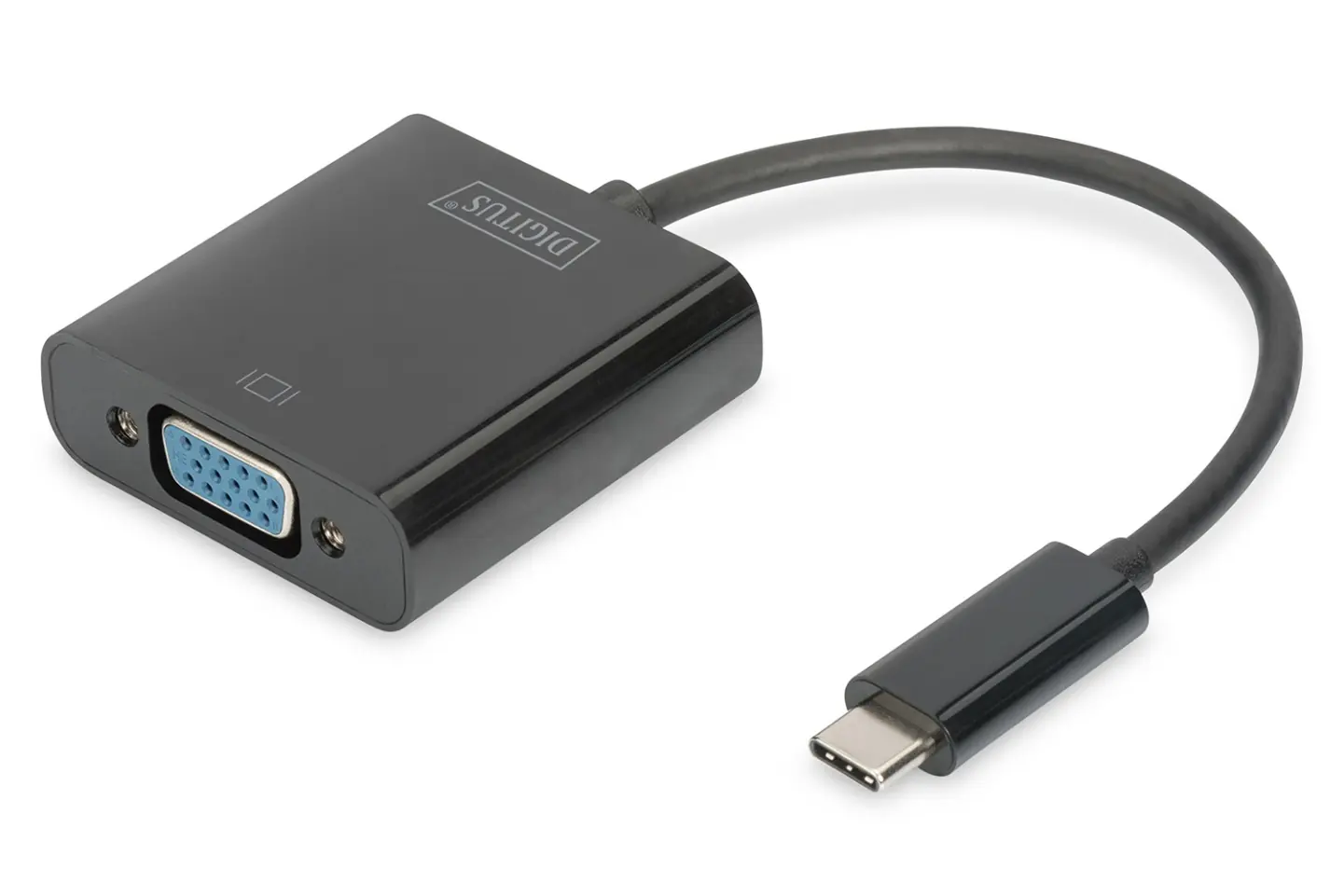
Product features
- Supports USB 3.1 input and VGA output.
- Maximum resolution: Full HD (1080p).
- Data channel support: 5.4 Gbps (HBR2), 2.7 Gbps (HBR), and 1.62 Gbps.
- Powered via USB bus (no external power supply required).
Operation

- Connect the USB-C port of the adapter to your computer.
- Connect the VGA output of the adapter to your monitor or projector using a standard VGA cable.
Specifications
- Chipset: RTD2169U
- Input Port: USB 3.1 Type-C Male
- Output Port: VGA Female
- Operating Temperature: 0°C to +45°C
- Operating Humidity: 10% to 85% RH (no condensation)
- Dimensions (Main Unit): 45 x 45 x 14.8 mm
- Cable Length: 150 mm
Package Content
- 1 x USB Type-C to VGA graphics adapter
- 1 x Manual
Practical help
Common problems
Ensure the USB-C port on your computer supports video output (DisplayPort Alt Mode). Verify that the VGA cable is securely connected to both the adapter and the display device.
The adapter supports up to 1080p. Ensure your monitor is capable of displaying the resolution being output by your computer.
Before use
- Verify the computer has a USB-C port capable of video output.
- Ensure you have a standard VGA cable for the monitor connection.
- Check that the monitor or projector is powered on.
- Ensure the environment is within the operating temperature range of 0°C to +45°C.

Manual page author
Michael Turner
Technical manual editor
Reviews PDF manuals for structure, safety notes, and practical product details so readers can find the right information quickly.