Epson 111-56-QUM-025 Kitchen Display System Configuration Guide
Learn how to configure the Independent Displays feature on your Epson TrueOrder Kitchen Display System. This guide covers the setup steps for POS Menu Routing and independent item management across stations.
Table of contents
Manual images
Click an image to enlargeQuick guide to Independent Displays
The Independent Displays configuration allows items in an order to be managed separately when sent to different kitchen stations. This ensures that bumping an item on one station does not affect the same item on another station.
Prerequisite: This feature is only available when the KDS is configured for POS Menu Routing.
Overview
In a standard setup, identical items might be matched across displays. With the Independent Displays option enabled, the KDS treats items sent to different stations as distinct entities. For example, if a "Classic Burger" is sent to both Station 1 and Station 2, bumping the item on Station 1 will not cross it out on Station 2.
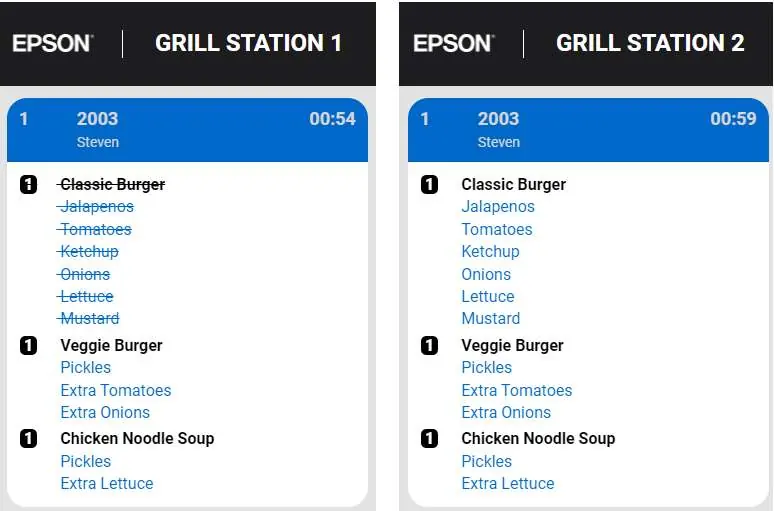
How to Configure
Ensure your KDS is already set up according to the TrueOrder KDS Quick Start Guides before proceeding with these steps:
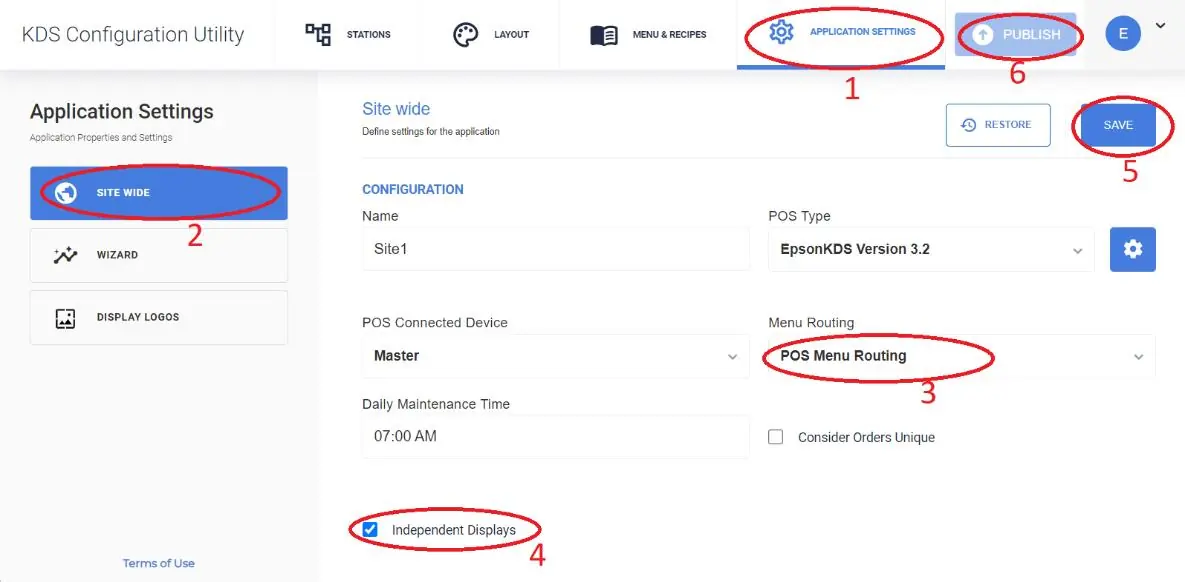
- Open the KDS Configuration Utility.
- Select APPLICATION SETTINGS.
- Select SITE WIDE.
- Ensure POS Menu Routing is enabled.
- Check the box to enable Independent Displays.
- Click SAVE.
- Click PUBLISH to apply the changes.
Manufacturer information
Epson
Practical help
Common problems
Ensure the 'Independent Displays' option is enabled in the Site Wide settings.
Verify that 'POS Menu Routing' is enabled in the configuration settings.
Before use
- Ensure the KDS is already set up according to the TrueOrder KDS Quick Start Guides.
- Verify access to the KDS Configuration Utility.
- Confirm that POS Menu Routing is enabled.

Manual page author
Michael Turner
Technical manual editor
Reviews PDF manuals for structure, safety notes, and practical product details so readers can find the right information quickly.