Epson Label Boost User Manual
Quick guide for Epson Label Boost software, covering installation, printer configuration, rule management, and troubleshooting for ZPL label enhancement.
Table of contents
Manual images
Jump to the sectionQuick guide from the manual
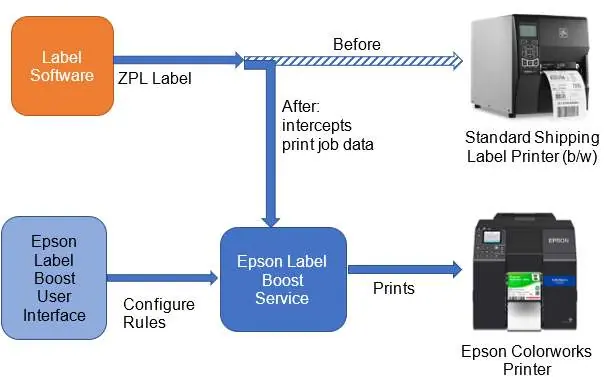
Label Boost is a software solution designed to intercept standard ZPL shipping label print jobs and enhance them with full-color elements like coupons, targeted ads, or highlighted information without modifying the original label template. This guide provides essential steps for installation, configuration, and operation.
Installation
Ensure you have administrator rights before starting. The ColorWorks printer driver must be installed and tested before installing Label Boost.

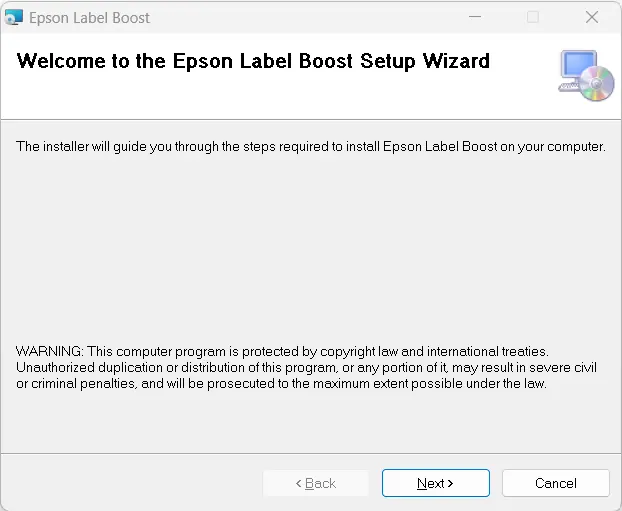
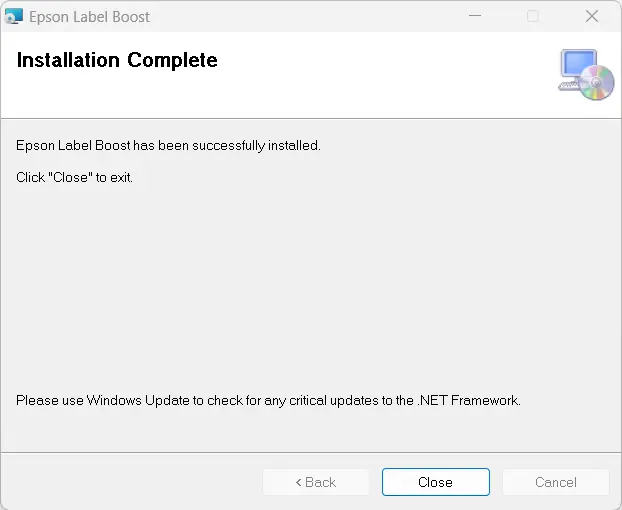
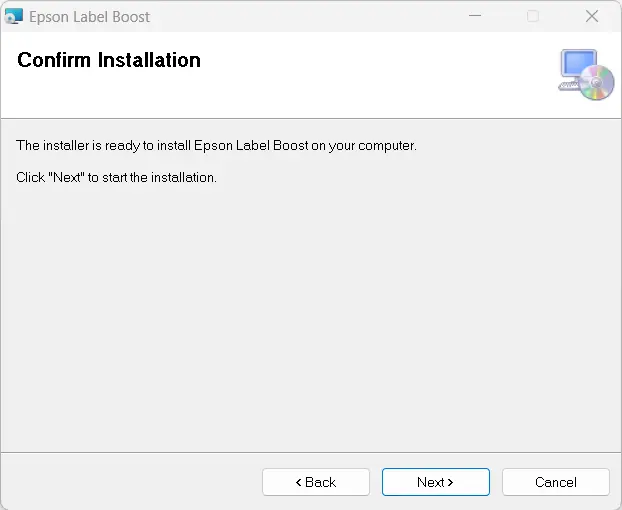
- Download the installer from epson.com/LabelBoostDownload.
- Run the file and follow the on-screen prompts.
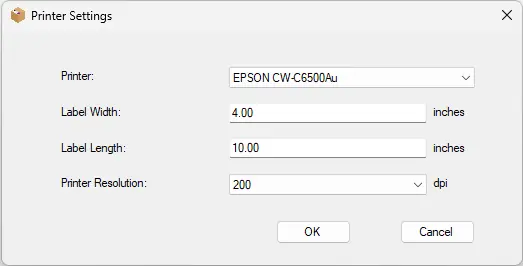
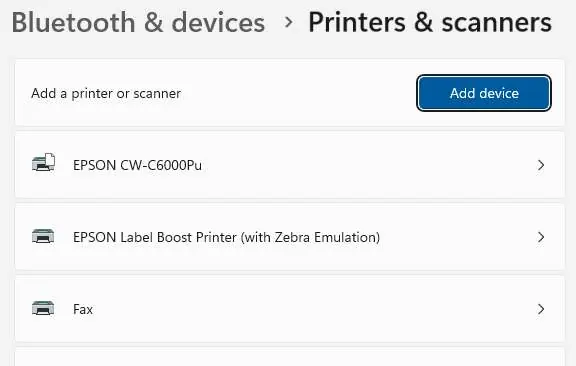
- After installation, adjust the driver media settings: Go to Windows Printers & scanners, select EPSON Label Boost Printer, click Printing preferences, and set Media Name to Custom with a Length of 6.00 inches and Width of 4.25 inches.
Operation
Label Boost consists of a GUI application and a background Windows Service. Upon first launch, accept the EULA and activate your license (30-day trial available).
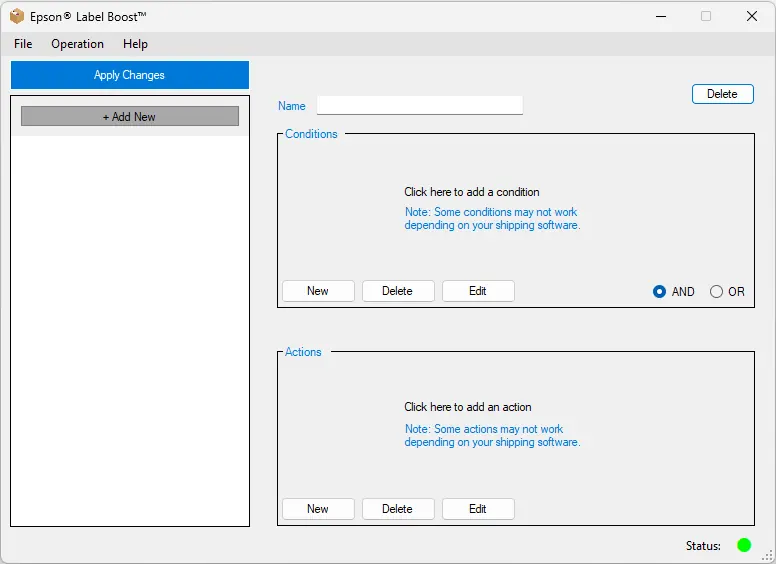
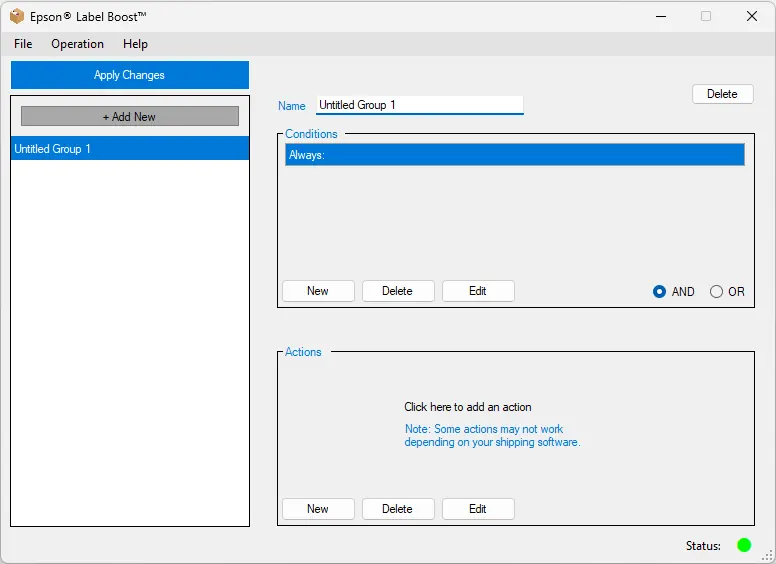
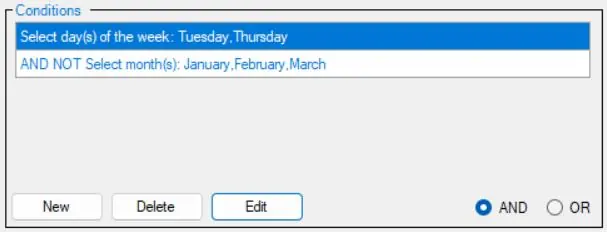
- Creating Rules: Use the GUI to create Enhancement Groups. Within a group, define Conditions (e.g., date range, specific text in label data) and Actions (e.g., insert image, change text color, highlight text).
- Applying Changes: After configuring rules, click the blue Apply Changes button to activate them in the service.
- Service Control: The status indicator shows green for normal operation and yellow for Bypass mode (actions disabled).
Troubleshooting
- Installation Fails: Ensure the printer driver is installed first.
- Printer Not Selectable: Check printer settings in your shipping software; try enabling a 'Send to Thermal Printer' option if available.
- Print Jobs Not Received: Label Boost uses port 9100. Ensure your firewall allows traffic on this port.
- Incorrect Label Size: Verify the media settings in the Label Boost driver as described in the installation section.
Additional Support
For further assistance, contact your Epson reseller or Epson support at (562) 276-1340, Monday – Friday, 7 am – 4 pm (PT).
Official resources from the manual
Manufacturer information
Epson
Practical help
Common problems
Ensure the supported Epson ColorWorks printer driver is installed and tested before running the Label Boost installer.
Check printer settings in your shipping software. If available, enable the 'Send to Thermal Printer' option.
Check firewall settings to ensure access to port 9100 is not blocked.
Adjust the media settings in the Label Boost driver (Length 6.00", Width 4.25") as outlined in the installation section.
Before use
- Ensure you have administrator rights on the PC.
- Install and test the Epson ColorWorks printer driver first.
- Verify your shipping software is compatible.
- Ensure internet access for license activation.
- Confirm the printer is connected via USB or Network.
Images and diagrams
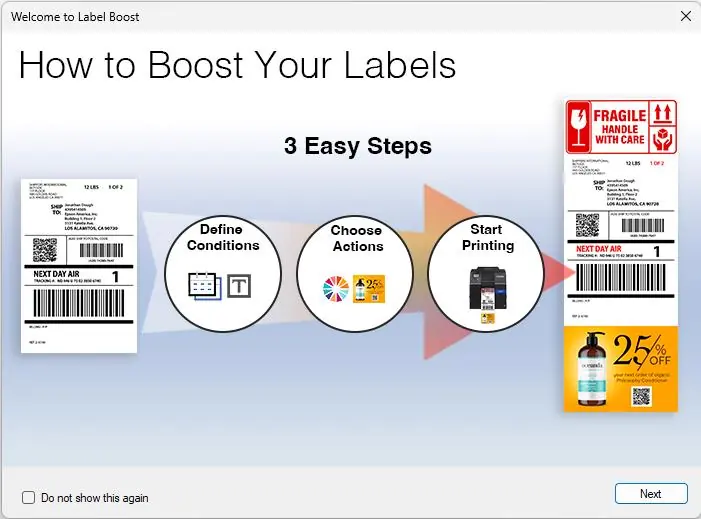
- The process flow shows Label Software sending ZPL data, which is intercepted by the Label Boost Service, enhanced based on configured rules, and then sent to the Epson ColorWorks printer.
Model compatibility
- Compatible with Epson ColorWorks CW-C4000, CW-C6000, and CW-C6500 Series.
- Requires Windows 10 or 11 (64-bit, version 22H2 or higher).
- Supported apps include Fedex Ship Manager, UPS Worldship, ShipStation, and Stamps.com.

Manual page author
Michael Turner
Technical manual editor
Reviews PDF manuals for structure, safety notes, and practical product details so readers can find the right information quickly.