Epson Printer Allocated Layout and 2-Sided Copying Guide
A step-by-step guide for using the Allocated Layout (2-up/4-up) and 2-Sided Copying features on your Epson printer. Learn how to navigate the touchscreen menu to configure these copy settings.
Quick answers from the manual
Quick answer
- To use Allocated Layout or 2-Sided Copying, navigate to the 'Copy' menu on your printer's touchscreen, select 'Multi-Page' for layout options (2-up/4-up) or '2-Sided' for double-sided copying, and follow the on-screen prompts. p. 1
Key actions
- Accessing Copy Menu p. 1
- Configuring Multi-Page Layout p. 1
- Configuring 2-Sided Copy p. 1
Where to find it in the PDF
- Allocated Layout and 2-Sided Copying Instructions p. 1
Table of contents
Manual images
Click an image to enlargeQuick Guide for Allocated Layout and 2-Sided Copying
This guide provides instructions on how to use the Allocated Layout and 2-Sided Copying features on your Epson printer. These features allow you to combine multiple pages onto a single sheet or print on both sides of the paper.
Allocated Layout (2-up/4-up)
Use this feature to copy multiple original pages onto a single sheet of paper.
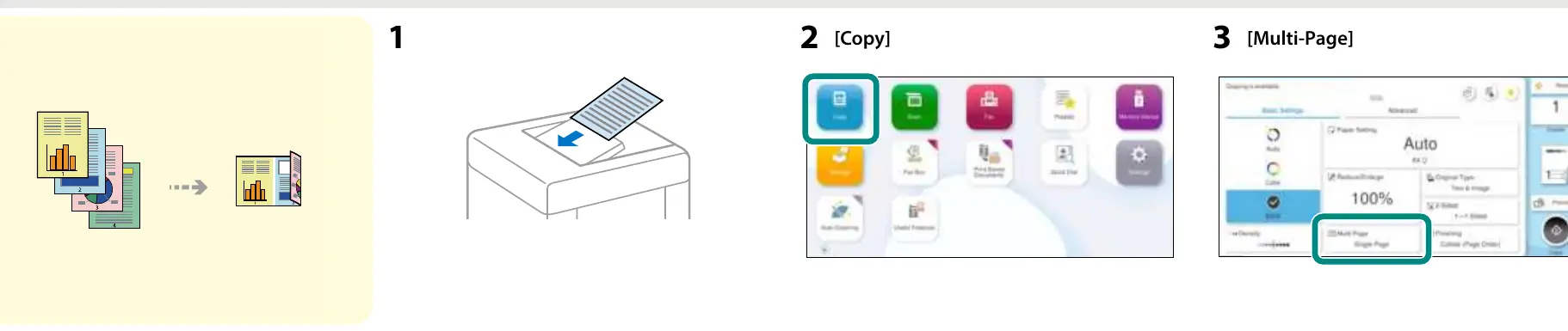

- Place your document on the scanner glass or in the Automatic Document Feeder (ADF).
- On the printer's home screen, select Copy.
- Select Multi-Page.
- Choose 2-up or 4-up depending on your requirements.
- Confirm the settings on the screen.
- Select Layout Order to define how the pages are arranged.
- Select Orientation (Original) to match your document's orientation, then press OK.
2-Sided Copying
Use this feature to copy single-sided documents onto both sides of the paper.

- Place your document on the scanner glass or in the ADF.
- On the printer's home screen, select Copy.
- Select 2-Sided.
- Select 1->2-Sided to convert single-sided originals to a double-sided copy.
- Follow the on-screen prompts to complete the copy process.
Manufacturer information
Epson
Practical help
Before use
- Ensure the printer is powered on and the touchscreen is active.
- Place the original document correctly on the scanner glass or ADF.
- Ensure you have sufficient paper loaded in the paper tray.
Images and diagrams
- The guide illustrates the touchscreen menu navigation for selecting copy modes.
- Steps 1-7 cover the Allocated Layout process (2-up/4-up).
- Steps 8-10 cover the 2-Sided Copying process.

Manual page author
Michael Turner
Technical manual editor