Electronics / Audio
User Guide for Focusrite Scarlett 18i20 3rd Gen Audio Interface
Quick start guide and operational manual for the Focusrite Scarlett 18i20 3rd Gen audio interface, covering hardware setup, software installation, routing, and troubleshooting.
Table of contents
Manual images
Jump to the sectionQuick guide from the manual
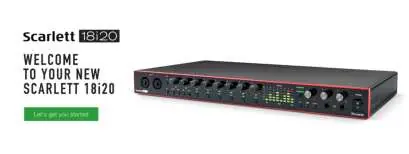
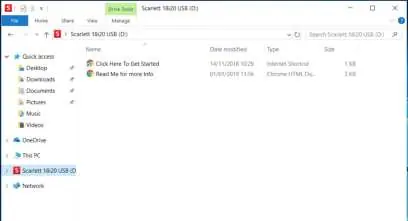
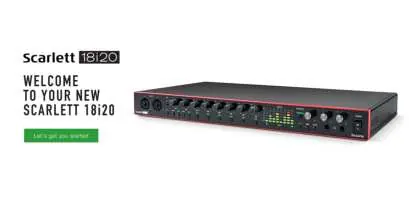
The Scarlett 18i20 3rd Gen is a professional audio interface with 18 inputs and 20 outputs. To get started, connect the device to your computer using the provided USB cable. The interface will initially appear as a Mass Storage Device (Easy Start mode). Follow the on-screen instructions to register your product and download the Focusrite Control software, which is required to unlock full functionality, including sample rates up to 192 kHz and MIDI I/O.
Hardware Features
The front panel features two combo inputs for microphones, instruments, or line-level signals, with dedicated gain controls, 48V phantom power, and AIR mode. Eight additional inputs are located on the rear panel. Monitoring controls include main monitor level, DIM, MUTE, talkback, and two headphone outputs. The rear panel houses line outputs, ADAT optical I/O, S/PDIF I/O, word clock output, and MIDI ports.
Installation and Setup
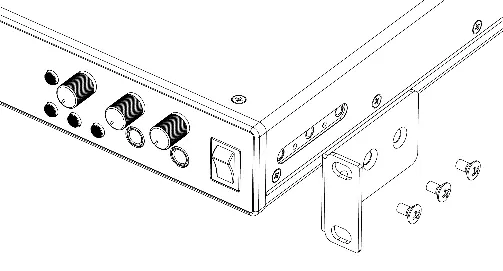
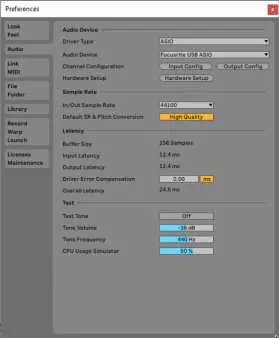
The device can be rack-mounted in a standard 19-inch rack by attaching the supplied rack ears. For Windows users, installing Focusrite Control also installs the necessary ASIO driver. Mac users do not require a driver. Ensure your DAW is configured to use the Scarlett 18i20 as the primary audio device in its preferences.
Focusrite Control
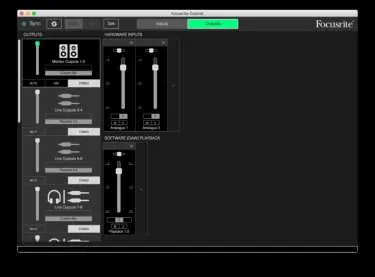
Focusrite Control is the central software for routing audio signals, setting up monitor mixes, and controlling hardware settings like sample rate and synchronization. It allows for flexible routing of inputs to outputs and provides zero-latency monitoring options.
Usage Examples
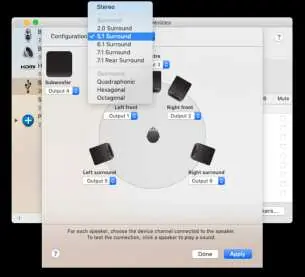
The interface supports various configurations, including recording a band, low-latency monitoring, connecting multiple sets of loudspeakers using the ALT function, and working with surround sound. It can also function as a stand-alone mixer or preamp once configured via software.
Troubleshooting
If you encounter issues, visit the official support portal at support.focusrite.com for a comprehensive collection of technical support queries and solutions.
Official resources from the manual
Manufacturer information
Focusrite
Practical help
Common problems
Audio glitching or high CPU load in DAW
Increase the buffer size in your DAW's Audio Preferences.
Musicians hear themselves with an echo
Ensure your DAW is not routing inputs to outputs while using Direct Monitoring.
Interface stuck in Easy Start mode (limited functionality)
Install Focusrite Control or hold the 1-4 48V button for five seconds to force it out of Easy Start mode.
Audio feedback loop
Turn off or turn down monitoring loudspeakers while recording with a microphone.
Before use
- Connect the device to a USB 2.0+ compliant port.
- Register the product at the Focusrite website.
- Download and install the Focusrite Control software.
- Select Scarlett 18i20 as the default audio device in your DAW.
- Ensure all connected speakers are powered on after the interface.
Specs in practice
- Sample Rates
- Supports 44.1, 48, 88.2, 96, 176.4, and 192 kHz.
- Dynamic Range (Mic Inputs)
- 111 dB (A-weighted) for high-quality recording.
- Input Impedance (Instrument)
- 1.5 MΩ, optimized for direct connection of instruments like guitars.
Images and diagrams
- Front panel: Gain controls, 48V phantom power, AIR, PAD, and monitoring controls.
- Rear panel: Mic/Line inputs 3-8, line outputs, ADAT, S/PDIF, Word Clock, and MIDI.
- Rack mounting: Remove rubber inserts and attach rack ears with M4 screws.
Model compatibility
- Compatible with macOS and Windows.
- Requires USB 2.0 or higher port.
- ADAT optical ports support Dual ADAT (S/MUX II) for 8 channels at 88.2/96 kHz.

Manual page author
David Miller
Documentation analyst
Organizes user manual content into clear summaries, with attention to model details, product context, and everyday usability.