Gigabit Ethernet to SC Fiber Media Converter - 1000Base-LX - Single Mode - 10 km
A comprehensive guide for the Gigabit Ethernet to SC Fiber Media Converter, covering installation, LED status indicators, and Link Fault Pass-through (LFP) configuration.
Table of contents
Product Overview
The Gigabit Ethernet to SC Fiber Media Converter is a high-performance networking device designed to bridge copper-based Ethernet networks with fiber optic infrastructure. It supports 10/100/1000 Mbps speeds, allowing for seamless integration into existing Gigabit networks. The device utilizes a single-mode SC fiber connection, providing reliable data transmission over distances up to 10 km.
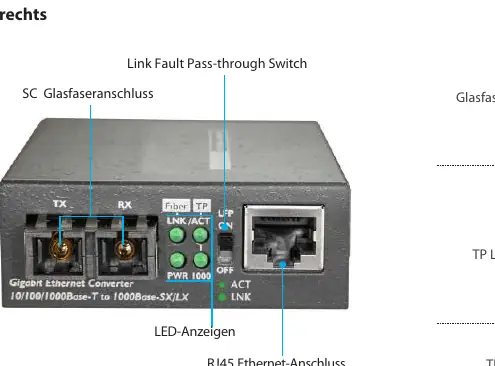
Installation Guide
To install the media converter, follow these steps to ensure proper connectivity:
- Power off the networking equipment you intend to connect.
- Connect your fiber optic cable to the SC fiber port on the converter. Ensure that the TX and RX cables are swapped between the device and the converter to maintain proper signal flow.
- Connect an Ethernet cable from your network device to the RJ45 port on the converter.
- Connect the provided universal power adapter to the converter and plug it into a wall outlet. Verify that the PWR LED illuminates.
- Power on your connected networking equipment and check that the FX and TP-Link LEDs are active, indicating a successful link.
Understanding LED Indicators
The device features several LEDs to help monitor network status:
- PWR: Indicates power status. A solid green light means the device is receiving power.
- Fiber LNK/ACT: Indicates the status of the fiber connection. A solid green light confirms a link, while a blinking light indicates data transmission.
- TP LNK/ACT: Indicates the status of the Ethernet connection. A solid green light confirms a link, while a blinking light indicates data transmission.
- TP 1000: Indicates the speed of the Ethernet connection. A solid green light signifies 1000 Mbps, while no light indicates 10/100 Mbps.
Link Fault Pass-through (LFP)
The media converter includes an LFP feature, which is enabled by default. This function allows the converter to monitor link status on both the fiber and copper sides. If a link failure occurs on one side, the converter will drop the link on the other side, alerting network administrators to the fault. To disable this feature, disconnect the power, set the LFP switch to the OFF position, and reconnect the power.
Triple Speed Support
The RJ45 port supports auto-negotiation for 10/100/1000 BASE-T connections. The converter automatically detects the speed of the connected device and adjusts its performance accordingly, ensuring optimal compatibility with various network hardware.
Practical help
Common problems
Ensure the TX and RX cables are swapped between the device and the converter.
Disconnect power, move the LFP switch to OFF, and reconnect power.
Before use
- Verify power source compatibility
- Ensure correct fiber optic cable type (Single Mode)
- Confirm network device is powered off before connection
- Check that TX/RX cables are correctly oriented
Specs in practice
- Auto-negotiation
- Automatic detection of connected device speed (10/100/1000 Mbps).
Images and diagrams
- The right view shows the SC fiber port, RJ45 port, and LED indicators.
- The left view shows the power adapter input port.
- The LFP switch is located on the side of the unit.
Model compatibility
- Compatible with 10/100/1000 Mbps Ethernet networks.
- Requires Single Mode fiber optic cabling.

Manual page author
David Miller
Documentation analyst
Organizes user manual content into clear summaries, with attention to model details, product context, and everyday usability.