Idinio WiFi Smart Plug 10A with Power Meter User Guide
Comprehensive setup, operation, and safety guide for the Idinio 10A WiFi Smart Plug with integrated power monitoring capabilities.
Table of contents
Product Overview
The Idinio WiFi Smart Plug 10A is a versatile smart home device designed to provide remote control and energy monitoring for your electrical appliances. By connecting the plug to your home WiFi network, you can manage your devices directly from your smartphone using the Idinio Smart app. This device is specifically engineered for indoor use and features a built-in power meter to help you track energy consumption effectively.
Installation and Setup
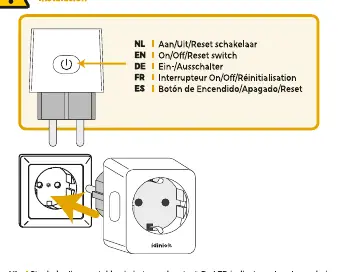
To begin using your smart plug, ensure your smartphone or tablet is connected to a 2.4GHz WiFi network, as the device does not support 5GHz networks. Download the Idinio Smart app from the Apple App Store or Google Play Store and create an account. Plug the smart plug into a wall outlet; the LED indicator should start blinking rapidly. If it does not blink, press and hold the power button for approximately 5 seconds to reset the device into pairing mode.
Within the app, select the option to add a new device and choose 'Electrical Accessories' followed by 'Power View 2'. Confirm that the LED indicator is blinking rapidly and enter your 2.4GHz WiFi credentials. The app will automatically connect to the plug. Once the process is complete, you can rename your device and begin managing your connected appliances.
Operation and Features
The Idinio Smart app allows you to toggle the power state of the connected device remotely. The 'Power View 2' interface provides access to all settings, including power monitoring data. If the device fails to connect automatically, you may use the 'AP Mode' (Access Point Mode) found in the app settings. This mode creates a temporary hotspot that allows your phone to communicate directly with the plug to finalize the network configuration.
Safety and Maintenance
For your safety, never stack multiple smart plugs together or plug them into extension cords in a way that exceeds the maximum load capacity. The device is intended for indoor use only. Keep the plug out of reach of children and pets. When cleaning, ensure the device is unplugged from the power source. Use only a soft, dry, or slightly damp microfiber cloth. Do not use chemical solvents or abrasive cleaning agents, as these can damage the casing. If the device appears damaged, do not attempt to repair it yourself; contact support for assistance. Always ensure the device is used in a well-ventilated area to prevent overheating.
Disposal
When the device reaches the end of its service life, do not dispose of it with regular household waste. It should be recycled in accordance with local environmental regulations to minimize the impact on the environment and human health.
Manufacturer information
Idinio
Practical help
Common problems
Press and hold the power button for 5 seconds to reset the device.
Ensure your phone is on a 2.4GHz network and try using AP Mode in the app.
Before use
- Ensure your WiFi network is 2.4GHz (5GHz is not supported)
- Download the Idinio Smart app
- Create an account in the app
- Ensure the device is within range of your router
- Check that the wall outlet is functional
Images and diagrams
- The power button serves as both the manual switch and the reset button.
- The LED indicator provides visual feedback on the connection status.
- AP Mode is an alternative connection method for troubleshooting network issues.
Model compatibility
- Compatible with iOS and Android devices via the Idinio Smart app.
- Designed for indoor use only.
- Do not stack multiple plugs in one outlet.

Manual page author
David Miller
Documentation analyst
Organizes user manual content into clear summaries, with attention to model details, product context, and everyday usability.