Inateck Pro 170B Barcode Scanner
User guide for the Inateck Pro 170B wireless barcode scanner, covering setup, connection modes, configuration, battery maintenance, and troubleshooting.
Table of contents
Product Overview
The Inateck Pro 170B is a high-performance wireless barcode scanner designed for efficiency and versatility. It features a durable build, multiple scanning modes, and flexible connectivity options including base station and Bluetooth. The package includes the scanner, a USB-A to USB-C data cable, and this user guide.
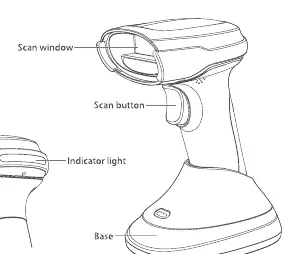
Quick Start and Connectivity
To power on the device, press the scan button briefly; a green light will flash and a beep will sound. To power off, hold the scan button for approximately 8 seconds until the indicator light turns off.
- Base Connection: Connect the base to your computer using the provided USB-C cable. The scanner will automatically pair with the base.
- Bluetooth Connection: Enable Bluetooth mode by scanning the specific 'Bluetooth HID' barcode. Search for 'inateck Pro170B-HID' on your host device to complete the pairing.
- Wired Connection: Simply connect the scanner to your computer via the USB cable to transmit data directly.
Configuration and Settings
The scanner supports extensive customization via configuration barcodes provided in this guide:
- Language Settings: Configure the scanner to match your device's keyboard layout (e.g., US English, German, French, etc.).
- Scan Modes: Switch between Trigger Mode, Consecutive Scanning Mode, and Auto-sensing Mode.
- Data Formatting: Add prefixes or suffixes (such as CR, LF, or Tab) and hide specific characters at the beginning or end of scanned barcodes.
- Inventory Mode: Store scanned barcodes in the scanner's internal memory and upload them in batches to your computer.
- Volume Control: Adjust the scanner's feedback volume to suit your environment.
Battery and Maintenance
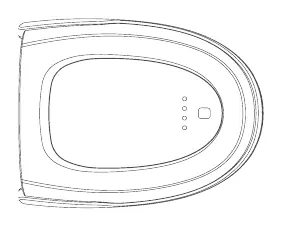
The device is powered by a built-in rechargeable lithium battery. The status indicator on the top cover displays the current charge level (4 lights: 75-100%, 3 lights: 50-75%, 2 lights: 25-50%, 1 light: 1-25%). To replace the battery, power off the device, unscrew the battery cover, and follow the installation steps provided in the manual. Always use manufacturer-supplied battery modules.
Troubleshooting and Safety
If the scanner fails to power on, ensure the battery is correctly installed and sufficiently charged. If barcodes are not recognized, verify that the correct barcode type is enabled or adjust the scanning distance. For Bluetooth issues, ensure the host device is within range and there is no strong electromagnetic interference. Clean the scanning window regularly with a lint-free cloth and avoid using solvents.

Manual page author
David Miller
Documentation analyst
Organizes user manual content into clear summaries, with attention to model details, product context, and everyday usability.