Jabra Evolve 20/20SE Headset User Guide
Quick start guide for the Jabra Evolve 20/20SE headset. Learn how to connect your device, adjust the fit, position the microphone, and use the call control unit for volume, mute, and call management.
Quick answers from the manual
Quick answer
- The Jabra Evolve 20/20SE is a wired headset. Connect via USB to your computer, adjust the headband, and position the microphone 12 mm from your mouth. Use the inline controller for volume, mute, and call management. p. 1, 2
Key actions
- Adjust microphone position p. 1
- Use call control unit p. 2
First start
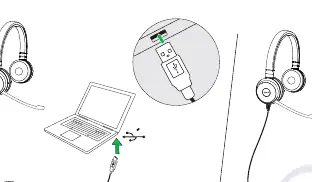
- Connect USB cable to computer p. 1
Show 2 more answers Show less
Problems and fixes
USB-C connection is optimized for computers; mobile/tablet performance may be reduced.
p. 1Where to find it in the PDF
- Connection and Wearing p. 1
- Call Control Unit p. 2
Table of contents
Manual images
Click an image to enlargeQuick Start Guide
The Jabra Evolve 20/20SE is a wired headset designed for computer use. Follow these steps to set up and use your device.
Connecting the Headset
Connect the USB cable directly to your computer. Note that the USB-C connection is optimized for computers; using it with a mobile phone or tablet may result in reduced performance.
Wearing the Headset
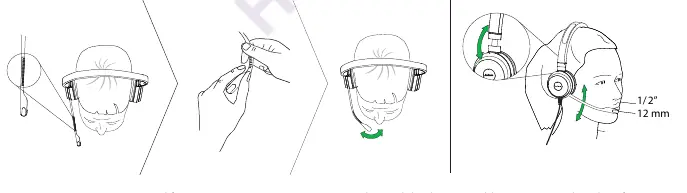
- Headband Adjustment: Adjust the headband for a comfortable and secure fit.
- Microphone Positioning: For optimal audio quality, position the microphone boom arm approximately 12 mm (1/2 inch) from your mouth.
Call Control Unit
The inline control unit allows you to manage audio and calls directly from the cable.
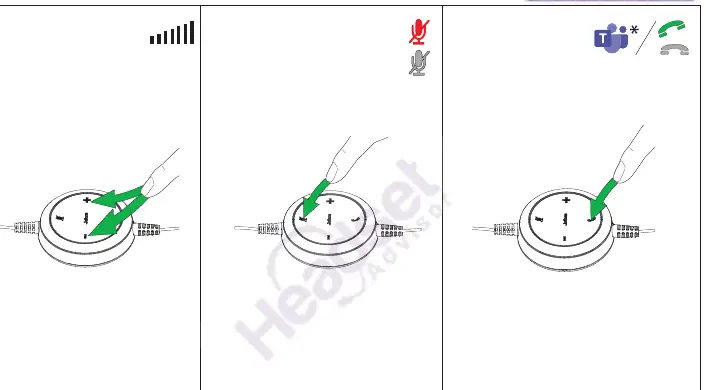
- Volume Control: Use the + and - buttons to adjust the volume.
- Mute: Press the microphone icon button to mute or unmute the microphone.
- Call Management: Use the phone icon button to answer or end calls.
- Microsoft Teams: The Teams button (T icon) is only functional on the specific Microsoft Teams headset variant.
Practical help
Common problems
The headset is optimized for computers via USB-C. Performance may be limited when connected to mobile devices.
Before use
- Connect the USB cable to your computer
- Adjust the headband for a comfortable fit
- Position the microphone 12 mm (1/2 inch) from your mouth

Manual page author
Emily Carter
User documentation editor