User Manual for LD-LINK 1200M Dual Band Gigabit Wireless Router
Quick guide for the LD-LINK 1200M Dual Band Gigabit Wireless Router. Learn how to set up the device in Router, Repeater, or AP mode, configure network settings, and understand LED indicators.
Table of contents
Quick guide from the manual
This document provides essential instructions for setting up and operating the LD-LINK 1200M Dual Band Gigabit Wireless Router. The device supports multiple operating modes, including Router, Repeater, and Access Point (AP). Configuration is performed via a web browser at 192.168.11.1.
Product Overview
The router features four external antennas for improved signal coverage. It includes a WAN/LAN port and a WPS button. Ensure the device is powered on before attempting configuration.
LED Indicators
The LED lights provide status information:
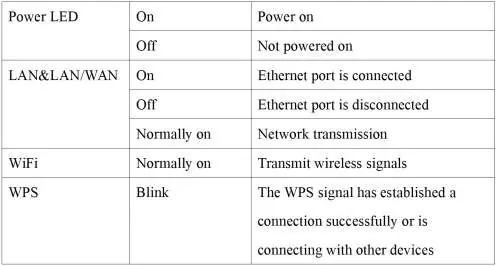
- Power LED: On indicates power is on; Off indicates no power.
- LAN & LAN/WAN: On indicates an Ethernet connection; Off indicates no connection; Normally on indicates network transmission.
- WiFi: Normally on indicates the device is transmitting wireless signals.
- WPS: Blinking indicates the WPS signal is establishing a connection or connecting with other devices.
Operating Modes
The router can be configured in three primary modes:
- Router Mode: Connect the WAN/LAN cable to the router. Access the web interface at 192.168.11.1 to configure settings.
- Repeater Mode: Place the router at the edge of the existing WiFi signal. Use the web interface to scan for and connect to the source network.
- AP Mode: Connect the router via cable to the network and switch to AP mode to extend wireless coverage.
Configuration
To configure the router:
- Connect your computer to the router via WiFi or Ethernet.
- Open a web browser and enter 192.168.11.1.
- Follow the on-screen instructions to select the desired mode and set up your network name (SSID) and password.
Troubleshooting
If you cannot access the configuration page:
- Ensure your computer is connected to the router.
- Check your computer's IP settings and ensure it is set to obtain an IP address automatically.
- If issues persist, perform a factory reset by holding the reset button for 6-8 seconds.
Practical help
Common problems
Ensure your computer is connected to the router. Check your network adapter settings to ensure it is set to 'Obtain an IP address automatically'. If the issue persists, reset the router to factory settings.
Ensure the router is placed within range of the source WiFi signal. Verify that the correct password for the source network is entered during setup.
Before use
- Ensure the device is powered on.
- Connect the Ethernet cable to the WAN/LAN port if using Router or AP mode.
- Verify your computer or mobile device is connected to the router's WiFi or LAN port.
- Have your source network's WiFi password ready if configuring Repeater mode.
Images and diagrams
- The LED table clarifies the status of the Power, LAN/WAN, WiFi, and WPS indicators.
- Connection diagrams illustrate the physical setup for Router, Repeater, and AP modes.
Model compatibility
- Compatible with standard web browsers for configuration.
- Requires a device with WiFi or Ethernet capability for initial setup.

Manual page author
David Miller
Documentation analyst
Organizes user manual content into clear summaries, with attention to model details, product context, and everyday usability.