LG 22MK400H Monitor User Guide
Quick guide for the LG 22MK400H monitor, covering OSD menu navigation, button controls, and available picture mode settings.
Quick answers from the manual
Quick answer
- The LG 22MK400H monitor uses a single joystick button to navigate the OSD menu. Pressing the button opens the menu, while moving it left, right, up, or down allows you to adjust volume, change inputs, and select picture modes. p. 1
Key actions
- Turn off the monitor p. 1
- Access the main menu p. 1
Problems and fixes
Volume adjustment not working
Ensure the monitor is connected via HDMI, as volume control is for HDMI only.
p. 1Show 2 more answers Show less
Technical specifications
| Parameter | Value | Meaning | Pages |
|---|---|---|---|
| Picture Modes | Custom, Reader, Photo, Cinema, Color Weakness, Game | Display optimization presets for different content types. | p. 1 |
Where to find it in the PDF
- OSD Menu and Controls p. 1
Table of contents
Manual images
Click an image to enlargeQuick guide to LG 22MK400H OSD controls
This guide explains how to operate the On-Screen Display (OSD) menu and configure picture settings for the LG 22MK400H monitor.
OSD Menu Controls
The monitor is controlled via a single button/joystick. Its function changes based on whether the main menu is enabled or disabled:
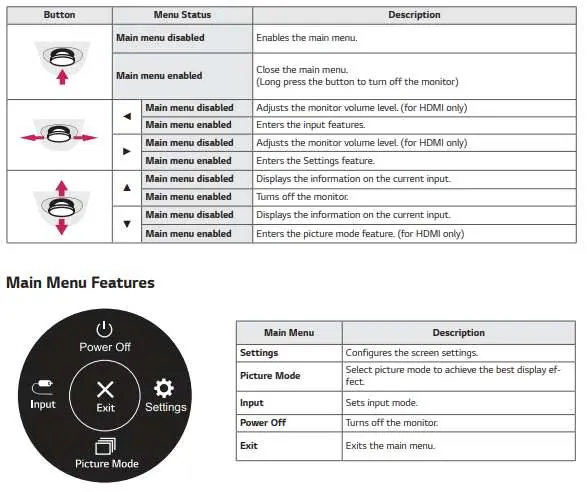
- Press: Enables the main menu. When the menu is enabled, it closes the menu. Long press to turn off the monitor.
- Left/Right: Adjusts volume (HDMI only) or enters input/settings features.
- Up/Down: Displays input info, turns off the monitor, or enters picture mode (HDMI only).
Main Menu Features
The main menu allows you to configure the following:
- Settings: Configure screen settings.
- Picture Mode: Select display effects.
- Input: Set input mode.
- Power Off: Turn off the monitor.
- Exit: Close the menu.
Picture Modes
You can optimize the screen for different tasks:
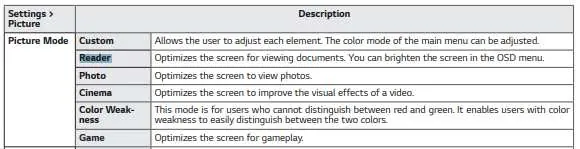
- Custom: Adjust each element manually.
- Reader: Optimized for viewing documents.
- Photo: Optimized for viewing photos.
- Cinema: Optimized for video visual effects.
- Color Weakness: Helps users distinguish between red and green.
- Game: Optimized for gameplay.
Manufacturer information
LG Electronics
Practical help
Common problems
Monitor will not turn off
Long press the OSD button to power off the monitor.
Cannot adjust volume
Volume adjustment is only available when using an HDMI connection.
Before use
- Ensure the monitor is connected via HDMI to access all features like volume control and picture modes.
- Familiarize yourself with the single-button joystick control.
- Use the OSD menu to select the appropriate Picture Mode for your current task.

Manual page author
Emily Carter
User documentation editor