Electronics / Cameras
Meari Speed 12S Smart Camera User Guide
Quick guide for the Meari Speed 12S smart camera, covering installation, device setup, app connection, and troubleshooting.
Table of contents
Manual images
Jump to the sectionQuick guide from the manual
This document provides essential instructions for setting up and operating the Meari Speed 12S smart camera. Key procedures include physical installation, connecting the device to the CloudEdge app, and understanding status light indicators for troubleshooting.
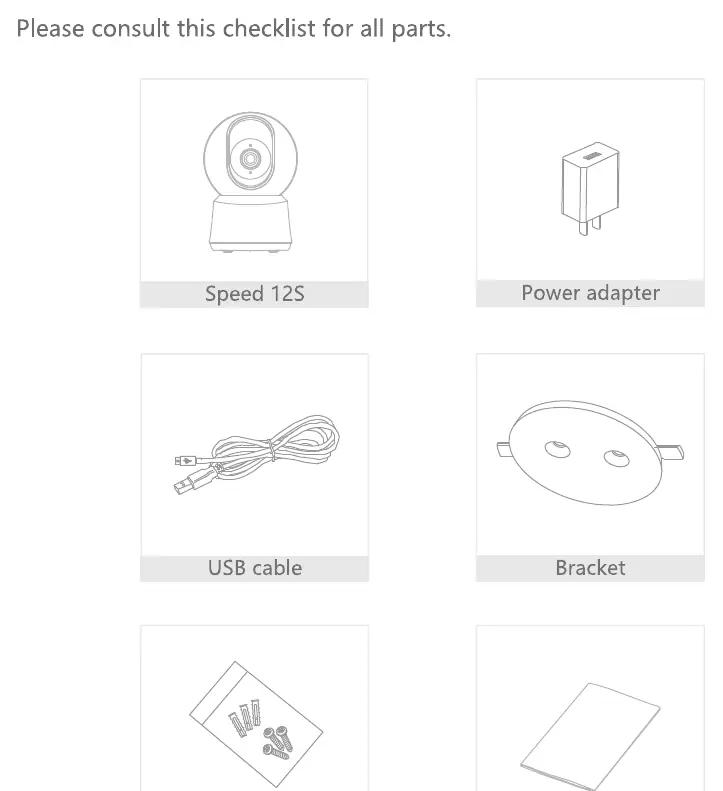
What's in the box
- Speed 12S camera
- Power adapter
- USB cable
- Mounting bracket
- Screws
- Manual
Description
The camera features a status light, microphone, speaker, SD card slot, reset button, and Micro USB port. The status light indicates the device state: solid red (starting/malfunction), blinking red (awaiting WiFi), solid blue (running correctly), and blinking blue (connecting).
Installation
The camera can be installed in two ways: 1. Use the included mounting bracket to fix the camera to a clean surface. 2. Place the camera on a flat surface.
Connection
Download the CloudEdge app from the App Store or Google Play. Log in, select Add Device, and follow the on-screen instructions. Keep the camera close to the router during configuration. If you need to re-select the WiFi network, press and hold the RESET button for 5 seconds to restart the device.
Functions
- Pan/Tilt: Rotate the camera via the smartphone app for 360-degree vision.
- Video flip: Flip the video stream up or down.
- Motion detection: Built-in sensors detect movement and send push notifications.
- Record: Supports 24H continuous recording via SD card (up to 128G) or Cloud storage.
- Day & Night: Features night-vision technology for visibility in darkness.
Manufacturer information
Hangzhou Meari Technology Co., Ltd.
Practical help
Common problems
Device cannot be previewed properly
Check network status, move camera closer to the router, or reset the device.
Device still in list after resetting
Resetting only clears network configuration; you must manually delete the device from the app.
SD card not identified
Insert SD card after power cut, ensure it is formatted as FAT32, and ensure a stable internet connection.
No notifications on phone
Ensure the app is running, reminder functions are enabled, and system notification permissions are granted.
Before use
- Ensure the SD card is formatted to FAT32 (max 128GB).
- Keep the camera close to the router during initial setup.
- Verify that the CloudEdge app has notification permissions enabled on your phone.
- Ensure the power supply is DC 5V/1A.
Images and diagrams
- The status light provides visual feedback on the connection and operational state of the camera.
- The reset button is located near the Micro USB port on the back of the device.
Model compatibility
- CloudEdge app is compatible with both iOS and Android operating systems.

Manual page author
Michael Turner
Technical manual editor
Reviews PDF manuals for structure, safety notes, and practical product details so readers can find the right information quickly.