User Manual for MEE audio CAM-202L 1080p USB Camera
Quick guide for the MEE audio CAM-202L 1080p USB Camera. Learn how to mount, connect, use the built-in LED ring light, and configure settings for video conferencing.
Table of contents
Manual images
Click an image to enlargeQuick guide from the manual
The MEE audio CAM-202L is a plug-and-play device, meaning it does not require additional software drivers to function. To get started, mount the camera, connect it to your computer's USB port, and select it as the default device in your video conferencing or recording application.
Mounting the camera
The camera features a flexible base designed for various setups:
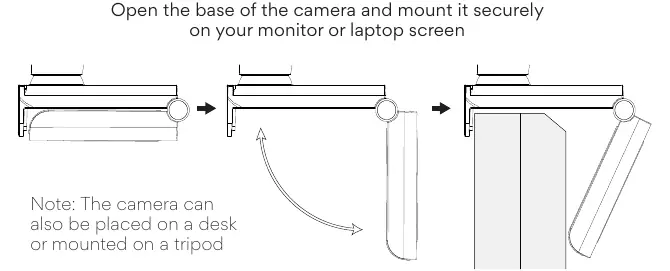
- Monitor/Laptop: Open the base of the camera and mount it securely on the top edge of your screen.
- Desk/Tripod: The camera can also be placed on a flat desk surface or mounted on a standard tripod.
Connecting the camera
Connect the integrated USB cable directly to an available USB port on your computer. If the computer does not automatically recognize the camera, try plugging it into a different USB port or restart your computer.
Using the built-in LED ring light
The camera includes an integrated LED ring light to improve video quality. To operate it:
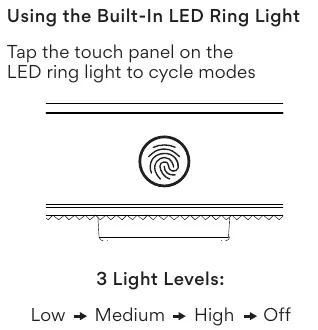
- Tap the touch panel located on the LED ring light housing to cycle through the modes.
- The light cycles through 3 levels: Low, Medium, High, and Off.
Software setup
Once connected, you may need to select the camera in your video application settings:
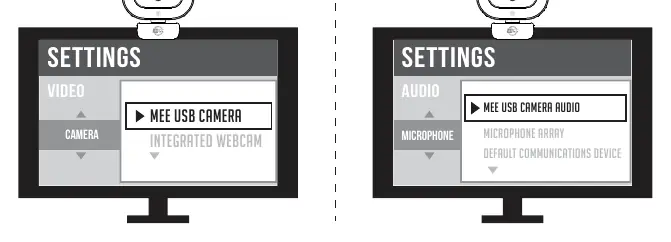
- Video: Select MEE USB CAMERA as your video device.
- Audio: To use the integrated microphone, select MEE USB CAMERA AUDIO as your microphone input device.
Safety and care
- Avoid touching the camera lens with fingers, sharp objects, or coarse materials.
- Clean the camera only with a clean, soft cloth. Do not use chemical cleaners.
- Avoid dropping the camera, as impact may damage internal components or scratch the lens.
- Do not expose the unit to rain or moisture. If it comes into contact with liquids, wipe it away immediately and ensure it is completely dry before turning it on.
- There are no user-serviceable parts inside. Disassembling the device will void the warranty.
Practical help
Common problems
Try plugging the USB cable into a different USB port on your computer. If the issue persists, restart your computer.
Ensure that 'MEE USB CAMERA AUDIO' is selected as the default microphone/input device in your video recording or teleconferencing application settings.
Before use
- Ensure the camera base is opened and mounted securely on your monitor or laptop screen.
- Verify the USB cable is firmly connected to the computer.
- Check your video conferencing software settings to select the correct camera and microphone.
- Ensure the lens is clean and free of smudges.
Specs in practice
- LED Ring Light
- Built-in illumination with 3 adjustable brightness levels to enhance lighting on the user's face.
Images and diagrams
- The base of the camera is hinged to allow it to clamp onto thin laptop screens or thicker desktop monitors.
- The touch-sensitive control for the LED light is located on the front ring housing.
Model compatibility
- Plug-and-play device; no additional software or drivers required.
- Compatible with standard video recording and teleconferencing applications.

Manual page author
Michael Turner
Technical manual editor
Reviews PDF manuals for structure, safety notes, and practical product details so readers can find the right information quickly.