User Manual for myPhone FUN 9 Smartphone
Quick start guide and user manual for the myPhone FUN 9 smartphone. Learn about device setup, touch screen gestures, communication features, maintenance, and safety instructions.
Table of contents
Manual images
Click an image to enlargeQuick guide from the manual
This guide provides essential information for operating your myPhone FUN 9 smartphone. Before using the device, ensure you have read the safety instructions, particularly regarding battery handling, water exposure, and emergency calls. The device runs on the Android 11 GO operating system.
Device overview
The myPhone FUN 9 features a 5.45-inch touchscreen. Key components include:
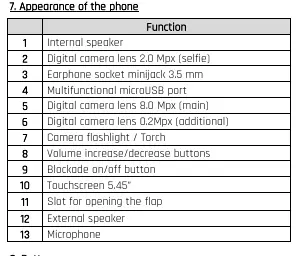
- Front: Internal speaker, selfie camera lens (2.0 Mpx), and touchscreen.
- Back: Main camera lens (8.0 Mpx), additional camera lens (0.2 Mpx), camera flashlight/torch, and external speaker.
- Sides/Ports: Volume buttons, power/blockade button, earphone socket (3.5 mm), and microUSB port.
Buttons and navigation
The device uses both physical and virtual buttons:
- Power/Blockade button: Short press to lock/unlock the screen. Long press (approx. 2 seconds) to turn the device on/off or reboot.
- Volume buttons: Adjust audio volume during calls or media playback.
- Virtual buttons: Menu (view open apps), Home (return to main screen, long press for Google Assistant), and Back (return to previous screen).
Using the touch screen
The smartphone supports various gestures for navigation:
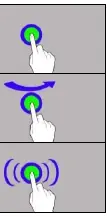
- Touch: Single tap to select an option, app, or menu.
- Swipe: Quickly move up, down, left, or right to scroll lists or screens.
- Triple click: Rapidly tap three times to zoom (if enabled in settings).
- Hold and swipe: Touch and hold an icon for 1 second to move or uninstall it.
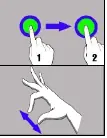
- Slide in and out: Use two fingers to pinch or spread to zoom in/out on photos or maps.
Communication
To make a call, tap the [Phone] icon, select the keyboard icon, enter the number, and press the handset icon. To send an SMS, use the [Messages] application. You can add multimedia content (stickers, photos, videos, audio, location) by pressing the '+' symbol in the message window.
Maintenance and disposal
Clean the device only with a dry cloth; avoid acidic or alkaline cleaning agents. Use only original accessories. Dispose of the device and battery according to local regulations regarding WEEE (Waste Electrical and Electronic Equipment) and battery recycling directives. Do not dispose of these items with household waste.
Technical specifications
Key specifications include:
- Display: 5.45", IPS, 960 x 480 px
- Processor: Quad-core 1.4 GHz
- Memory: 2 GB RAM, 16 GB internal storage (expandable via microSD up to 128 GB)
- Cameras: 8.0 + 0.3 Mpx rear, 2.0 Mpx front
- Battery: 2800 mAh
- Connectivity: Wi-Fi 802.11 b/g/n, Bluetooth 4.2, GPS, LTE (4G)
Practical help
Common problems
Ensure the battery is charged. Hold the power button for approximately 2 seconds.
Ensure your hands are clean and dry. Check if a screen protector is interfering with touch sensitivity.
Emergency calls may not be possible in all areas. If in a remote area, seek an alternative method to contact emergency services.
Before use
- Check package contents: phone, charger (adapter + USB cable), battery, and manual.
- Ensure the battery is properly installed and charged.
- Insert your SIM card(s).
- Remove any protective film from the screen.
Images and diagrams
- The parts diagram identifies the location of the speakers, camera lenses, ports, and buttons.
- The touch screen section illustrates how to perform gestures like tapping, swiping, and pinching.
Model compatibility
- Uses nanoSIM cards.
- Supports microSD cards up to 128 GB.
- Operating system: Android 11 GO.

Manual page author
Michael Turner
Technical manual editor
Reviews PDF manuals for structure, safety notes, and practical product details so readers can find the right information quickly.