Industrial / Electrical
NOUS 16A Smart Zigbee WiFi Socket Owner’s Manual
Comprehensive guide for the NOUS 16A Smart Zigbee Socket, covering installation, Zigbee network pairing, app configuration, and integration with Amazon Alexa.
Table of contents
Product Overview
The NOUS A6Z is a smart Zigbee socket designed for remote control of electrical appliances via the Nous Smart Home application. It features an electromechanical relay for switching, energy monitoring capabilities, and a mechanical button for manual control and status indication. Please note that a Zigbee gateway or hub, such as the Nous E1 or E7, is required for operation.
Safety Precautions
- Operate only within specified temperature and humidity limits.
- Do not install near heat sources like radiators.
- Avoid mechanical shocks or drops.
- Clean only with a damp flannel cloth; do not use abrasive or chemical detergents.
- Do not exceed the maximum load capacity to prevent short circuits or electric shock.
- Do not disassemble the device; repairs must be performed by a certified service center.
- Ensure the plug is fully inserted into the outlet during use.
Controls and Indicators
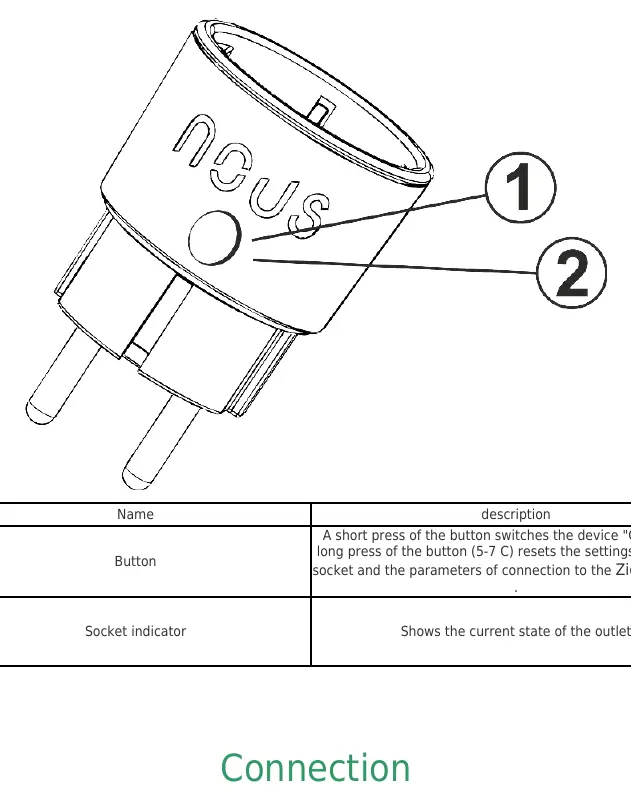
The device features a physical button and an LED indicator. A short press of the button toggles the socket ON or OFF. A long press (5-7 seconds) resets the device to factory settings and clears Zigbee network parameters.
Connection Procedure
To connect the socket, ensure your smartphone is connected to a 2.4 GHz Wi-Fi network, as Zigbee hubs do not support 5 GHz. Install the Nous Smart Home app, register an account, and grant necessary permissions. Power on the socket; if the indicator does not flash, perform a factory reset. Use the app to add a new device, select the A6Z socket from the list, and follow the on-screen instructions to pair it with your Zigbee hub.
Integration with Alexa
To control your device via Amazon Alexa, enable the NOUS Smart Home skill in the Alexa app. Sign in with your registered account credentials. Once linked, use voice commands such as Alexa, turn on [device name] or Alexa, turn off [device name]. Ensure the device name in Alexa matches the name set in the Nous Smart Home app.
Maintenance and Disposal
If the device is damaged during shipping, contact the seller for a replacement. To remove the device from your account and reset it to factory defaults, use the Delete device option in the app menu. Dispose of the product according to local electronic waste regulations.
Related manuals
Related manuals from the same brand or category.

Manual page author
Emily Carter
User documentation editor
Prepares concise manual descriptions and highlights the most useful setup, operation, and maintenance information for readers.