User Manual for Papalook AF925 1080P Webcam
Quick guide for the Papalook AF925 1080P Webcam. Includes setup, mounting instructions, software usage for Windows and Mac, and technical specifications.
Table of contents
Manual images
Click an image to enlargeQuick guide from the manual
The Papalook AF925 is a 1080P HD webcam designed for video calls, photo taking, and video recording. This guide provides essential setup and usage instructions for Windows and Mac systems.
System Requirements
- PC: IBM PC or compatible with USB port.
- Processor: Pentium 1G or higher (2.4GHz Intel Core 2 Duo recommended for 1080P recording).
- Memory: 256MB RAM (2GB recommended for 1080P).
- Storage: Over 500MB free hard-disc space (1GB recommended for 1080P).
- OS Compatibility: Windows XP/7/8/10, Mac OS 10.6 or later, Chrome OS, Android v5.0 or above.
Product Overview
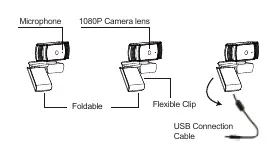
The camera features a built-in microphone, a 1080P lens, and a flexible, foldable clip for mounting. A standard tripod hole is located on the bottom of the unit.
Mounting and Connecting
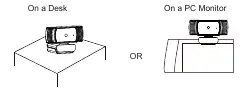
Mounting: You can place the camera on a flat desk surface or mount it on a computer monitor. To mount on a monitor, unfold the flexible clip and grip the edge of the screen.

Connection: Simply plug the USB cable into your computer's USB port. The device is plug-and-play.
Using the Camera
Windows XP/7/8
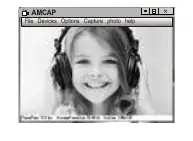
Download the AMCAP Webcam software from www.papalook.com. Connect the webcam and wait for the computer to recognize it before opening the software.
- If the window is blank: Click 'Options' and select 'Preview'. Ensure the webcam is selected under 'Device'.
- Settings: Use 'Video Capture Pin' under 'Options' to adjust video format and window size.
- Recording: Go to 'Capture' -> 'Start Capture'. You can set the save directory via 'File' -> 'Set Capture Directory'.
Windows 10
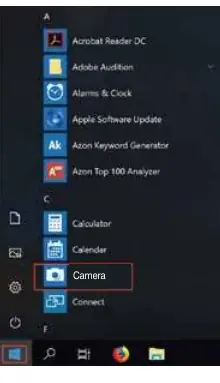
Connect the webcam and wait for recognition. Open the 'Camera' app from the Start menu. Use the on-screen buttons to switch between photo and video modes.
Mac
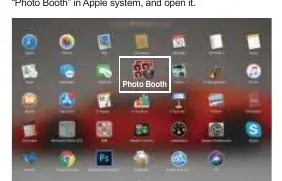
Connect the webcam and open 'Photo Booth'. Select the Papalook camera from the 'Camera' menu in the menu bar.
Microphone Settings
If you need to disable the microphone or adjust volume, access your computer's Sound settings via the Control Panel or Device Manager. Select the 'USB Audio Device' or 'USB Microphone' to adjust levels or disable the device.
Specifications
- Sensor: 1/2.7" CMOS Image Sensor 2.0MP
- Video Resolution: Up to 1920x1080 at 30fps
- Photo Resolution: 1920x1080 (JPG)
- Viewing Angle: Horizontal 65°
- Aperture: F/2.0
- Operating Temperature: 0°C - 45°C
Warranty and Support
The AF925 includes a 1-year manufacturer warranty. For support, visit www.papalook.com or contact customer service at (US) +1 (888) 588 1361 (Mon-Sat 9AM-5PM PT). You can also email [email protected].
Official resources from the manual
Practical help
Common problems
Click 'Options' and select 'Preview'. Ensure the webcam is selected under 'Device'.
Check Windows Device Manager or Sound settings to ensure the 'USB Audio Device' is enabled and volume is adjusted.
Before use
- Ensure you have a USB 2.0 port available.
- Check that your system meets the minimum requirements (Pentium 1G, 256MB RAM).
- For 1080P recording, ensure you have at least a 2.4GHz Intel Core 2 Duo processor and 2GB RAM.
- Download the AMCAP software from the official website if using Windows XP/7/8.
Specs in practice
- Viewing Angle 65°
- The horizontal field of view captured by the camera.
- Directivity Omni-directional
- The microphone picks up sound from all directions equally.
Images and diagrams
- The flexible clip is designed to fold and grip the edge of a monitor.
- The bottom of the camera features a standard hole for mounting on a universal tripod.
Model compatibility
- Compatible with Windows XP, 7, 8, 10.
- Compatible with Mac OS 10.6 or later.
- Compatible with Chrome OS and Android v5.0 or above.

Manual page author
David Miller
Documentation analyst
Organizes user manual content into clear summaries, with attention to model details, product context, and everyday usability.