Quick Start Guide for Philips 245E1S Monitor
Quick setup guide for the Philips 245E1S monitor. Includes instructions for connecting cables, navigating the OSD menu, and adjusting the monitor tilt.
Quick answers from the manual
Quick answer
- To set up the Philips 245E1S, connect the AC/DC power adapter and your preferred video cable (HDMI, VGA, or DisplayPort) to your computer. Use the buttons on the monitor to access the OSD menu for settings. p. 1
Key actions
- Connect power and video cables p. 1
- Adjust screen tilt p. 1
First start
- Connect the power adapter and the video cable (HDMI, VGA, or DP) to the monitor and your computer. p. 1
Show 1 more answers Show less
Where to find it in the PDF
- Quick Start Guide p. 1
Table of contents
Manual images
Click an image to enlargeQuick Start Guide for Philips 245E1S
This guide provides the essential steps to set up and begin using your Philips 245E1S monitor. For detailed support, visit the official Philips website.
Package Contents
Ensure your package includes the following items:
- Philips 245E1S Monitor
- AC/DC Power Adapter
- VGA Cable
- DisplayPort (DP) Cable
- HDMI Cable (Note: Included cables may vary by region)
Installation and Connections
Follow these steps to connect your monitor:
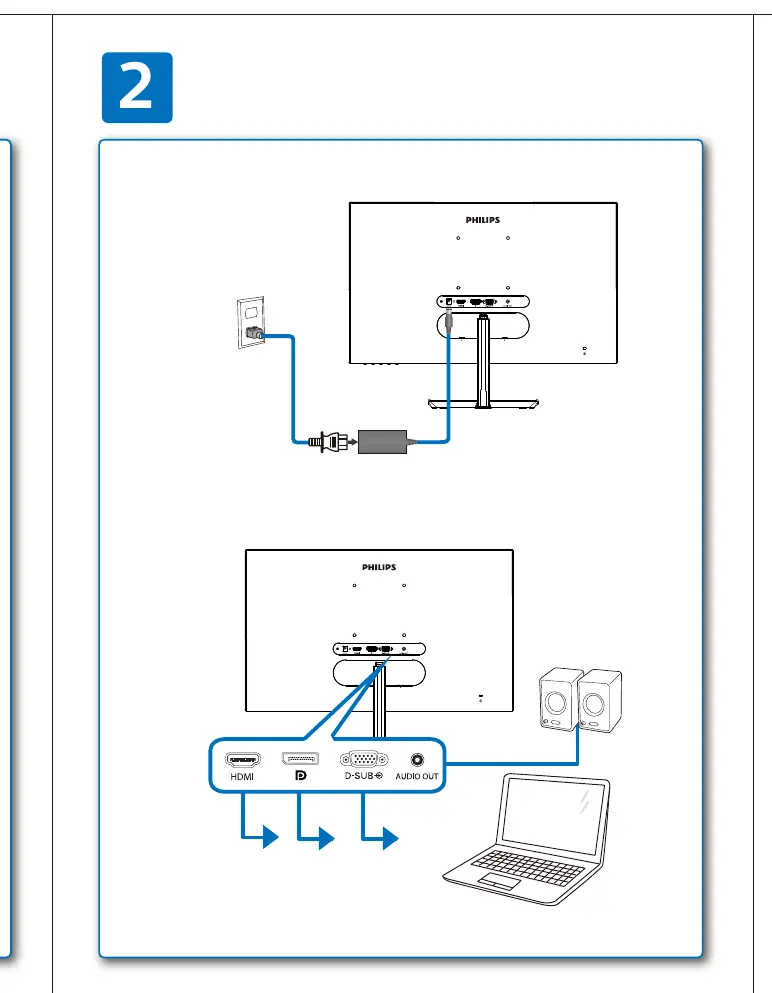
- Place the monitor on a stable surface.
- Connect the AC/DC power adapter to the monitor and plug it into a power outlet.
- Connect your video source (PC/Laptop) to the monitor using the appropriate cable: HDMI, VGA, or DisplayPort.
OSD Menu Navigation
The monitor features an On-Screen Display (OSD) menu for adjusting settings. Use the buttons located on the monitor to navigate:
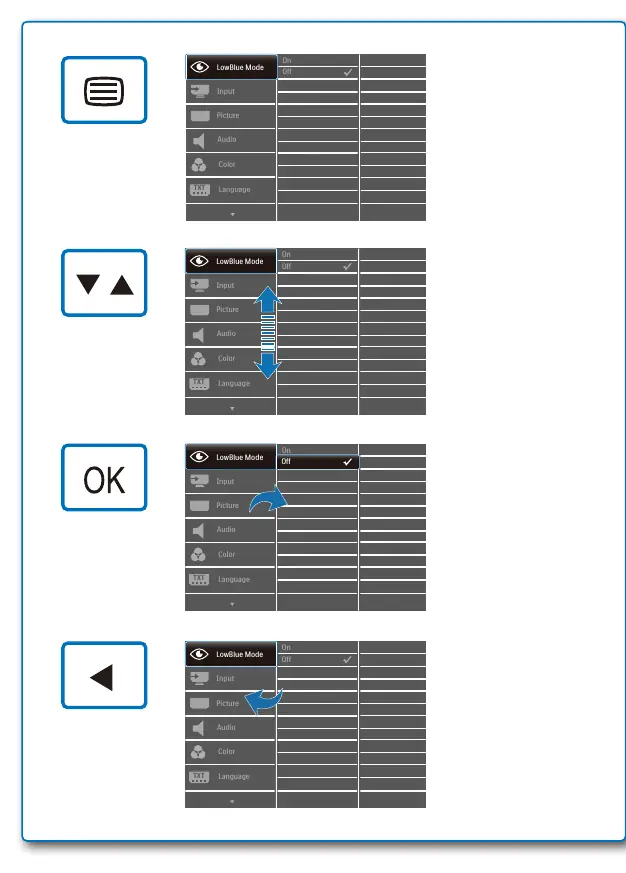
- Menu/OK: Access the main menu and confirm selections.
- Navigation: Use the arrow buttons to move through the menu options.
- Menu Options: Includes LowBlue Mode, Picture, Color, Language, Audio, Input, and TXT settings.
Tilt Adjustment
The monitor stand allows for ergonomic adjustment:
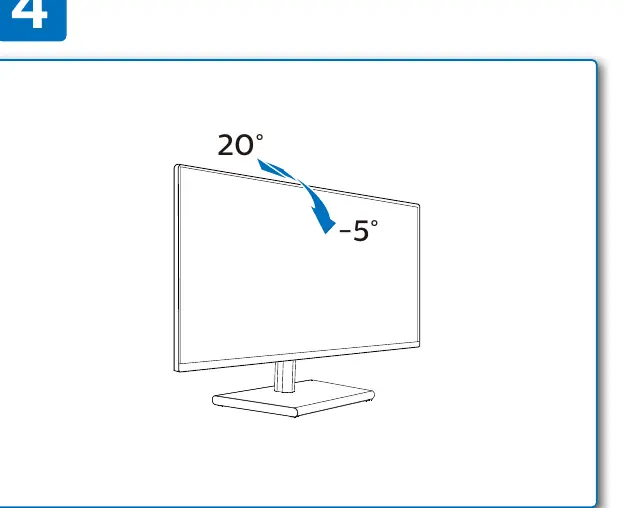
- Tilt Range: You can tilt the screen from -5° (downward) to 20° (upward) to achieve the desired viewing angle.
Manufacturer information
Philips
Practical help
Common problems
Ensure the power adapter is connected and the monitor is powered on. Verify that the video cable (HDMI, VGA, or DP) is securely connected to both the monitor and the computer.
Before use
- Verify all cables (Power, HDMI/VGA/DP) are included in the box.
- Place the monitor on a flat, stable surface.
- Connect the power adapter to the monitor.
- Connect the video cable to your computer.
- Power on the monitor using the control buttons.

Manual page author
Michael Turner
Technical manual editor