Health / Medical Software
Instructions for Use for Philips Vue PACS Version 12.2.8.x
Quick guide for Philips Vue PACS Version 12.2.8.x. Learn how to navigate the Vue Explorer, manage exams, orders, and patients, perform diagnostic tasks, and handle secure data sharing.
Table of contents
Manual images
Click an image to enlargeQuick guide from the manual
This guide provides essential information for the safe and effective operation of the Philips Vue PACS Version 12.2.8.x system. It covers system navigation, diagnostic workflows, data management, and security protocols. Users must be trained professionals, including radiologists, physicians, and PACS administrators.
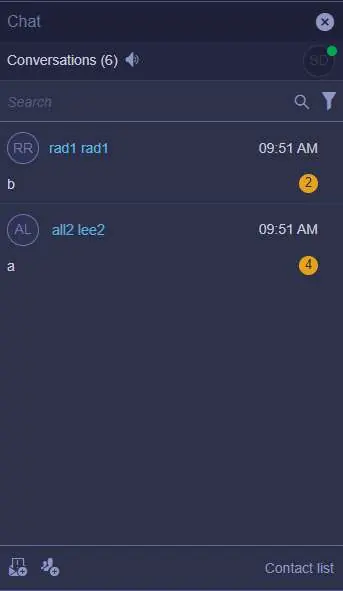
Safety and Security
The system requires a secure local network with protections such as firewalls, NIDS, and virus scanners. It is strongly recommended not to use the server or workstation for Internet browsing. Physical access to the system must be restricted. Users should implement strong passwords and utilize the automatic logoff/screen lock feature. In case of malware detection or unfamiliar behavior, contact a Philips Service Engineer immediately.
Vue Explorer Overview
Vue Explorer is the primary interface for managing your work. Key components include:
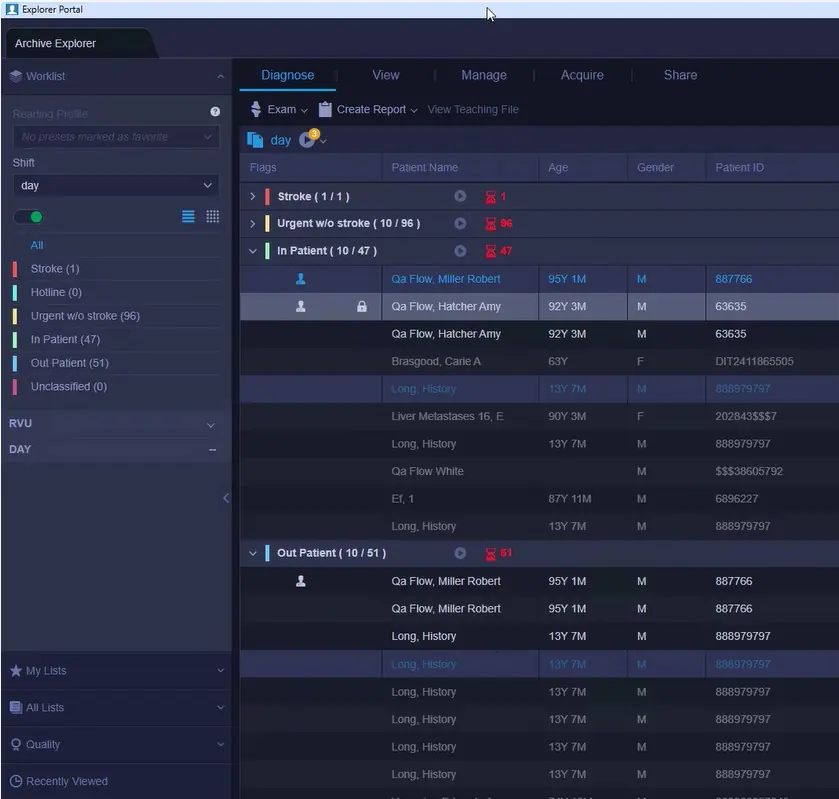
- Navigation pane: Access your Worklist, My Lists, All Lists, and search tools.
- Data Display pane: View exam lists in a grid format, which can be sorted, filtered, and exported as a CSV file.
- Patient Jacket: A tab that opens when an exam is loaded, providing patient and exam details.
Diagnostic Workflow
The system supports various diagnostic tasks:
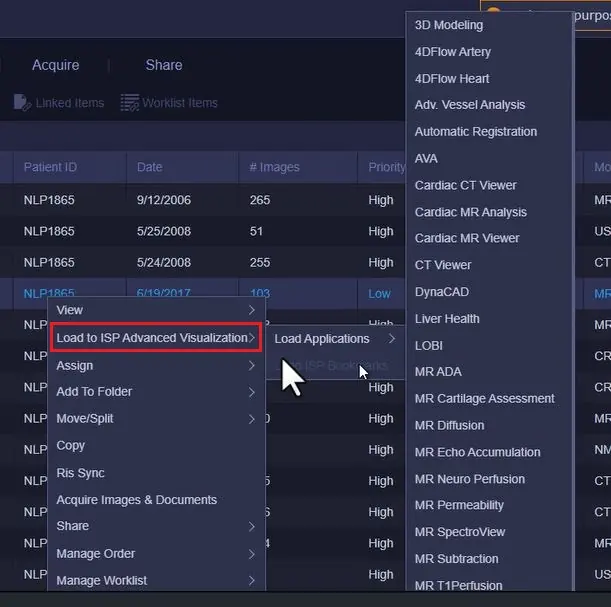
- Loading Exams: Use the Diagnose menu to load exams for dictation, viewing, or advanced visualization.
- Auto-Next: Automatically loads studies sequentially to save time.
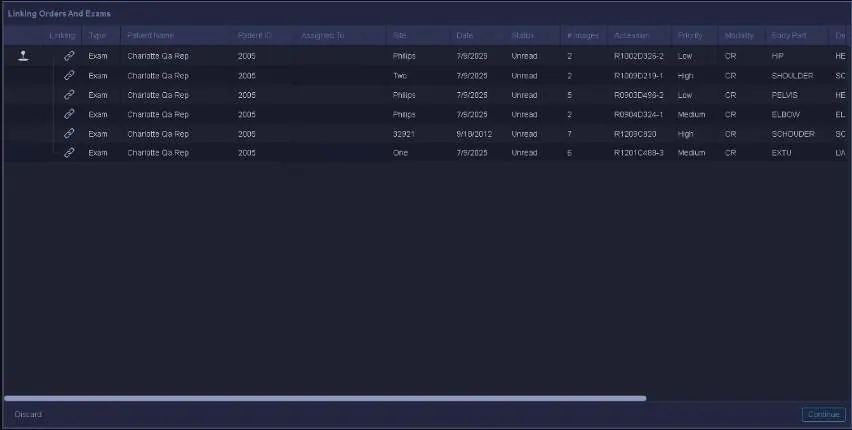
- Linking Exams and Orders: Allows you to link multiple studies or orders into a single report.
- Presenter View: Streamlines study presentations for multi-disciplinary team meetings.
Managing Data
Administrators and authorized users can perform the following management tasks:
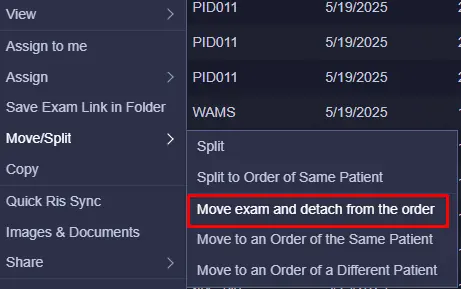

- Manage Exams: Update, copy, or delete exams from the repository.
- Manage Orders: Create, update, or unlock orders.
- Manage Patients: Update patient details, merge patient records, or link patients.
- Manage Folders: Create private or public folders to organize work items.
Acquisition and Sharing
The system allows for importing DICOM and non-DICOM content from CDs, local drives, or medical devices. You can also share exams with other users, burn exams to CD, or manage patient account access for referring physicians.
Manufacturer information
Philips
Practical help
Common problems
Images not available via PACS
If immediate viewing is required, refer to the modality itself. Follow Institute guiding principles if no onsite radiologist can access the modality.
Cannot load exam due to access restrictions
Enable the 'Break Glass' function if permitted by your site's privacy regulations. This action requires providing a reason and will be audited.
Malware detected or system performance degraded
Immediately call a Philips Service Engineer for an inspection. Do not attempt to fix it yourself.
RIS Sync discrepancy
If the system does not automatically resolve metadata discrepancies, use the RIS Sync function in the Manage Database menu.
Before use
- Ensure you have received adequate training on the system.
- Verify that hardware and network performance meet minimum requirements.
- Ensure monitors are properly configured and calibrated.
- Confirm the system is connected to a secure local network.
- Check that no unsupported software is installed on the system.
Specs in practice
- SLA (Service Level Agreement)
- The maximum amount of time allocated for reading an exam at a specific priority.
- RVU (Relative Value Unit)
- A metric used to quantify a radiologist's productivity based on assigned tasks.
- SUID (Study Instance UID)
- A unique identifier for an exam; changing this may break links to external archives.
Images and diagrams
- The Explorer Portal interface allows for efficient worklist management, showing sub-worklists by priority.
- The Linking Orders and Exams window enables the association of multiple studies for a single report.
- The Folder Settings dialog allows for the creation and configuration of private or public folders.
- The Sequential Reading window helps manage multiple unread exams for the same patient.
Model compatibility
- Requires validated hardware and network performance.
- Supports Microsoft Windows Server 2019 and Windows Desktop 10/11.
- Not intended for Internet browsing.
- Virtualization solutions like Citrix XenDesktop may cause image quality degradation.

Manual page author
Emily Carter
User documentation editor
Prepares concise manual descriptions and highlights the most useful setup, operation, and maintenance information for readers.