Razer Kunai Chroma RGB 140MM LED PWM Performance Fan
Performance aRGB fan featuring Razer Chroma RGB, high static pressure cooling, and advanced blade technology for optimal PC case airflow.
Table of contents
Product Overview
The Razer Kunai is a high-performance aRGB fan designed for PC enthusiasts. It utilizes advanced fan blade technology inspired by military aircraft to deliver stealthy, high static pressure cooling. The integrated addressable LEDs are powered by Razer Chroma RGB, allowing for unique and customizable case lighting designs.
Getting Started
Before beginning installation, ensure your PC is powered off and unplugged to prevent electric shocks. It is recommended to use an anti-static wrist strap to protect internal components. The fan can be mounted using either the included anti-vibration rubber screws or standard mounting screws depending on your chassis requirements.
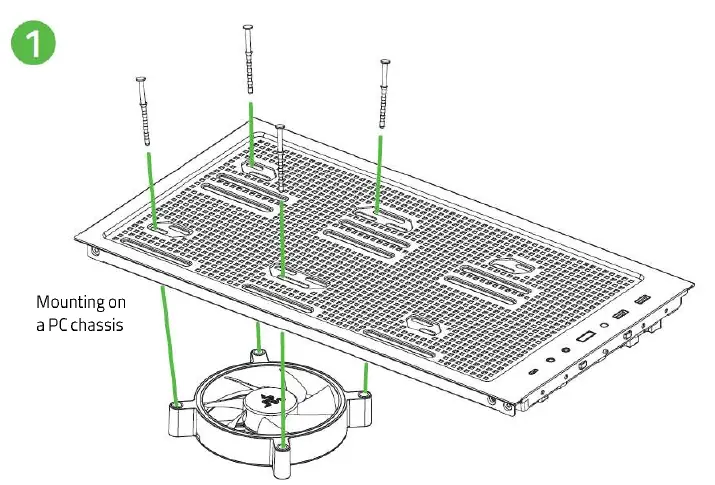
Installation and Connection
The fan features a 4-pin PWM connector for speed control and a 3-pin aRGB connector for lighting. You can connect the fan directly to a compatible motherboard or use a dedicated controller, such as the Razer PWM Fan Controller or Razer Chroma aRGB Controller, for enhanced management. Daisy-chaining multiple fans is supported via the aRGB connectors. After physical installation, download and install the latest version of Razer Synapse to configure your fan settings and lighting effects.
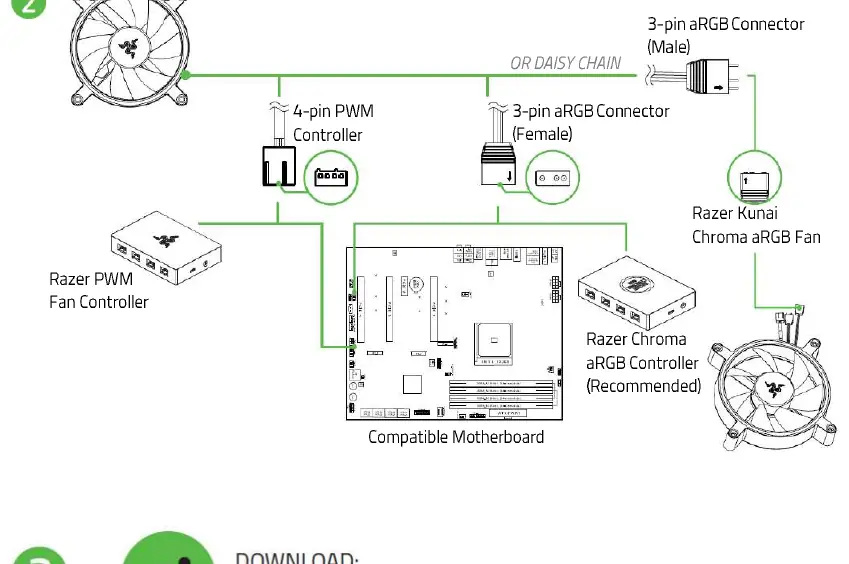
Safety and Maintenance
To ensure the longevity and safe operation of your device, please adhere to the following guidelines:
- Do not attempt to service or disassemble the device yourself, as this may void your warranty.
- Operate the device only within the specified temperature range of 0°C (32°F) to 45°C (113°F).
- Keep the device away from water, moisture, solvents, and direct sunlight.
- Always handle connectors with care and grip the plug when connecting or disconnecting.
- If you encounter operational issues, unplug the device and contact official support channels.
Troubleshooting and Support
If the fan does not function correctly, verify all cable connections to the motherboard or controller. Ensure that the latest software drivers are installed. For further assistance or technical support, please visit the official support website.