Roku Streambar 14-Inch Soundbar User Guide
Quick start guide for the Roku Streambar 14-Inch Soundbar. Learn how to connect to your TV via HDMI-ARC, set up your Roku account, pair the remote, and optimize sound settings.
Table of contents
Manual images
Click an image to enlargeQuick Start Guide
This guide provides the essential steps to set up your Roku Streambar. Ensure you have a Roku account ready, as it is required to stream, add channels, and manage subscriptions. The setup process involves connecting the device to your TV's HDMI-ARC port, powering it on, and following the on-screen instructions.
What's Included
- Roku Streambar
- Remote control
- Power adaptor and cable
- Premium High Speed HDMI cable
- Two AAA Duracell batteries
- Optical cable (optional, for TVs without HDMI-ARC)
Installation and Setup
- Adjust TV settings: If you have a Roku TV, the setup is largely automatic. For other TVs, you may need to enable HDMI-CEC and ARC in your TV's settings menu.
- Connect to power: Use the included power adaptor and cable to connect the Streambar to a wall outlet.
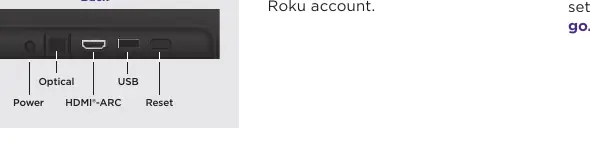
- Connect to TV: Connect the Streambar to the HDMI port labeled "ARC" on your TV using the included HDMI cable. If your TV lacks an HDMI-ARC port, use the included optical cable in addition to the HDMI cable.
- Select input: Use your TV remote to select the HDMI input source corresponding to the port used for the Streambar.
- Insert batteries: Open the back cover of the remote and insert the included batteries. The remote will pair automatically.
- Follow on-screen setup: Follow the prompts on your TV screen to activate the Streambar and link it to your Roku account.
Using Your Roku Streambar
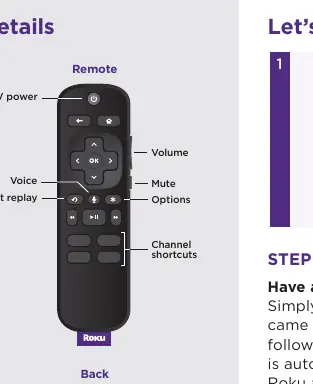
Sound Settings: While streaming, press the asterisk (*) button to access sound settings such as Volume Leveling (keeps volume consistent), Speech Clarity (improves voice audibility), and Night Mode (balances loud and quiet scenes).
Bluetooth Pairing: Navigate to Settings, select Remotes & devices, and choose Pair Bluetooth device to connect external devices.
Voice Commands: Press and hold the voice button on the remote to use commands like "Play classic rock on Pandora," "Set volume to 30," or "Launch The Roku Channel."
Common Questions and Troubleshooting
HDMI-CEC and ARC: HDMI-CEC allows you to control your TV's power with the Roku remote. ARC (Audio Return Channel) sends audio from your TV to the soundbar. If these features are not working, check your TV's settings menu or visit go.roku.com/hdmihelp.
Roku Account: A Roku account is necessary to stream content. You may be asked to enter a payment method for renting or buying movies; no charges are made without authorization.
Placement Tip: For the best sound experience, place the Roku Streambar at the front edge of your TV stand.
Official resources from the manual
Practical help
Common problems
Ensure the HDMI cable is connected to the port labeled 'ARC' on your TV. Check if HDMI-CEC and ARC are enabled in your TV's settings menu.
Use the included optical cable along with the HDMI cable to connect the soundbar to your TV.
Ensure the included Duracell batteries are inserted correctly. The remote should pair automatically.
Before use
- Verify your TV has an HDMI-ARC port.
- Have a Roku account created.
- Ensure you have access to your TV's settings menu.
- Place the soundbar at the front edge of the TV stand.
Images and diagrams
- The remote features dedicated buttons for volume, mute, voice control, and channel shortcuts.
- The back panel of the Streambar includes ports for Power, Optical, HDMI-ARC, and a Reset button.
Model compatibility
- Compatible with Roku TV and other TVs with HDMI-ARC or optical output.
- Expandable with Roku Wireless Subwoofer and Wireless Speakers (sold separately).

Manual page author
Michael Turner
Technical manual editor
Reviews PDF manuals for structure, safety notes, and practical product details so readers can find the right information quickly.