User Manual for Sabrent 2-Port 4K HDMI Sharing Switch DA-HSW2
Quick guide for the Sabrent 2-Port 4K HDMI Sharing Switch (DA-HSW2). Learn how to connect your HDMI devices, use the bi-directional switching feature, and understand the technical specifications.
Quick answers from the manual
Quick answer
- The Sabrent DA-HSW2 is a bi-directional HDMI switch that allows you to toggle between two HDMI sources on one display or one source on two displays using a physical button. p. 2
Key actions
- Connect HDMI cables to the ports and press the button to switch. p. 2
Technical specifications
| Parameter | Value | Meaning | Pages |
|---|---|---|---|
| HDMI Version | 2.0 | Supports 4K and 3D | p. 2 |
Where to find it in the PDF
- Features and Connections p. 2
Table of contents
Manual images
Click an image to enlargeQuick guide from the manual
The Sabrent DA-HSW2 is a bi-directional HDMI sharing switch. It allows you to connect two HDMI sources to one display, or one HDMI source to two displays. The device is powered directly by the HDMI signal, requiring no external power supply.
Features
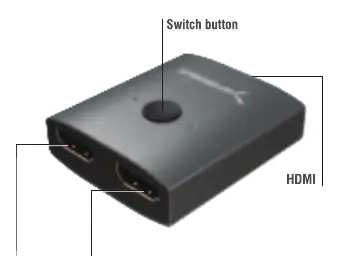
- Supports 4K and 3D resolution.
- HDMI 2.0 and backward compatible.
- Bi-directional HDMI connection.
- Aluminum construction.
- No external power required.
- Compatible with PS4, PS3, XBOX One, XBOX 360, Nintendo Switch, Blu-Ray/DVD players, and computers.
Operation
To switch between connected devices, simply press the physical switch button located on the top of the unit.
Connection Guide
The device supports two configurations:
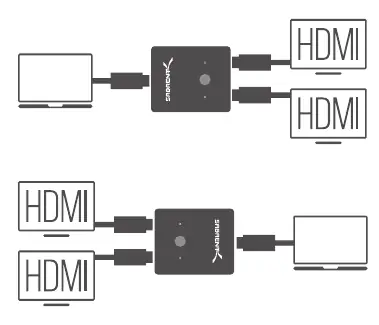
- 2-in-1-out: Connect two HDMI sources (e.g., game consoles, PC) to the switch, and connect the switch to one display.
- 1-in-2-out: Connect one HDMI source to the switch, and connect the switch to two displays.
Manufacturer information
Sabrent
Practical help
Common problems
The device is powered by the HDMI signal. Ensure your HDMI source device is powered on and the HDMI cable is securely connected.
Ensure the physical switch button on the top of the unit is pressed. Verify that all HDMI cables are fully inserted into the ports.
Before use
- Ensure you have high-quality HDMI cables.
- Verify that your HDMI source devices are powered on.
- Check that the display is set to the correct input source.
- Confirm the configuration (2-in-1-out or 1-in-2-out) matches your setup.

Manual page author
Michael Turner
Technical manual editor
Reviews PDF manuals for structure, safety notes, and practical product details so readers can find the right information quickly.