Computers / Storage
Sabrent USB Type-C 10Gbps 5-Port Hub (HB-TG5P) User Manual
Comprehensive user guide for the Sabrent HB-TG5P 5-port USB-C hub, featuring 90W Power Delivery, 4K HDMI output, and high-speed data transfer capabilities.
Table of contents
Product Overview
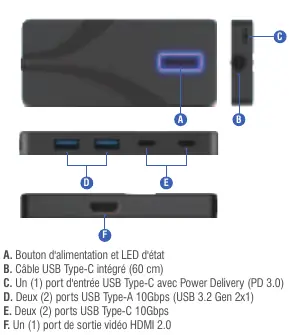
The Sabrent HB-TG5P is a versatile 5-port USB Type-C hub designed to expand the connectivity of your laptop or desktop computer. It features a compact, portable design with an integrated 60cm USB-C cable, making it an ideal companion for mobile professionals and home office setups. The hub provides high-speed data transfer, video output, and power delivery capabilities in a single, efficient device.
Technical Specifications
The hub is equipped with two USB Type-A 10Gbps ports (USB 3.2 Gen 2x1) and two USB Type-C 10Gbps ports for fast data transfer. It includes a dedicated USB Type-C Power Delivery (PD 3.0) input port capable of passing through up to 90W of power to the host device. The HDMI 2.0 output supports resolutions up to 4K at 60Hz, with support for HDCP 1.4/2.2/2.3, HDR10, HDR10+, Dolby Vision, and HLG. The device is backward compatible and supports BC1.2 charging standards.
Setup and Operation
To begin using the hub, connect the integrated USB-C cable to your host computer. If you are using power-hungry peripherals or require laptop charging, connect a compatible USB-C power adapter to the PD input port on the hub. Once connected, the host system may take a few moments to recognize the device and install necessary drivers. You can then connect your USB peripherals one by one. For video output, connect an HDMI cable from the hub to your external display. Please note that the host device must support DisplayPort Alternate Mode for video output to function. For extended display modes, the host must also support MST (Multi-Stream Transport).
Safety and Maintenance
To ensure the longevity of your Sabrent hub, keep it away from liquids and avoid extreme environmental conditions. Do not expose the device to direct sunlight or freezing temperatures. Avoid bending the integrated cable excessively or for prolonged periods. When not in use, store the hub in a dry, cool place. Always handle cable connections with care to prevent damage to the ports.
Troubleshooting
If a peripheral is not immediately recognized, wait up to 10 seconds as the hub supports hot-plugging. Ensure that any device requiring its own external power source is connected to power before plugging it into the hub. If you encounter issues with video output, verify that your host computer supports DisplayPort Alternate Mode and that your display settings are correctly configured for your operating system.
Manufacturer information
Sabrent
Practical help
Common problems
Device not recognized immediately
Wait up to 10 seconds for the system to detect the peripheral.
Video output not working
Ensure the host device supports DisplayPort Alternate Mode.
Peripherals not functioning
Ensure devices requiring their own power are connected to an external power source before plugging into the hub.
Before use
- Verify host device supports DisplayPort Alternate Mode for HDMI output.
- Ensure all necessary drivers for USB peripherals are installed.
- Connect external power to the PD port if charging the laptop.
- Check that the USB-C cable is securely connected to the host.
Specs in practice
- Power Delivery (PD 3.0)
- Allows up to 90W of power pass-through to charge the host device.
- USB 3.2 Gen 2x1
- Provides high-speed data transfer rates up to 10Gbps.
Images and diagrams
- A: Power button and status LED.
- B: Integrated 60cm USB-C cable.
- C: USB-C PD 3.0 input port.
- D: Two USB Type-A 10Gbps ports.
- E: Two USB Type-C 10Gbps ports.
Model compatibility
- Compatible with Windows, macOS, and Linux.
- Host must support DisplayPort Alternate Mode for video.
- Extended display modes require MST support on the host.

Manual page author
Emily Carter
User documentation editor
Prepares concise manual descriptions and highlights the most useful setup, operation, and maintenance information for readers.