Electronics / Televisions
Sharp Google TV
A comprehensive user guide for the Sharp Google TV, covering initial setup, channel tuning, connecting external devices, remote control operation, and system settings.
Table of contents
Quick guide from the manual
This manual provides instructions for setting up and operating your Sharp Google TV. Key procedures include the first-time installation, connecting external devices like soundbars or Blu-ray players, tuning TV channels (terrestrial, cable, and satellite), and configuring system settings such as picture, sound, and network preferences.
Getting started
The TV features an on-screen keyboard for text entry, accessible via the remote control. Accessibility features, including text-to-speech and zooming, can be configured in Settings > System > Accessibility. You can also use the remote control to navigate menus, with the [OK] button used to select options and the [Back] button to return to previous screens.
Connecting external devices
For optimal picture quality, use an HDMI cable to connect external devices. The TV supports HDMI CEC, allowing you to control compatible devices (like AV receivers or Blu-ray players) with the TV remote. To enable this, go to Settings > Channels & Inputs > Inputs and activate HDMI control.
For audio systems, you can connect via:
- HDMI (ARC/eARC): Recommended for high-quality audio. Ensure eARC is set to Auto in Settings > Display & Sound > Audio output.
- Digital Optical: Connect to the optical input on your audio system. Disable internal TV speakers in Settings > Display & Sound > Sound > Speakers > Off to avoid echo.
- RCA Analogue: Connect to the audio input terminal.
First-time installation
Upon turning on the TV for the first time, it will enter installation mode. Follow the on-screen prompts to:
- Select your language and country.
- Choose between Set up Google TV (smart features) or Set up basic TV.
- Connect to your Wi-Fi network.
- Sign in with your Google account.
- Configure Google Assistant and select apps to install.
- Perform channel tuning if an antenna or cable is connected.
Tuning channels
To tune channels, navigate to Settings > Channels & Inputs > Channels. You can perform automatic scans for:
- Antenna: Select Channel Scan to tune digital channels.
- Cable: Select Channel Scan and choose your operator or Others.
- Satellite: Use Channel Installation Mode to select General Satellite or Preferred Satellite (for FastScan).
Settings menu
The Settings menu allows you to customize your TV experience:
- Picture: Adjust modes (Standard, Movie, Game, Eco), backlight, brightness, contrast, and advanced settings like Motion Enhancement or Dolby Vision.
- Sound: Configure sound styles, balance, equalizer, and Dolby Audio processing.
- Network & Internet: Manage Wi-Fi connections, IP settings, and data usage.
- System: Manage date/time, power settings (Sleep Timer, Auto Sleep), and perform factory resets.
Smart features
The TV includes Chromecast built-in for streaming content from mobile devices and Google Assistant for voice control. Press the microphone button on your remote to search for content, open apps, or control smart home devices.
Practical help
Common problems
No sound from external audio system
Check if eARC is enabled in settings. If not supported, go to Settings > Display & Sound > Audio output > Digital Output and select PCM.
Echo effect when using external speakers
Disable the TV's internal speakers in Settings > Display & Sound > Sound > Speakers > Off.
Remote control not working
Ensure the remote is paired via Settings > Remotes & Accessories. If it is a solar-powered remote, ensure it has been exposed to light or charged via USB-C.
TV does not turn on automatically with connected device
Ensure HDMI CEC is enabled on both the TV (Settings > Channels & Inputs > Inputs > HDMI control) and the connected device.
Before use
- Connect all external devices (HDMI, antenna, optical cable) before turning on the TV for the first time.
- Ensure you have your Wi-Fi network password ready.
- Have your Google account credentials available for setup.
- If using a solar-powered remote, ensure it is charged.
Specs in practice
- HDMI ARC/eARC
- Allows the TV to send audio back to a soundbar or AV receiver using a single HDMI cable.
- LCN (Logical Channel Numbering)
- Automatically sorts digital TV channels according to the provider's preferences.
Images and diagrams
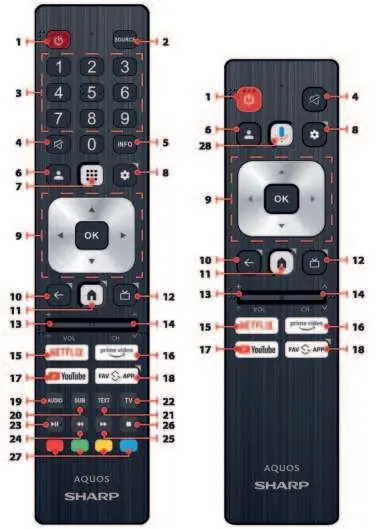
- The remote control diagram identifies buttons for power, source selection, volume, channel navigation, and direct access to streaming apps like Netflix and YouTube.
- Connection diagrams illustrate how to link external devices using HDMI (ARC), composite video, and digital optical audio cables.
Model compatibility
- HDMI CEC compatibility depends on the connected device; refer to the device's own manual.
- Google Assistant requires an active internet connection and may not be available in all regions.
- USB ports support FAT32 and NTFS file systems.

Manual page author
Emily Carter
User documentation editor
Prepares concise manual descriptions and highlights the most useful setup, operation, and maintenance information for readers.