Lighting / Decorative Lighting
User Manual for Solight 1D100W Smart WiFi Water Leak Detector
Quick guide for the Solight 1D100W Smart WiFi Water Leak Detector. Learn how to install batteries, pair with the Smart Life app, configure alarm settings, and troubleshoot connectivity.
Quick answers from the manual
Quick answer
- The Solight 1D100W is a WiFi-enabled water leak detector that connects to the Smart Life app. It alerts users to leaks via the app and allows for remote alarm muting, volume adjustment, and automation settings. p. 1, 5, 6
Key actions
- Pairing the device p. 4, 5
- Muting the alarm p. 5
First start
- Insert 2x AAA batteries and download the Smart Life app. p. 3, 4
Maintenance and reset
- Battery life depends on battery quality and trigger frequency. p. 7
Technical specifications
| Parameter | Value | Meaning | Pages |
|---|---|---|---|
| Batteries | 2x AAA (1.5V) alkaline | Power source | p. 3 |
| WiFi | IEEE 802.11 b/g/n 2.4GHz | Network compatibility | p. 3 |
Where to find it in the PDF
- Device Overview p. 1, 2
- Installation and Setup p. 3, 4, 5
- Functions and Settings p. 6, 7
Table of contents
Manual images
Click an image to enlargeQuick guide from the manual
The Solight 1D100W is a smart WiFi-enabled water leak detector designed for indoor use. It connects to the Smart Life mobile application to provide real-time alerts, remote monitoring, and automation capabilities. Key setup steps include inserting batteries, enabling Bluetooth on your smartphone, and pairing the device via the app.
Device Overview
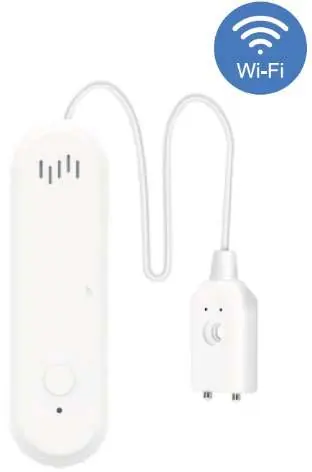
The detector consists of a main unit featuring a speaker, a pairing button, and an LED indicator. The device is powered by two AAA batteries.
Installation
To install the batteries:
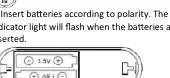
- Push the back cover of the detector upwards to remove it.
- Insert two AAA (1.5V) alkaline batteries, ensuring correct polarity.
- The indicator light will flash once the batteries are properly inserted.
App Setup and Pairing
Follow these steps to connect the device to your network:
- Download the Smart Life mobile app from the Google Play Store or Apple App Store.
- Turn on Bluetooth on your mobile phone.
- Open the Smart Life app and select the '+' icon to add a new device.
- Press and hold the pairing button on the detector for approximately 5 seconds until the indicator light starts flashing.
- The app will display 'Discovering devices'. Select 'Go to add', choose your 2.4GHz WiFi network, and enter the password. The device will connect automatically.
Operation and Settings
Once connected, you can manage the device through the app:
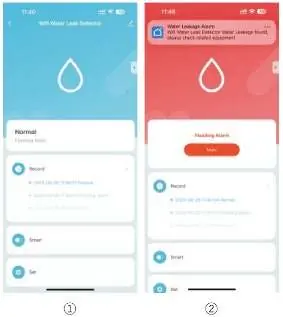
- Status Monitoring: The app displays 'Normal' status or 'Alarm' status if a leak is detected.
- Alarm Control: In the event of an alarm, press the 'Mute' button in the app to silence the sound.
- Settings: Use the 'Set' button to adjust device configurations.
- Functions: You can adjust the alarm volume (High, Medium, Low, Mute) and set the alarm ringtone duration (from 30s to 180s).
- Smart Features: Use the 'Smart' button to set up automatic connections with other devices.
- Sharing: You can share the device with family members via the app.
Technical Parameters
- Batteries: 2x AAA (1.5V) alkaline batteries
- Quiet current: ≤ 18uA
- Alarm current: ≤ 100mA
- Volume: 80dB (up to 1m)
- Working temperature: -10°C ~ 55°C
- Working humidity: 10% ~ 90%RH
- WiFi: IEEE 802.11 b/g/n 2.4GHz
- Usage: Intended for indoor use only
Practical help
Common problems
Device not pairing with the app
Ensure Bluetooth is enabled on your phone, and hold the pairing button for 5 seconds until the indicator flashes before attempting to add the device.
Alarm is sounding
Open the Smart Life app and press the 'Mute' button to turn off the alarm sound.
Before use
- Insert 2x AAA alkaline batteries.
- Ensure you have a 2.4GHz WiFi network available.
- Download the Smart Life app.
- Enable Bluetooth on your smartphone.
Specs in practice
- Working Temperature
- The device operates within the range of -10°C to 55°C.
Images and diagrams
- The device features a speaker, a pairing button, and an LED indicator on the front panel.
Model compatibility
- Compatible with Smart Life and Tuya automation processes.
- Requires 2.4GHz WiFi network.

Manual page author
Emily Carter
User documentation editor
Prepares concise manual descriptions and highlights the most useful setup, operation, and maintenance information for readers.