User Manual for Trust Radius Gaming Headset
Quick guide for the Trust Radius Gaming Headset. Learn how to adjust the headband and microphone, and how to connect the headset to your PC, laptop, PS4, or Xbox One controller.
Quick answers from the manual
Quick answer
- The Trust Radius Gaming Headset connects via a 3.5mm jack. For PCs with separate audio and microphone ports, use the included splitter cable. p. 2
Key actions
- Connect to PS4/Xbox One p. 2
Problems and fixes
Use the included splitter cable for separate audio and microphone ports.
p. 2Show 1 more answers Show less
Where to find it in the PDF
- Headset adjustments p. 1
- Connection instructions p. 2
Table of contents
Manual images
Click an image to enlargeQuick guide from the manual
This guide provides instructions for the Trust Radius Gaming Headset. It covers basic adjustments and connection methods for various gaming platforms to ensure you can start using your headset immediately.
Headset adjustments
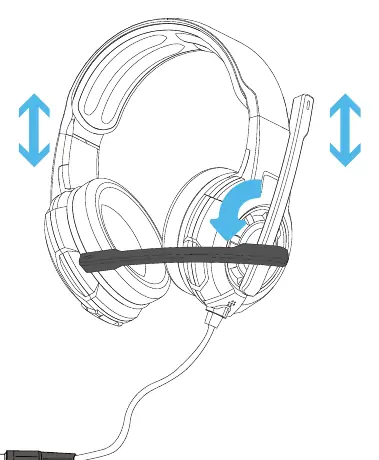
The headset is designed for comfort and usability. You can adjust the headband height to fit your head and rotate the microphone arm to the desired position for optimal voice capture.
Connecting to devices
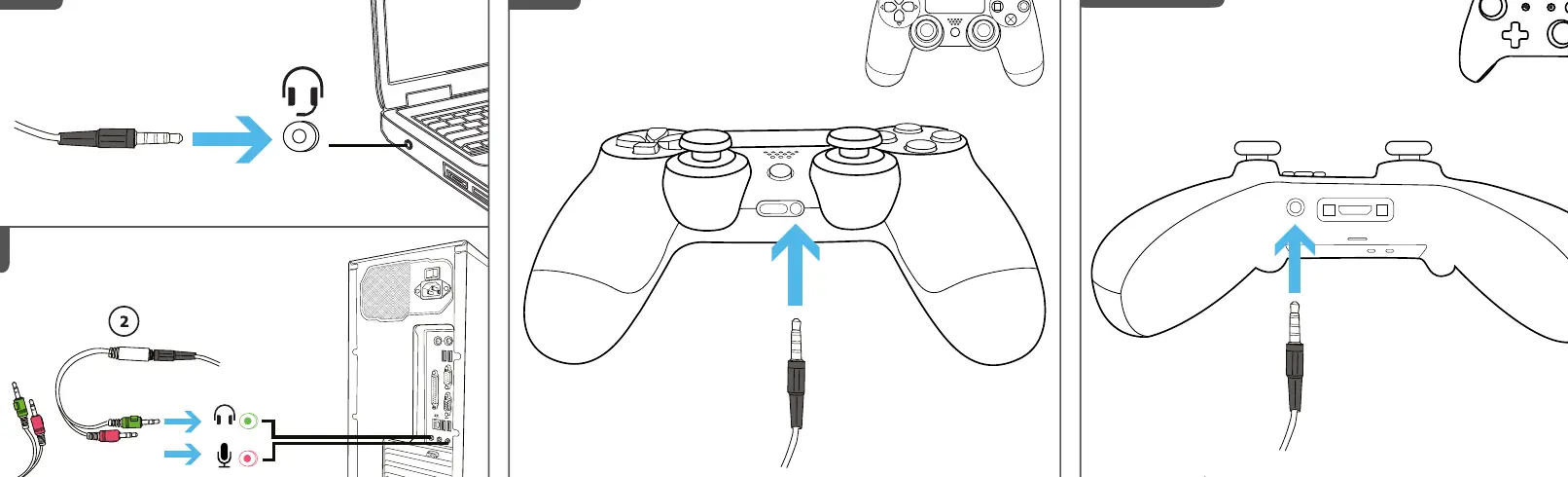
The headset uses a standard 3.5mm audio connector. Connection methods vary depending on your device.
PC and Laptop
For laptops with a combined audio/microphone port, plug the headset directly into the port. For PCs with separate audio and microphone ports, use the included splitter cable to connect the headset to the corresponding green (audio) and pink (microphone) ports on your computer.
Consoles
For PS4 and Xbox One (2015 model controller), plug the headset's 3.5mm connector directly into the port located on the controller.
Manufacturer information
Trust International B.V.
Practical help
Common problems
Ensure you are using the included splitter cable if your PC has separate audio and microphone ports.
Before use
- Check if your device has a 3.5mm audio jack.
- For PC, identify if you need the splitter cable.
- Ensure the microphone is positioned correctly.

Manual page author
David Miller
Documentation analyst