User Manual for Trust Yami USB Gaming Microphone
Quick guide for the Trust Yami USB Gaming Microphone. Learn how to connect your device, use the mute function, control the LED lighting, and manage audio output.
PDF source: polski · summary: English
Quick answers from the manual
Quick answer
- The Trust Yami is a plug-and-play USB gaming microphone. Connect it via USB-A and use the buttons on the front to control mute, LED lighting, and audio output. p. 2
Key actions
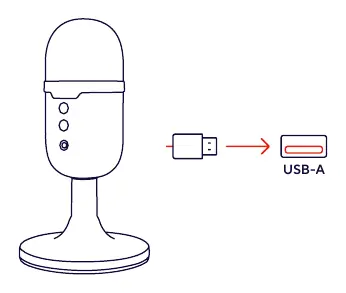
- Connect the microphone to a USB-A port on your computer. p. 2
First start
- Plug the USB-A cable into your computer. p. 2
Show 2 more answers Show less
Problems and fixes
Check the USB connection.
p. 2Where to find it in the PDF
- Title Page p. 1
- Instructions p. 2
Table of contents
Manual images
Click an image to enlargeQuick guide from the manual
The Trust Yami USB Gaming Microphone is a plug-and-play device designed for gaming and audio recording. This guide provides the essential steps to connect your microphone and understand the functionality of the buttons located on the front of the device.
Connection
To set up your microphone, simply connect the integrated USB cable to an available USB-A port on your computer. The device is plug-and-play and should be recognized automatically by your operating system.
Microphone Controls
The microphone features three buttons on the front panel to manage your audio experience:
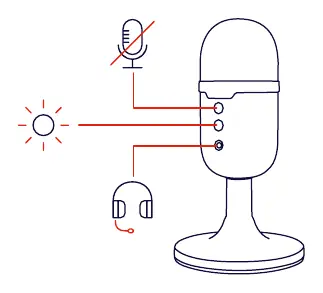
- Mute/Unmute: Press the top button to toggle the microphone mute function. A crossed-out microphone icon indicates the mute status.
- LED Control: Press the middle button to adjust or toggle the LED lighting on the microphone.
- Headphone Output: The bottom button allows for audio output management, indicated by the headphone icon.
Manufacturer information
Trust International B.V.
Practical help
Common problems
Ensure the USB-A cable is securely connected to a functioning USB port on your computer.
Press the mute button on the front of the microphone to unmute.
Before use
- Ensure your computer has an available USB-A port.
- Connect the microphone directly to the computer.

Manual page author
David Miller
Documentation analyst