User Guide for Uperfect 245T02 Portable Monitor
Quick guide for the Uperfect 245T02 portable monitor. Learn how to connect your device, enable touch functionality, understand display modes, and view compatible accessories.
Quick answers from the manual
Quick answer
- To enable touch on the Uperfect 245T02, use a Type-C connection with a full-featured Type-C 3.1 port. If using HDMI, you must connect both the HDMI cable and the USB-A to USB-C cable for touch data, along with an external power supply. p. 1
Key actions
- Connect via Type-C p. 1
- Connect via HDMI p. 1
Problems and fixes
Check if your device has a full-featured Type-C 3.1 port and is not a Linux system.
p. 1Show 1 more answers Show less
Where to find it in the PDF
- Introduction and Connections p. 1
- Display Modes and Accessories p. 2
Table of contents
Manual images
Click an image to enlargeQuick guide from the manual
This guide provides essential instructions for setting up and using the Uperfect 245T02 portable monitor. Please note that touch functionality requires a device with a full-featured Type-C 3.1 port. Touch is not supported on Linux systems.
Connection for Touch
Depending on your device, use one of the following connection methods:
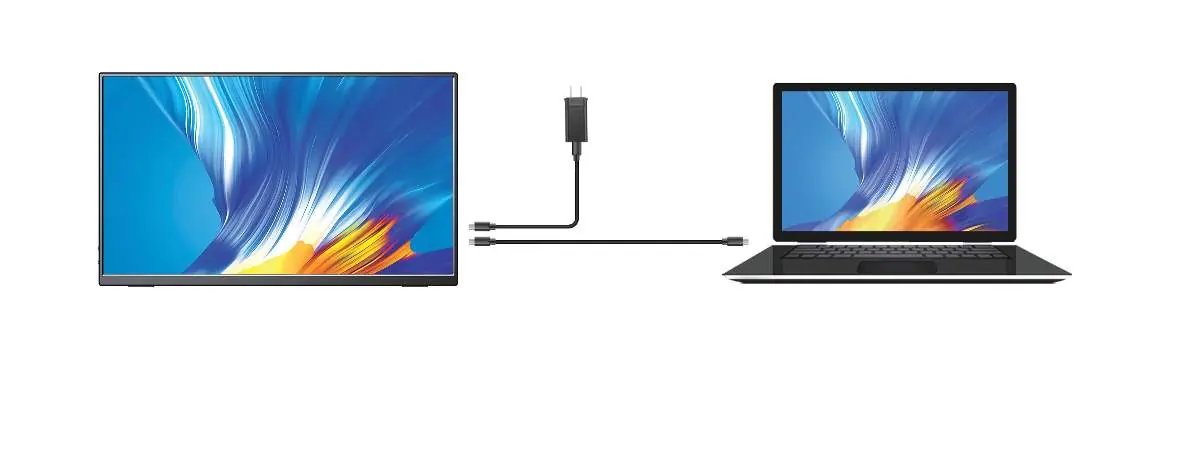
- Type-C Connection: Connect the monitor directly to your device using a USB-C to USB-C cable. Ensure your device's Type-C port is a full-featured Type-C 3.1 port.
- HDMI Connection: Connect the monitor to your device using an HDMI cable. To enable touch functionality, you must also connect the USB-A to USB-C cable and an external power supply.
Display Modes
The monitor supports different display modes:
- Duplicate Mode: Touch is available.
- Extend Mode: Touch is available; set the monitor as the main screen for touch functionality.
- Portrait Mode: Touch is unavailable.
Accessories and Support
The manual lists various available accessories, including 3-in-1 HDMI adapters, Lightning to HDMI adapters, USB-C to USB adapters, stands, and carrying bags. If you require accessories or technical assistance, please contact support at [email protected].
Practical help
Common problems
Ensure your device has a full-featured Type-C 3.1 port. Touch is not supported on Linux systems.
Ensure you have connected both the HDMI cable and the USB-A to USB-C cable for touch data, along with an external power supply.
Before use
- Verify your device has a full-featured Type-C 3.1 port.
- Check if your device is compatible with touch functionality (e.g., Laptop, Mobile Phone, Tablet, PC).
- Ensure you have the correct cables for your connection method (Type-C or HDMI).

Manual page author
Emily Carter
User documentation editor