USB-C 10Gbps Triple and Dual Monitor Docking Station - 60W PD
A high-performance USB-C docking station supporting triple and dual monitor setups, 60W Power Delivery, and 10Gbps data transfer speeds, certified for Chromebooks.
Table of contents
Product Overview
The USB-C 10Gbps Triple and Dual Monitor Docking Station is a versatile connectivity solution designed to expand your workstation capabilities. It supports high-speed data transfer, multiple display outputs, and power delivery to keep your host device charged. This dock is specifically engineered for compatibility with modern USB-C enabled computers, including Chromebooks, providing a seamless plug-and-play experience.
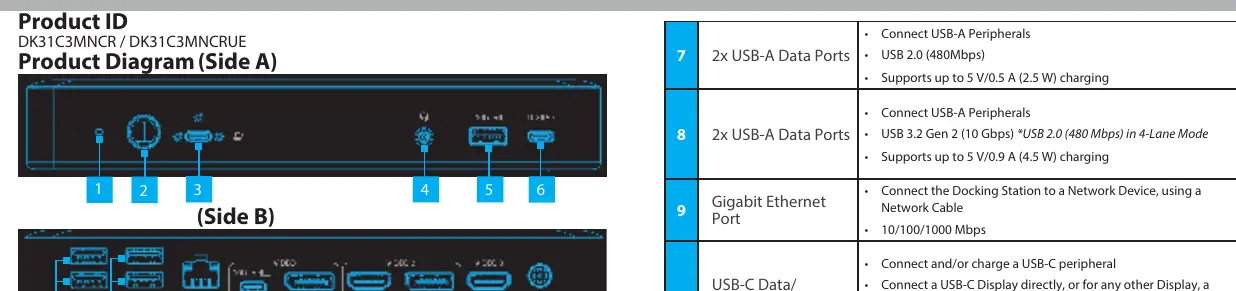
Connectivity and Ports
The docking station features a comprehensive array of ports to accommodate various peripherals. On the front and back panels, you will find multiple USB-A and USB-C ports supporting data transfer speeds up to 10Gbps. It includes a dedicated Gigabit Ethernet port for reliable wired network connectivity and a 3.5mm audio jack for headsets. The host connection is secured via a screw-locking USB-C port, ensuring a stable link to your computer.
Display Configuration
This dock supports advanced multi-monitor setups. It offers three distinct video output channels. Video Output 1 provides options via a USB-C port (supporting DP Alt Mode) or a DisplayPort. Video Output 2 allows for either a DisplayPort or HDMI connection, while Video Output 3 is dedicated to an HDMI display. Users can achieve up to 4K resolution at 60Hz on these outputs, depending on the host computer's capabilities and the specific port configuration used.
Power and Operation
The device includes a 60W Power Delivery (PD) feature, which charges your connected host computer through the USB-C cable. The dock features a power button for manual control and a power LED indicator. The LED provides status updates: solid green indicates the dock is operating in 4-Lane Mode (prioritizing video bandwidth), while solid orange indicates 2-Lane Mode. You can toggle between these modes by holding the power button for four seconds.
Installation and Setup
To set up the docking station, connect the included power adapter to the DC 20V port. Connect your peripherals, such as keyboards, mice, and external drives, to the appropriate USB ports. Use the provided screw-locking USB-C cable to connect the dock to your host computer. The system will automatically detect the dock and install the necessary drivers. Ensure your host computer's USB-C port supports DP Alt Mode and MST for full multi-monitor functionality.
Practical help
Common problems
Ensure you are not trying to use both the USB-C port and the HDMI port on Video Output 1 simultaneously; only one can be active.
Ensure the screw-locking USB-C cable is firmly connected to both the dock and the host computer. Verify the host computer supports DP Alt Mode.
Check the specifications of your host computer's video controller, as performance depends on the host's capabilities.
Before use
- Verify host computer has a USB-C port with DP Alt Mode and MST support.
- Ensure the power adapter is connected to an AC outlet and the dock.
- Connect the screw-locking USB-C cable to the host computer.
- Check that all display cables are securely connected to the correct video output ports.
- Confirm the network cable is connected to the Gigabit Ethernet port if wired internet is required.
Images and diagrams
- Side A contains the Power LED, Power Button, and primary USB/Audio ports.
- Side B contains the video output ports (HDMI/DP), Ethernet port, and DC power input.
- The Power LED indicates mode status: Green for 4-Lane, Orange for 2-Lane.
- Video Output 1 supports either USB-C or DisplayPort, but not both simultaneously.
Model compatibility
- Certified for use with Chromebooks.
- Requires host computer with DP Alt Mode and MST support.
- Video performance is dependent on the host computer's video controller.

Manual page author
Michael Turner
Technical manual editor
Reviews PDF manuals for structure, safety notes, and practical product details so readers can find the right information quickly.