Electronics / Routers
AirLive XG(S)-304 8 Port 10G XGSPON OLT User Guide
Comprehensive setup guide for configuring AirLive XGSPON OLT and ONU devices in Bridge Mode, including VLAN configuration, ONU authentication, and network integration.
Table of contents
Overview of Bridge Configuration
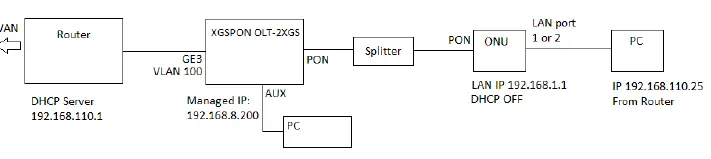
This guide provides instructions for configuring AirLive XGSPON OLT-2XGS and compatible ONU devices (ONU-10XG(S)-AX304P-2.5G and ONU-10XG(S)-1004-10G) in Bridge Mode. Bridge mode allows the ONU to act as a transparent bridge, passing traffic directly to a router, which is essential for managing network traffic and IP assignments efficiently.
Initial OLT Configuration
Before connecting the ONU, the OLT must be configured. Access the OLT management web interface using the default IP address 192.168.8.200 via the AUX port. Create a specific VLAN (e.g., VLAN 100) for internet traffic. Ensure that the uplink GE port is bound to this VLAN and set to untagged mode. If the uplink is in untagged mode, the PVID must be set to match the VLAN ID (100 in this example).
ONU Authentication and Setup
Connect the ONU to the OLT via the PON port and a splitter. Use the OLT's 'ONU Autofind' feature to detect and add the ONU. Once added, ensure the ONU status is 'Online'. Proceed to configure the necessary parameters including 'tcont', 'gemport', 'Service', and 'Service Port'. For bridge mode, the 'PortVLAN' mode should be set to 'transparent' with the Port Type configured as 'veip' and Port ID set to '1'.
WAN and DHCP Settings
Configure the WAN connection by selecting 'Bridge' mode and tagging the appropriate VLAN ID. After submitting the configuration, ensure it is saved to the running-config. To allow the connected router to assign IP addresses to devices behind the ONU, the ONU's internal DHCP server must be disabled. Navigate to the 'DHCP Server' menu, select 'Disable', and submit the changes. If the computer does not receive an IP address from the router, unplug and reconnect the RJ-45 cable.
Advanced Setup for Specific Models
For the ONU-10XG(S)-1004-10G, an additional setup option (Setup 2) is available. This involves changing the device mode from HGU to SFU via the 'Management' menu. Once in SFU mode, the Ethernet ports must be configured individually in the 'PortVLAN' settings, setting the mode to 'Tag' and assigning the correct VLAN ID to each port.
Manufacturer information
AirLive Technology
Practical help
Common problems
Computer does not receive an IP address from the router.
Ensure the ONU DHCP server is disabled. If it is, try unplugging and replugging the RJ-45 cable.
ONU not appearing in OLT list.
Check physical PON connection and use 'ONU Autofind' to detect the device.
Internet not working after configuration.
Verify that the VLAN ID matches the OLT configuration and that the WAN mode is set to 'Bridge'.
Before use
- Ensure OLT management IP is accessible (192.168.8.200).
- Verify PON mode is compatible with the ONU.
- Identify the VLAN ID to be used for internet traffic.
- Confirm physical connection between OLT, splitter, and ONU.
- Ensure the ONU is in 'Online' state in the OLT interface.
Images and diagrams
- The setup involves a router connected to the OLT's GE port.
- The OLT connects to the ONU via a PON splitter.
- The ONU provides LAN connectivity to a PC.
Model compatibility
- Compatible with AirLive XGSPON OLT-2XGS.
- Supports ONU-10XG(S)-AX304P-2.5G and ONU-10XG(S)-1004-10G.
- Setup 2 is specific to model ONU-10XG(S)-1004-10G.

Manual page author
Michael Turner
Technical manual editor
Reviews PDF manuals for structure, safety notes, and practical product details so readers can find the right information quickly.