Electronics / Networking
Allied Telesis Web-based Device GUI 2.4.x Release Notes and User Guide
A comprehensive guide to the Allied Telesis Web-based Device GUI version 2.4.x, covering installation, updates, and new features for supported AlliedWare Plus devices.
Table of contents
Manual images
Click an image to enlargeQuick guide from the manual
This document provides release notes and installation instructions for the Allied Telesis Web-based Device GUI version 2.4.x. To access the GUI, browse to the device's IP address using a web browser. The default login credentials are Username: manager and Password: friend.
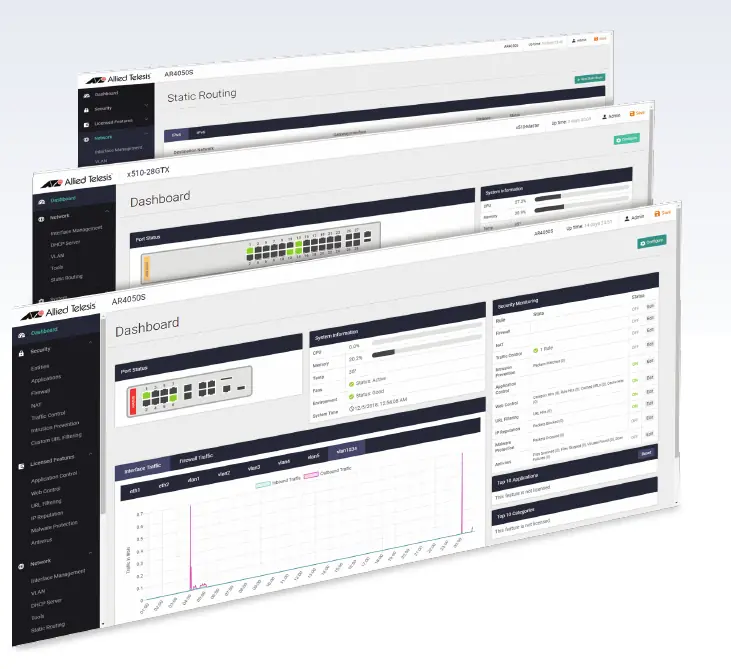
New Features and Enhancements
Version 2.4.x introduces several improvements, including:
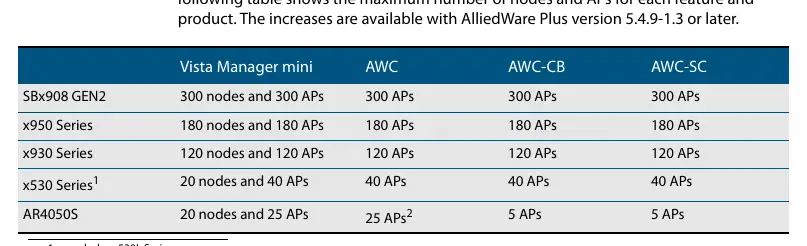
- Local RADIUS Server: Configure authentication and AAA settings directly in the GUI.
- WAN Configuration: Enhanced support for PPPoE and DHCP on WAN interfaces.
- IPv6 IPoE: Support for DHCPv6, DHCPv6 PD, SLAAC, or fixed configuration on WAN interfaces.
- AWC-SC (Autonomous Wave Control - Smart Connect): Expands wireless networks without additional data cabling.
- Network Map Enhancements: Custom icons, background images, and improved node management summaries.
Accessing the Web-based Device GUI
If the GUI is not pre-installed, you must install it via the command-line interface (CLI).
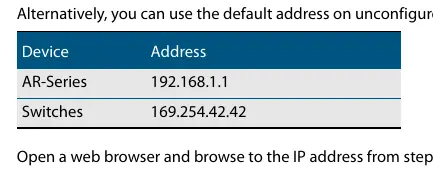
For AR-Series Devices
- Ensure firewall rules permit traffic for external services.
- Configure IP interfaces and WAN connectivity.
- Run the command: update webgui now.
- Ensure the HTTP service is running using service http.
For Switches
- Obtain the awplus-gui_549_13.gui file from the Allied Telesis Software Download center.
- Copy the file to the switch's Flash memory using TFTP, USB, or SD card.
- Ensure the HTTP service is running.
Updating the GUI
To update from an earlier version, follow the installation procedures above. For AR-series devices, use the update webgui now command. For switches, copy the new GUI file to Flash memory and restart the HTTP service.
Manufacturer information
Allied Telesis
Practical help
Common problems
Login page does not appear
Verify that the GUI is installed on the device. If not, follow the installation steps for your specific device type (AR-series or Switch).
GUI version is outdated
Use the CLI to update the GUI. For AR-series, use 'update webgui now'. For switches, copy the latest .gui file to Flash memory.
Cannot access GUI on AR-series
Ensure the firewall is configured to permit traffic and that the HTTP service is enabled.
Before use
- Ensure the device is running AlliedWare Plus firmware version 5.4.9-0.1 or later.
- For AR-series devices, ensure firewall rules are configured to permit external traffic.
- For switches, ensure you have the correct .gui file from the Allied Telesis website.
- Verify the device IP address is configured on an interface.
Specs in practice
- Default Username
- manager
- Default Password
- friend
- Minimum Firmware
- AlliedWare Plus 5.4.9-0.1
Model compatibility
- Some features require AlliedWare Plus firmware version 5.4.9-1.x or later.
- The GUI file is not device-specific; the same file works on all supported switches.

Manual page author
David Miller
Documentation analyst
Organizes user manual content into clear summaries, with attention to model details, product context, and everyday usability.