Electronics / IP Phones
User Manual for Avaya 1608-I IP Desk Phone
Quick guide for the Avaya 1608-I IP Desk Phone. Learn how to manage calls, use the directory, manage contacts, configure settings via the Avaya Menu, and understand LED indicators.
Table of contents
Quick guide from the manual
The Avaya 1608-I IP Desk Phone is a professional communication device. This guide covers essential operations including call handling, contact management, and system configuration. Note that specific features available on your phone depend on the configuration set by your system administrator.
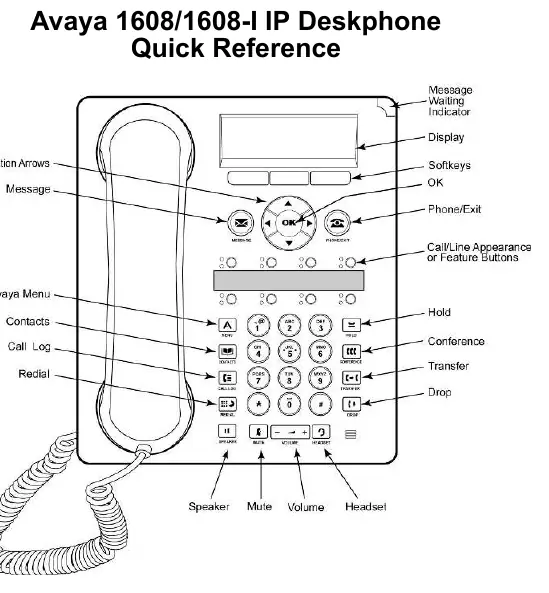
LED Indicators
The phone uses LED lights to indicate the status of lines and features:
- Steady green: Call/line is active.
- Slow blinking green: Call/line is ringing.
- Fast blinking green: Call/line is on hold.
- Very fast blinking green: Conference or Transfer is pending.
- Steady red: Call/line is selected and ready to be used.
- Off: Call/line is available.
Basic Call Handling
Answering a call: If you are not on another call, lift the handset, press the call/line appearance button with the flashing green LED, press the Answer softkey, or use the Speaker/Headset buttons. If you are already on a call, press the flashing call/line appearance button or the Answer softkey.
Making a call: Lift the handset, press the Speaker or Headset button, or press an available call/line appearance button, then dial the number.
Putting a call on hold: Press the Hold button. To resume, press the call/line appearance button, the Resume softkey, or the OK button.
Advanced Call Features
Transferring a call: While on a call, press the Transfer button, dial the destination number (or select from contacts/call log), and press the Transfer button or Complete softkey.
Conference calls: While active on a call, press the Conference button, dial the number or select from contacts/call log, and press the Conference button or Join softkey to add the person.
Forwarding calls: Press the CFrwd feature button, dial the forwarding number, and wait for the confirmation tone. To turn off, press the CFrwd button again.
Contacts and Call Log
Managing Contacts: Press the Contacts button to view your list. You can add new contacts by pressing More then New, and edit existing contacts by selecting them and pressing Details then Edit.
Call Log: Press the Call Log button to view missed, answered, or outgoing calls. You can scroll through the list and press the Call softkey to dial a number or the +Contact softkey to add an entry to your contacts.
Avaya Menu
Press the A button to access the Avaya Menu for system settings:
- Screen/Sound: Adjust brightness, contrast, ringing patterns, and button click sounds.
- Call Settings: Configure call timer, visual alerting, and audio path (speakerphone/headset).
- Applications: Manage call logging settings.
- Advanced Options: Change display language, set automatic gain control, or perform backup/restore.
- Network Information: View IP parameters and Quality of Service data.
- Log Out: Securely log out of the telephone.
Manufacturer information
Avaya Inc.
Practical help
Common problems
Call/line appearance LED is fast blinking green
The call is currently on hold.
Call/line appearance LED is steady red
The line is selected and will be used when you go off-hook.
Cannot find a contact
Use the Directory feature button to search alphabetically by last name.
Call forwarding is active
Press the CFrwd feature button to turn it off; the forwarding icon will disappear from the display.
Before use
- Check the LED status to understand the current line state.
- Ensure the phone is connected to the network.
- Verify with your system administrator which features are enabled for your extension.
- Use the navigation arrows to scroll through display options.
Specs in practice
- Call/Line Appearance Button
- Used to manage active calls and indicate line status via LEDs.
Images and diagrams
- The phone features a display, navigation arrows, and dedicated buttons for common tasks like Hold, Conference, Transfer, and Drop.
- Softkeys are located directly below the display and change function based on the current operation.
Model compatibility
- Features available depend on administrator configuration.
- Wireless headsets require pressing the ON button to answer.

Manual page author
David Miller
Documentation analyst
Organizes user manual content into clear summaries, with attention to model details, product context, and everyday usability.