Electronics / Routers
BN-LINK 160WT Smart Wifi Power Strip
Comprehensive user guide for the BN-LINK 160WT Smart Wifi Power Strip, covering setup, app integration, voice control with Alexa and Google Home, and troubleshooting.
Table of contents
Product Overview
The BN-LINK 160WT is a smart Wi-Fi power strip featuring 6 individually controlled AC outlets and 4 USB charging ports. It is designed for indoor use to provide remote control and scheduling for connected appliances via the BN-LINK Smart app.
Technical Specifications
- AC Input: 125VAC 60Hz
- AC Output: 15A
- USB Ports: 2 USB-A, 2 USB-C (PD20W)
- Combined USB Output: 5V 3A
- Individual USB Output: 5V 2.4A
- Surge Protection: 1200J
- Wireless Protocol: Wi-Fi 2.4GHz (IEEE 802.11 b/g/n)
- Cable Length: 1.2M / 3.93FT
Safety Information
This device is intended for indoor use only. Keep the unit dry and away from extreme environments. Ensure that all connected appliances comply with the power strip's electrical ratings (do not exceed 15A). Do not attempt to disassemble the device, as this voids the warranty and poses safety risks. The device meets the UL94 V-0 flammability standard.
Setup and Installation
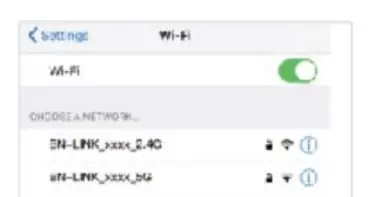
To begin, download the BN-LINK Smart app and register an account. Ensure your smartphone is connected to a 2.4GHz Wi-Fi network. Plug the power strip into a live outlet. If the blue indicator light is not blinking rapidly, hold the ON/OFF button for 5 seconds to reset the device to factory settings. Follow the in-app instructions to add the device using either Easy Mode or AP Mode if the initial connection fails.

Voice Control Integration
The power strip supports voice control via Amazon Alexa and Google Home. To enable this, ensure the device is successfully connected to the BN-LINK Smart app first. Then, link your BN-LINK account within the Alexa or Google Home app under the respective skills or device management sections. Ensure device names are unique and recognizable for voice commands.
Troubleshooting and Maintenance
If you experience connection issues, verify that your Wi-Fi is 2.4GHz and that the password is correct. If the device goes offline unexpectedly, check for active timers or schedules in the app. For persistent issues, perform a factory reset by holding the power button for 5 seconds and re-add the device. If you change your router or Wi-Fi settings, you must reconfigure the device.
Related manuals
Related manuals from the same brand or category.

Manual page author
Emily Carter
User documentation editor
Prepares concise manual descriptions and highlights the most useful setup, operation, and maintenance information for readers.