Electronics / Monitors
DELL Precision 5570 External Display Connection Guide
Comprehensive guide for connecting external displays to your Dell Precision 5570, including configuration, multi-monitor setups, and troubleshooting common display issues.
Table of contents
Overview of Display Connectivity
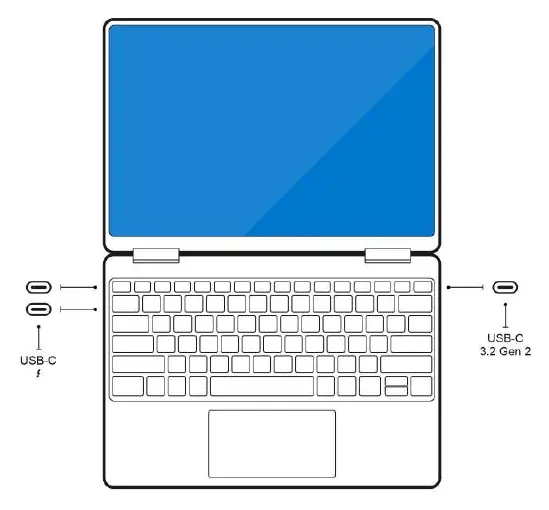
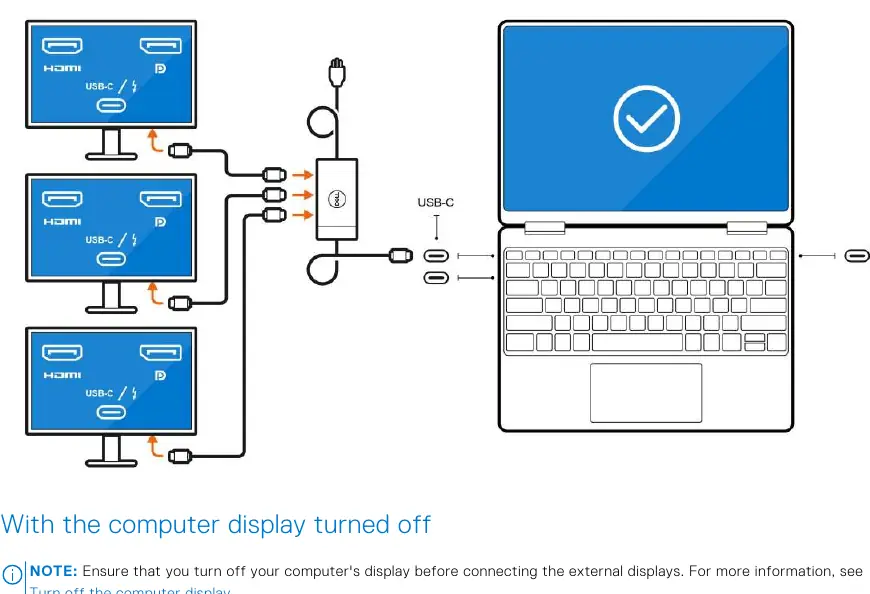
The Dell Precision 5570 supports advanced multi-display configurations using its integrated USB-C and Thunderbolt 4 ports. Users can connect up to three 4K external displays, or one 5K or 8K display. Regardless of the presence of a discrete graphics controller, all external displays are managed by the integrated graphics controller.
Modes of Connection
Depending on your external display's capabilities, you can connect via:
- Thunderbolt 4 cables, adapters, or docking stations.
- USB-C cables, adapters, or docking stations.
For optimal performance and full resolution, ensure you use appropriate cables such as DisplayPort or HDMI for 4K and higher resolutions. When using a docking station, it is recommended to connect the display to the dock first, then connect the dock to the computer.
Configuring Displays
If you need to connect additional external displays, you may choose to turn off the computer's internal display. This can be managed through the Intel Graphics Command Center. Ensure at least one external display is configured before disabling the internal screen. Within the Intel Graphics Command Center, you can extend your desktop to external monitors and set them as primary displays.
Troubleshooting Common Issues
If you encounter display issues, consider the following solutions:
- 8K Display Flickering: If two 8K displays flicker when connected to ports on the same side, connect one to the left side and one to the right side of the computer.
- 8K Display Connectivity: If an 8K display disrupts the computer's internal display when using a dock, connect the display directly to a Thunderbolt port on the computer.
- Blank Screen with MST: If a display remains blank after turning off Multi-Stream Transport (MST) on a docking station, perform a hot-plug of the dock or display cable.
Getting Help
For further assistance, utilize the Dell support website, the My Dell app, or the built-in Windows Contact Support feature. Your computer is identified by a unique Service Tag, which is required for accessing specific support resources and documentation.
Related manuals
Related manuals from the same brand or category.
Computers / Laptops
DELL Latitude 5420 Setup and Specifications
DELLComputers / Laptops
DELL Precision 3480 Mobile Workstation Owner’s Manual
DELLElectronics / Televisions
DELL RFID 13.56MHz Wireless Module Integration Guide
DELLComputers / Laptops
DELL XPS 13 Plus 9320 Setup and Specifications
DELLComputers / Laptops
DELL Precision 5570 Setup and Specifications
DELLComputers / Laptops
DELL Precision 7670 External Display Connection Guide
DELLSoftware / Apps Services
DELL Inspiron 15 3520 Setup and Specifications
DELLSoftware / Apps Services