Software / Apps Services
User Manual for Epson Expression 10000XL Scanner
Comprehensive user guide for the Epson Expression 10000XL scanner. Includes setup, scanning modes (Home, Office, Professional), maintenance, troubleshooting, and optional equipment installation.
Table of contents
Manual images
Click an image to enlargeQuick guide from the manual
The Epson Expression 10000XL is a professional-grade 48-bit color scanner. This guide covers the installation of optional equipment, scanning procedures using EPSON Scan, and maintenance. For immediate help, ensure your scanner is placed on a flat surface, the transportation lock is unlocked, and the software is correctly installed.
Scanning Basics
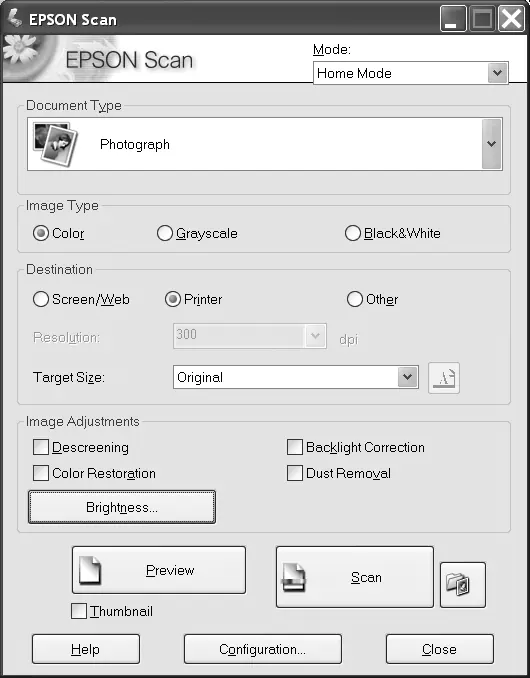
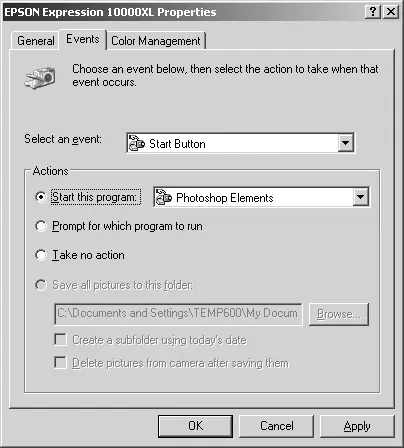
To scan a document, raise the scanner cover and place your document face-down on the glass, aligning it with the upper-left corner. Close the cover carefully. Open your TWAIN-compliant imaging application (like Adobe Photoshop Elements) and select the scanner as the import source. Use the EPSON Scan software to adjust settings and perform the scan.
Scanning Modes
EPSON Scan offers three modes tailored to different needs:
- Home Mode: Quick and easy scanning for photos, text, and line art.
- Office Mode: Ideal for business documents, text, and OCR.
- Professional Mode: Provides full control over color, exposure, and quality settings.
Enhancing Image Quality
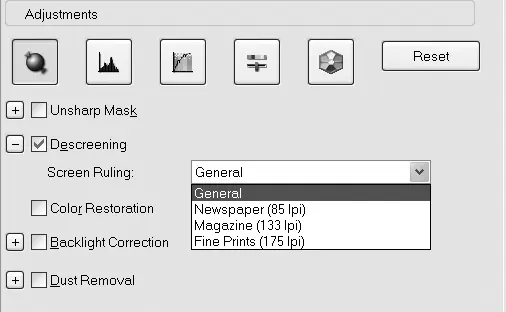
You can improve your scans using built-in adjustments:
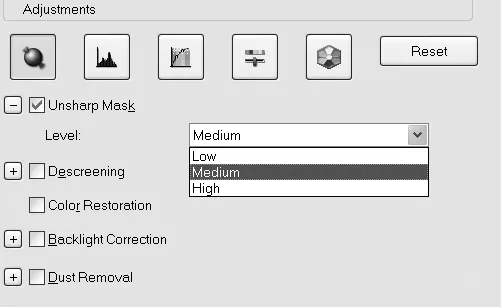
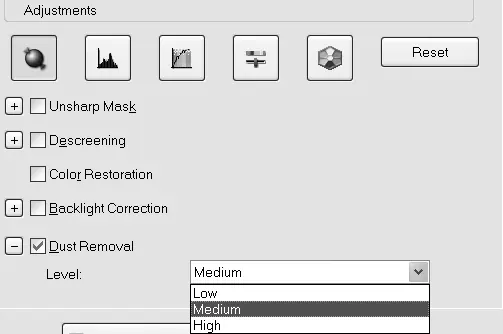
- Color Restoration: Fixes faded photos or film.
- Unsharp Mask: Sharpens fuzzy or indistinct images.
- Descreening: Reduces moiré patterns in printed materials like magazines.
- Backlight Correction: Removes shadows from backlit photos.
- Dust Removal: Digitally removes dust specks.
Optional Equipment
The scanner supports several optional accessories:
- Transparency Unit: Allows scanning of slides, filmstrips, and negatives.
- Automatic Document Feeder (ADF): Enables multi-page scanning.
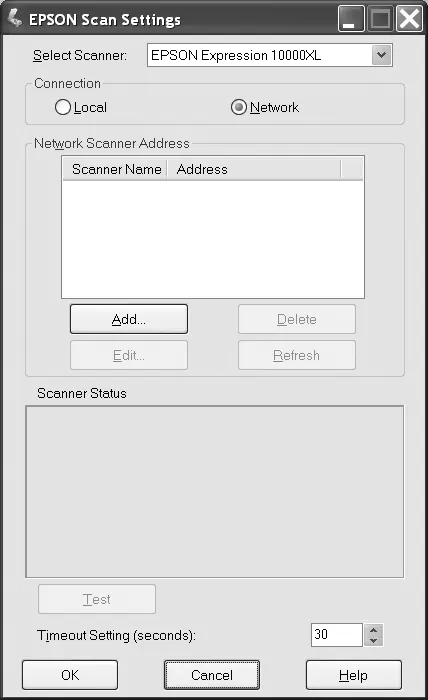
- Network Image Express Interface Card: Allows network connectivity.
Follow the specific installation instructions in the manual for each accessory, ensuring the scanner is powered off before connecting hardware.
Maintenance
Keep your scanner in top condition by cleaning the outer case with a soft, damp cloth and mild detergent. Clean the document table glass with a soft, dry cloth or compressed air. Always lock the transportation lock before moving or storing the scanner for extended periods.
Troubleshooting
If you encounter issues, check the status lights on the scanner. If the Error and Ready lights are both flashing, check for a paper jam in the ADF. If the scanner is not recognized, check cable connections and ensure the software is correctly installed. Visit epson.com/support for the latest drivers and additional help.
Specifications
The scanner features a 2400 dpi optical resolution, 48-bit color depth, and supports USB 2.0 and IEEE 1394 (FireWire) interfaces. It is compatible with Windows and Macintosh systems.
Official resources from the manual
Manufacturer information
Epson
Practical help
Common problems
Ready light flashes
Scanning is in progress. Wait for the process to finish.
Error and Ready lights are both flashing
There may be a paper jam in the automatic document feeder. Clear the jam and close all covers.
Scanned image is out of focus
Ensure the document is flat against the glass. If using film, you may need to adjust the focus manually.
Colors do not match the original
Verify the Image Type and Document Type settings in EPSON Scan. Consider using a color management tool.
Before use
- Ensure the scanner is on a flat, stable surface.
- Unlock the transportation lock.
- Clean the document table glass.
- Install the required scanner software.
- Connect the USB or IEEE 1394 cable.
Specs in practice
- Optical Resolution
- 2400 dpi for high-quality scanning.
Images and diagrams
- Shows how to place documents on the scanner glass.
- Illustrates how to install the transparency unit.
- Shows how to clear paper jams in the automatic document feeder.
Model compatibility
- Transparency unit is optional for the GA version, included with the Photo version.
- Network Image Express interface card is an optional accessory.

Manual page author
Michael Turner
Technical manual editor
Reviews PDF manuals for structure, safety notes, and practical product details so readers can find the right information quickly.