Home / Security
Extron UCS 601 Pro 4K USB-C 10G Dock User Manual
Comprehensive user guide for the Extron UCS 601, a professional 4K USB-C 10G docking station designed for Unified Communications, covering installation, operation, and troubleshooting.
Table of contents
Product Overview
The Extron UCS 601 is a professional AV docking station designed to bridge the gap between USB-C equipped laptops and HDMI displays or USB peripherals in Unified Communications environments. It supports high-performance standards including HDMI 2.0, DisplayPort 1.2, and USB 3.2 (SuperSpeed 10 Gbps). The device is capable of handling video resolutions up to 4K at 60 Hz with 4:4:4 chroma subsampling and provides up to 60 watts of power delivery to the connected host laptop.
Key Features and Connectivity
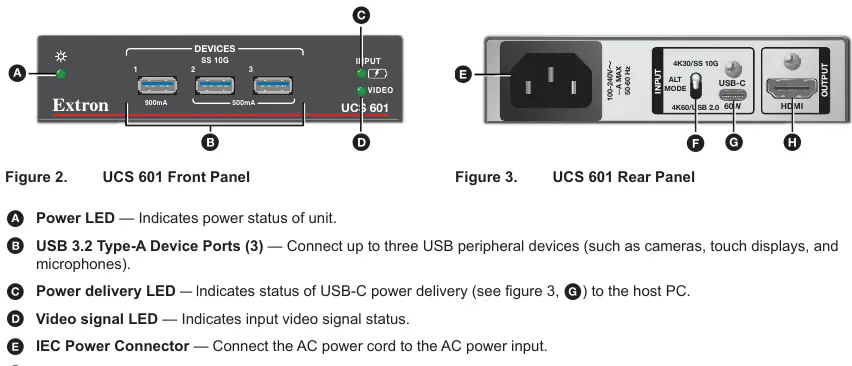
The unit features a compact, rack-mountable metal enclosure that is one inch high and a quarter-rack wide. It includes a built-in USB hub with three USB 3.2 Type-A ports for connecting peripherals such as cameras, microphones, and touch displays. The device is HDCP 2.3 and 1.4 compliant, ensuring compatibility with protected content. It also features an internal universal power supply and provides visual status monitoring via front-panel LED indicators for power, power delivery, and video signal presence.
Installation and Setup
The UCS 601 is designed for flexible mounting, including under-desk or wall mounting using the included ZipClip 200 accessory. When installing in a rack, ensure adequate airflow and maintain ambient temperatures within the specified limits to prevent overheating. The device supports secure cable management using the provided LockIt HDMI cable lacing brackets, which prevent accidental disconnections. Always ensure that the installation complies with local electrical codes, such as the National Electrical Code (ANSI/NFPA 70).
Operation and Configuration
The system is plug-and-play, requiring no specific drivers for the dock itself, though individual USB peripherals may require their own drivers. A critical configuration setting is the DisplayPort Alt Mode switch on the rear panel. This switch allows users to toggle between 4K at 30 Hz with USB 3.2 speeds or 4K at 60 Hz with USB 2.0 speeds. Important: Always disconnect the power and USB-C cables before toggling this switch and wait 45 seconds before reconnecting to ensure a proper power cycle.
Troubleshooting and Maintenance
If you encounter issues, verify that all cables are securely connected and that you are using high-quality cables designed for USB signals. USB cables should not exceed 6 feet (1.8 meters) to maintain signal integrity. Avoid using additional adapters or patch panels, as these can degrade performance. The front panel LEDs provide real-time diagnostic information: if the Power LED is off, check the AC power connection; if the Video Signal LED is off, ensure the HDMI cable is properly seated and the host PC is communicating with the dock.
Manufacturer information
Extron Electronics
Practical help
Common problems
No power indication
Ensure the AC power cord is securely connected to the IEC power connector and the wall outlet.
No video signal
Check that the HDMI cable is connected correctly and verify that the host PC is communicating with the dock.
Slow charging of host laptop
The dock provides up to 60W. If the laptop requires more, it may charge slowly. Also, if USB devices draw more than 150mA, power delivery drops to 45W.
Before use
- Verify the host device supports DisplayPort Alt Mode.
- Ensure all USB cables are 6 feet (1.8 meters) or shorter.
- Check that the DisplayPort Alt Mode switch is set to the desired resolution/USB speed mode.
- Secure cables using the provided LockIt lacing brackets.
- Ensure the mounting location provides adequate ventilation.
Specs in practice
- Power Delivery
- Provides up to 60W of charging power to the connected USB-C host laptop.
- DisplayPort Alt Mode
- A feature allowing the USB-C port to output video signals to an HDMI display.
Images and diagrams
- The application diagram shows the UCS 601 connecting a laptop via USB-C to an HDMI display and various USB peripherals.
- Front panel features include three USB 3.2 ports and status LEDs for power and signal.
- Rear panel features include the AC power input, DisplayPort Alt Mode switch, USB-C input, and HDMI output.
Model compatibility
- Requires a USB-C source device that supports DisplayPort Alt Mode.
- Recommended to use Extron HDMI Pro Series cables for 4K/UHD signals.

Manual page author
Michael Turner
Technical manual editor
Reviews PDF manuals for structure, safety notes, and practical product details so readers can find the right information quickly.