Electronics / Televisions
User Manual for Guangdong 023-N10 Refincolor Printer
Quick guide for the Guangdong 023-N10 Refincolor Printer. Includes installation, software setup, printing procedures, maintenance, and troubleshooting tips.
Table of contents
Manual images
Jump to the sectionQuick Guide
This manual provides instructions for the Guangdong 023-N10 Refincolor Printer. Before first use, ensure the environment is stable (20-28°C, 40-60% humidity) and that all transport fixtures are removed. The printer requires a 64-bit Windows system and a Gigabit network connection for proper operation.
Installation and Setup
Follow these steps to prepare your printer:
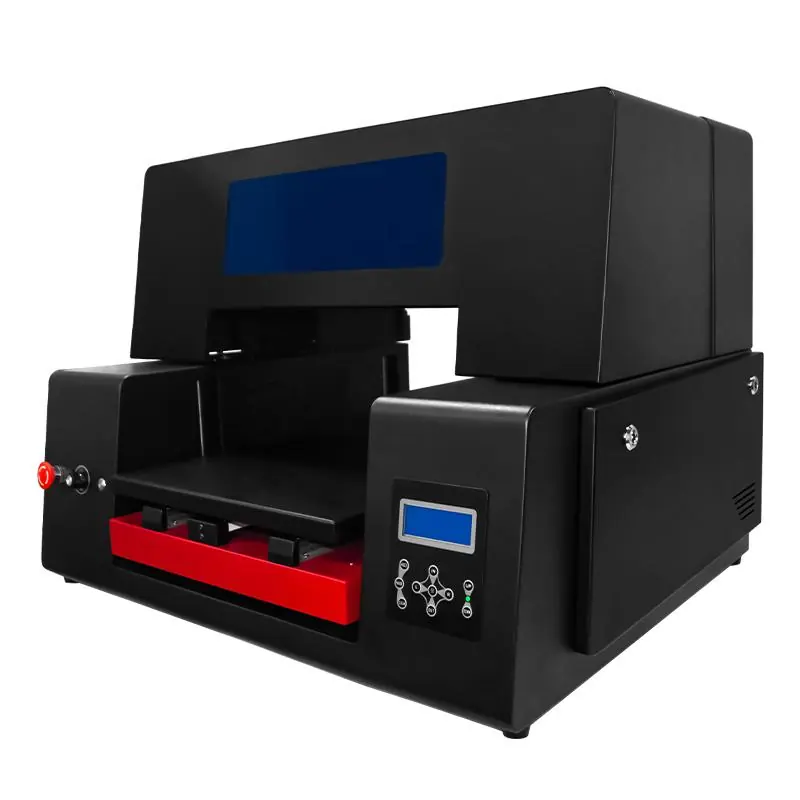
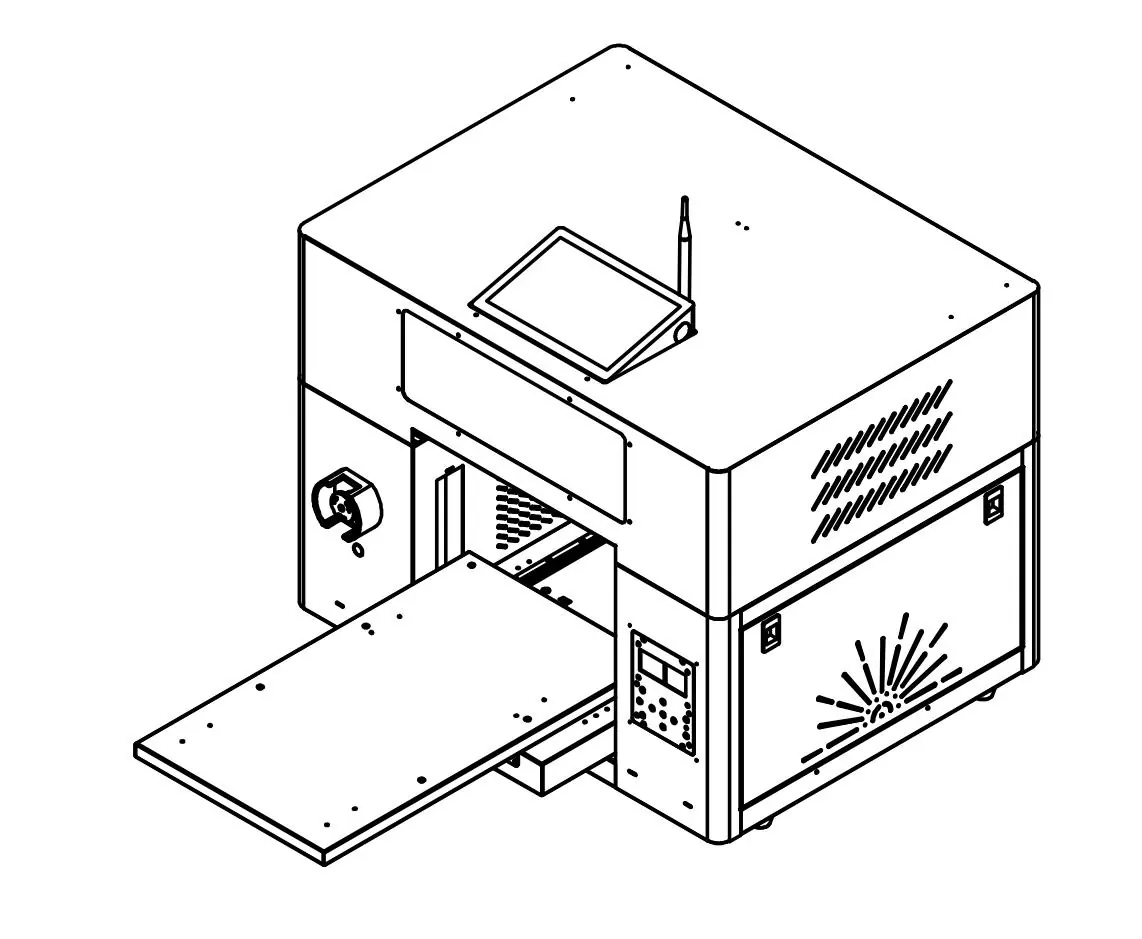
- Placement: Install on a flat, stable surface. Ensure there is enough space for platform movement (30-60cm front/rear depending on model).
- Unpacking: Remove all transport tapes and foam pads from the front and rear of the machine.
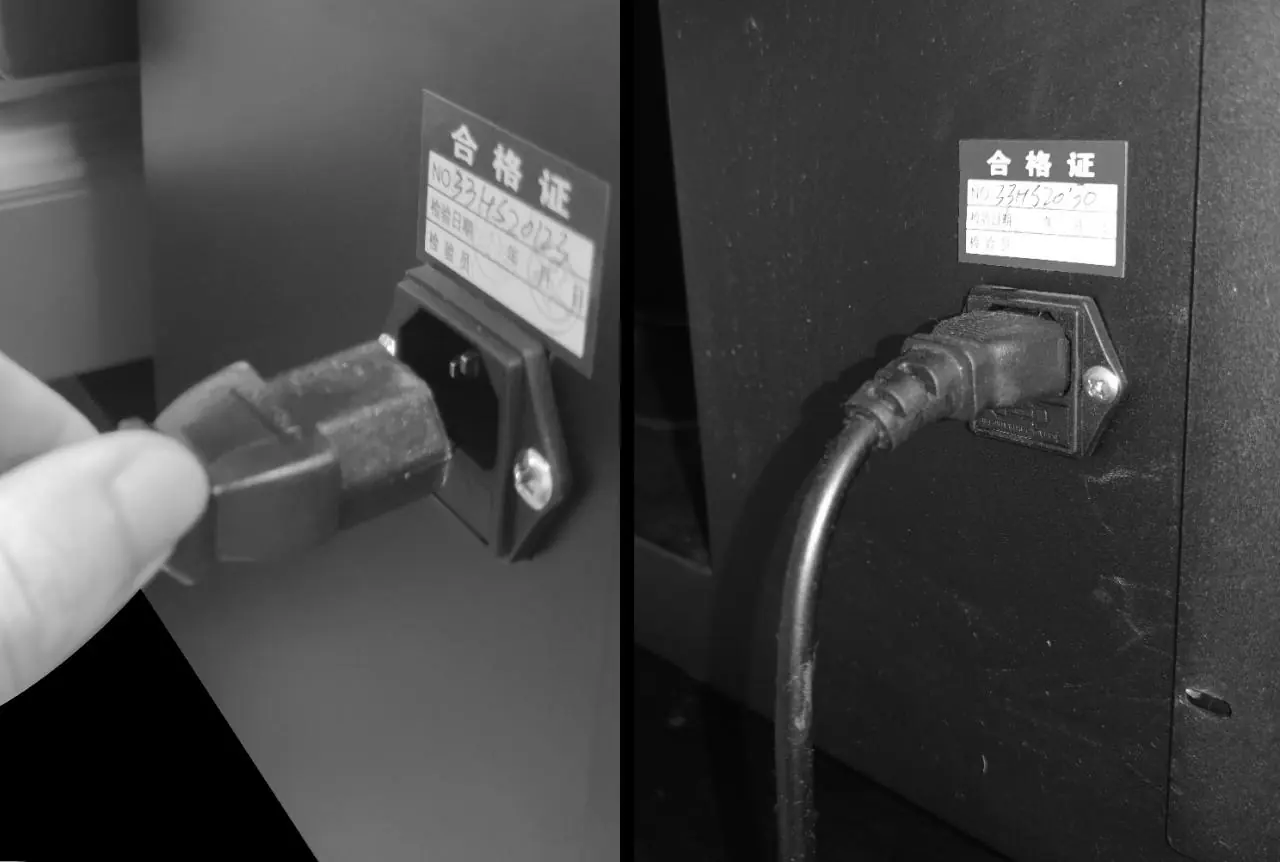
- Connections: Connect the power cord and the network cable to the printer and your PC.
- Network Configuration: Access your PC's Network and Sharing Center, right-click Ethernet, and set the IP address as specified in the manual.
- Software: Install the PrintEXP software from the provided USB disk. Turn off antivirus software during installation.
Operation
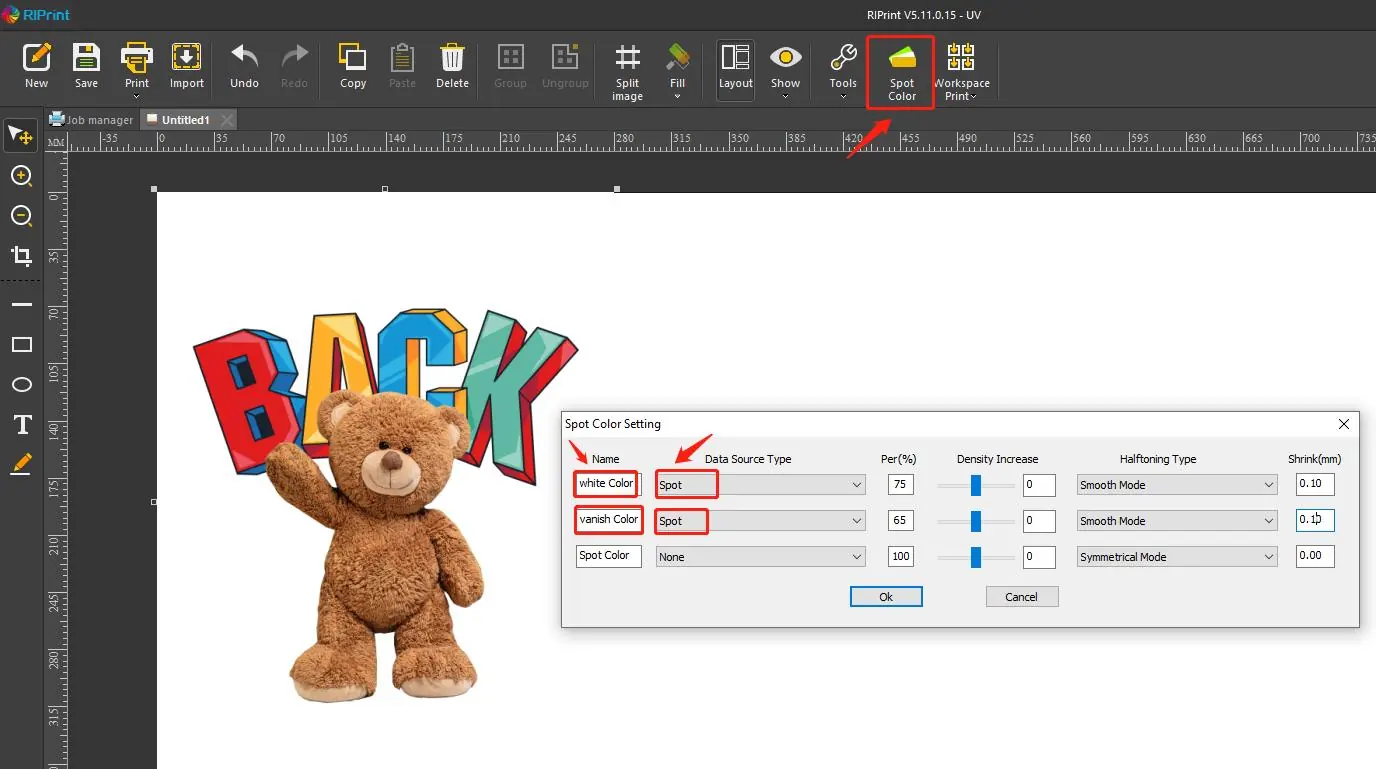
Before printing, perform a nozzle test to ensure ink flow. Adjust the print distance to 2-3mm between the printhead and the object. Use the PrintEXP software to import files, set layout, and manage white ink or varnish settings. Always ensure the print item is flat and secure on the platform.
Maintenance
Regular maintenance is crucial for printer longevity:
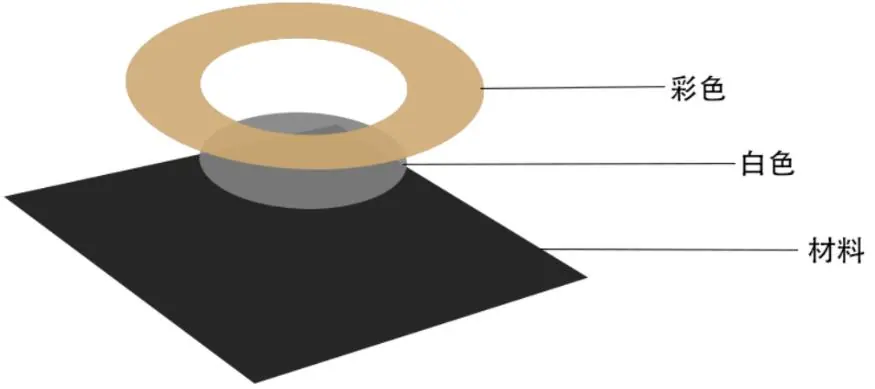
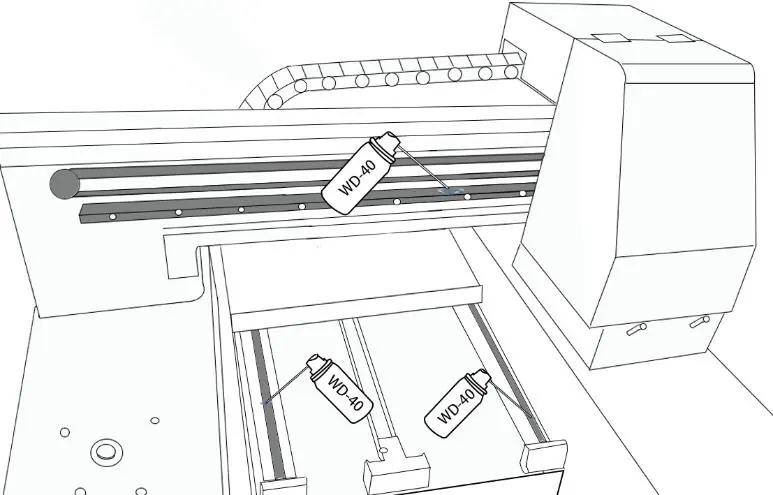
- Daily: Shake ink, clean the nozzle, check nozzle detection, and clean ink pads/blades. Wipe residual ink from the printhead with a dust-free cloth.
- Weekly: Clean the grating strip and UV lamp table.
- Monthly: Lubricate printer guides to prevent carriage blockage.
- Holiday: If not using the printer for 3+ days, perform a printhead inspection and move the carriage to the moistening position.
Troubleshooting
If you encounter issues:
- Software won't open: Install the Microsoft C++ framework from the USB disk.
- Connection issues: Verify the network cable is connected, the printer is powered on, and your PC has a Gigabit network card.
- Blurred prints/flying ink: Adjust the print distance to the optimal 2-3mm.
- Wet ink: Check if the UV lamp is switched on. If it is flashing, the lamp may be faulty and require replacement.
Practical help
Common problems
Software does not open
Install the Microsoft C++ framework from the 'common question solving' folder on the provided USB disk.
Printer disconnected even after IP change
Ensure the printer is powered on, the network cable is secure, and your PC is equipped with a Gigabit network card.
Blurred images or flying ink
Adjust the print distance to 2-3mm between the printhead and the object.
Ink is wet after printing
Check if the UV lamp is switched on. If it is flashing, the lamp may be faulty and needs replacement.
Before use
- Remove all transport tapes and foam pads.
- Ensure the installation environment is 20-28°C and 40-60% humidity.
- Connect the printer to the PC via Ethernet cable.
- Configure the PC network adapter with the correct IP address.
- Install the PrintEXP software.
- Perform a nozzle test before printing.
Specs in practice
- Print Distance
- The gap between the printhead and the object; optimal is 2-3mm.
- Operating Environment
- 20-28°C and 40-60% humidity is required for stable operation.
Images and diagrams
- Keypad: Controls nozzle check, pause, cleaning, and platform movement.
- Rear Panel: Contains power switch, power cable connection, and network cable port.
Model compatibility
- Requires Windows 7/8/10 64-bit.
- Requires a Gigabit network card for stable connection.

Manual page author
David Miller
Documentation analyst
Organizes user manual content into clear summaries, with attention to model details, product context, and everyday usability.