Toys / RC Models & Drones
User Manual for Refincolor UV Flatbed Printer
Quick guide for the Refincolor UV Flatbed Printer. Includes installation, software setup, printing procedures, maintenance, and troubleshooting steps.
Table of contents
Manual images
Click an image to enlargeQuick guide from the manual
This manual provides instructions for the Refincolor UV Flatbed Printer series (including models 6090, ZZ1C, ZZ2C, and ZZ2F). Before first use, ensure you have removed all transport fixtures and placed the printer on a stable, flat surface. The printer requires a 64-bit Windows system and a Gigabit network connection for proper operation. Always maintain the recommended operating environment of 20-28°C and 40-60% humidity.
Installation and Setup
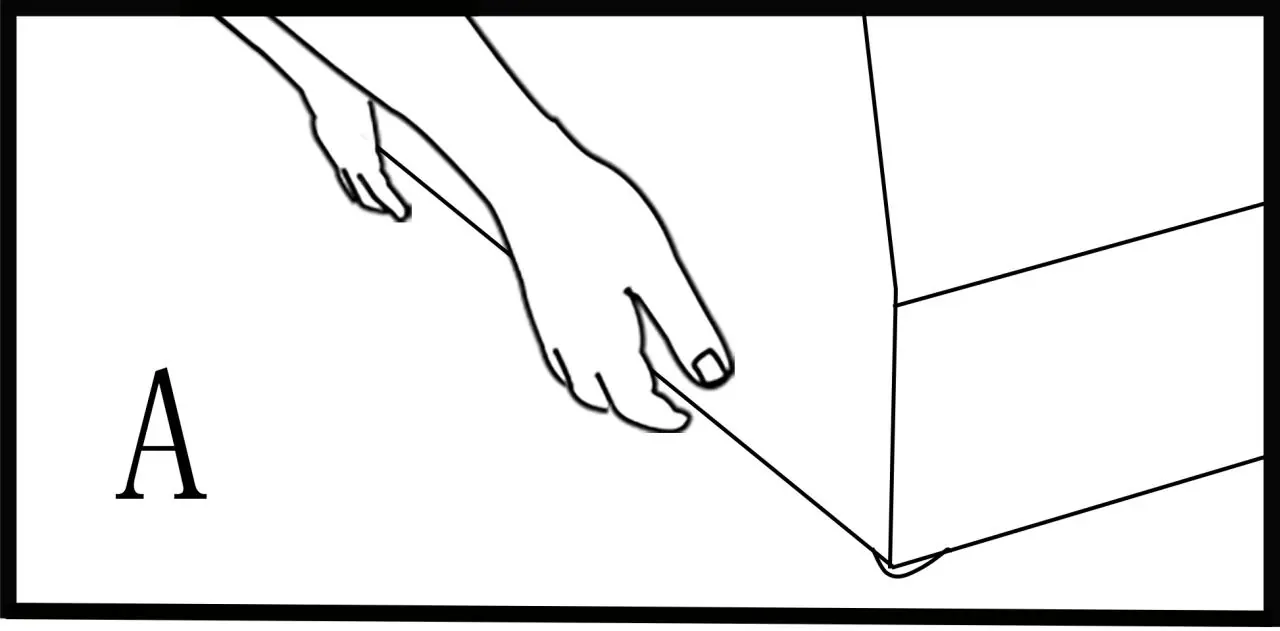
Unpacking and Handling: When lifting the machine, hold the designated areas shown in the manual. Do not lift by the platform. Ensure the printer is placed on a stand with a height of 70-80cm and that there is sufficient space (30-60cm) at the front and rear for platform movement.
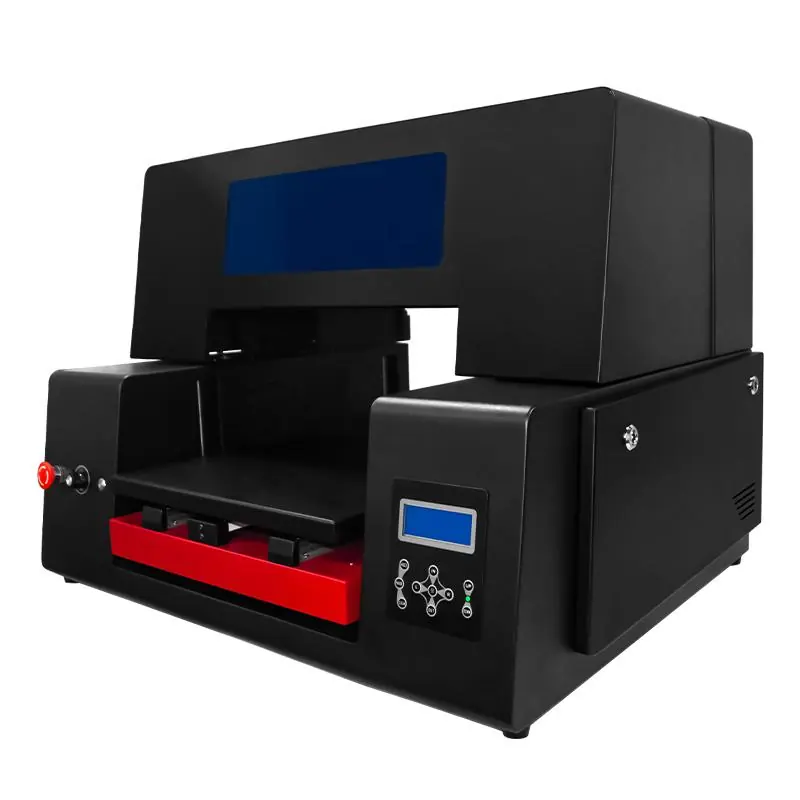
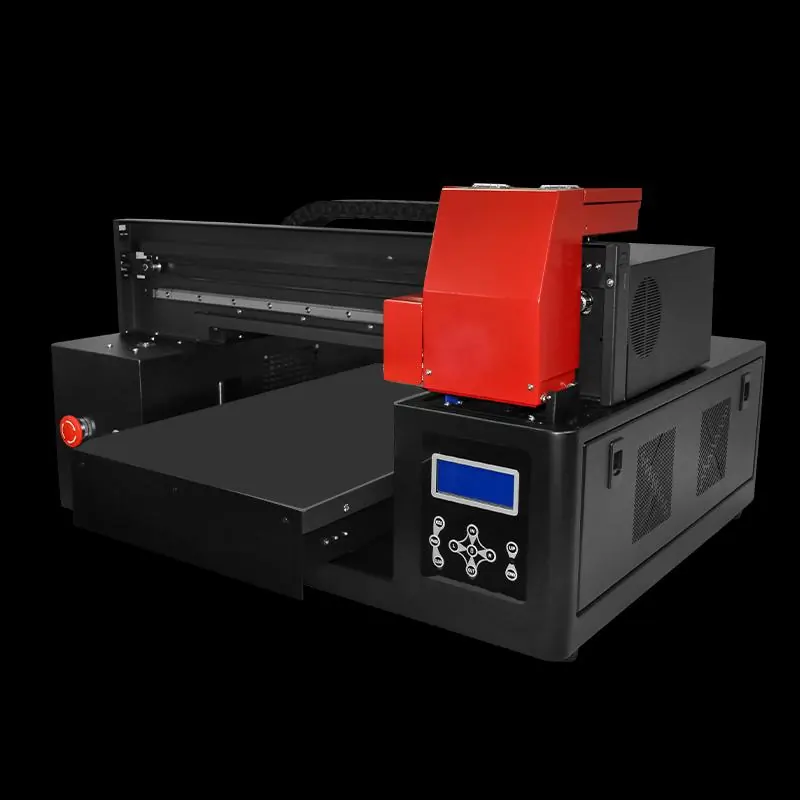
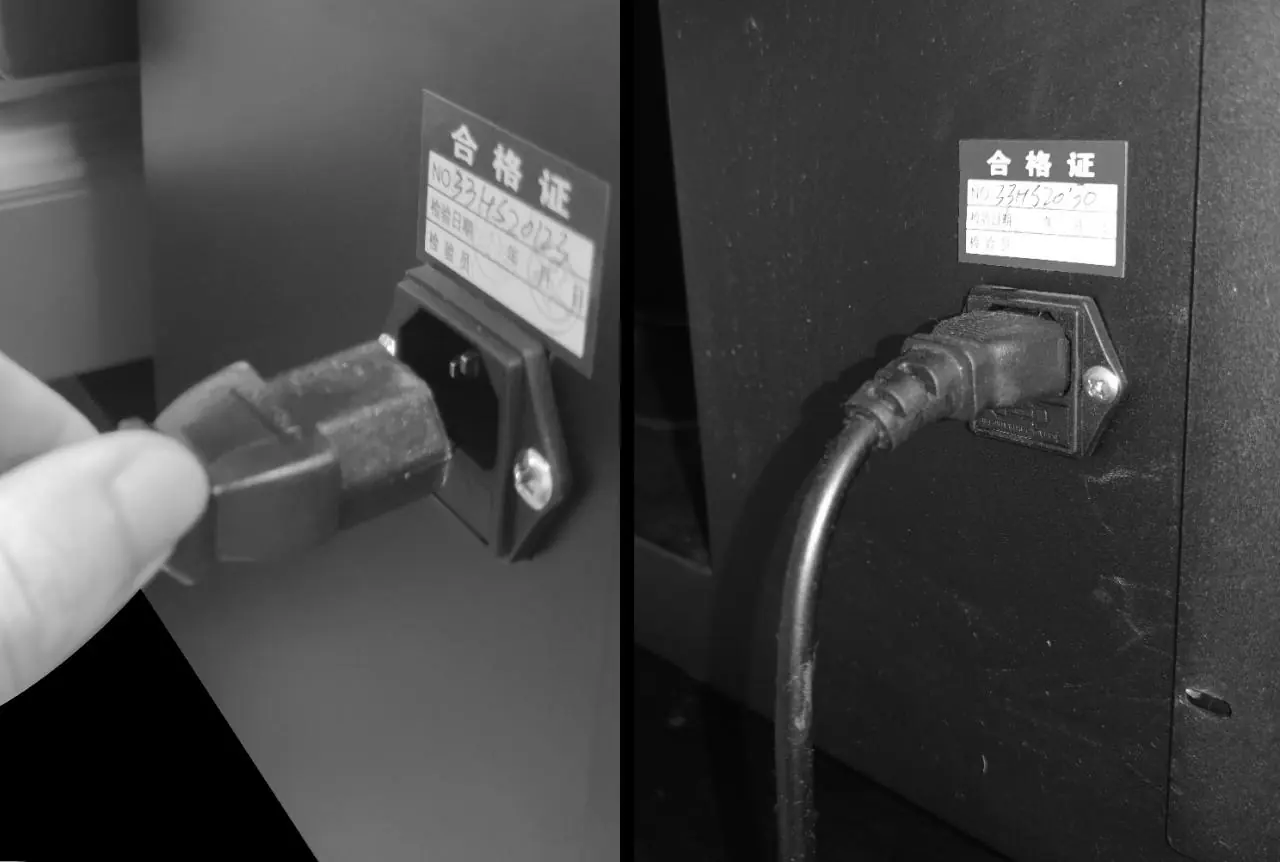
Connections: Connect the power cable and the network cable. The printer requires a Gigabit network card. If your computer does not have one, a Gigabit NIC adapter is required.
Software Installation: Turn off antivirus software before installing the PrintEXP software. Extract the zip file and run the installer. Configure the IP address in the network settings to match the printer's requirements.
Printing Procedures
Nozzle Test: Place paper on the platform, adjust the height to 2-3mm from the printhead, and press the 'Nozzle' button on the keypad to perform a check.
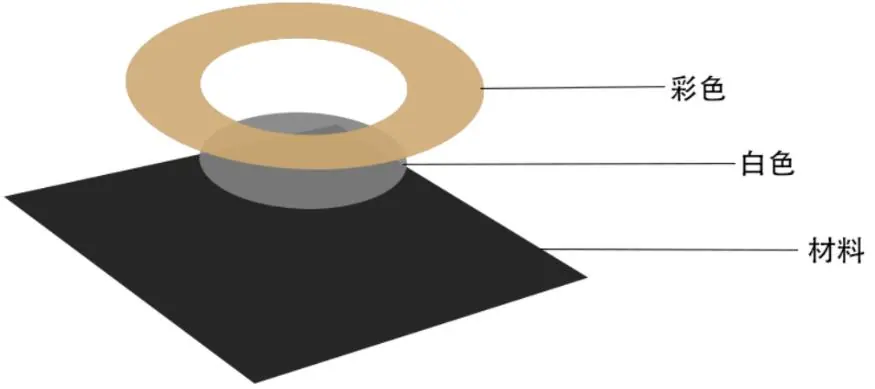
Printing: Use the Riprint software to import files. For color block printing, select '16PASS' and send to print. For white ink or varnish printing, configure the 'Spot Colour' settings in the software. Always ensure the print height is correctly set to 2-3mm to avoid collisions.
Maintenance
Daily Maintenance: Shake the ink, clean the nozzle, check nozzle detection, and clean the blades and ink pads. Wipe residual ink from the printhead gently with a dust-free cloth.
Weekly and Monthly Maintenance: Clean the grating strip and UV lamp table weekly. Regularly oil the printer guides to ensure smooth carriage movement.
Holiday Maintenance: If the printer will not be used for 3 days or more, perform specific cleaning procedures and move the carriage to the moistening position to prevent ink drying.
Troubleshooting
Software Issues: If the software fails to open, install the Microsoft C++ framework provided on the USB stick.
Connection Issues: Ensure the printer is powered on and connected via a Gigabit network card. Verify the network cable is securely plugged in.
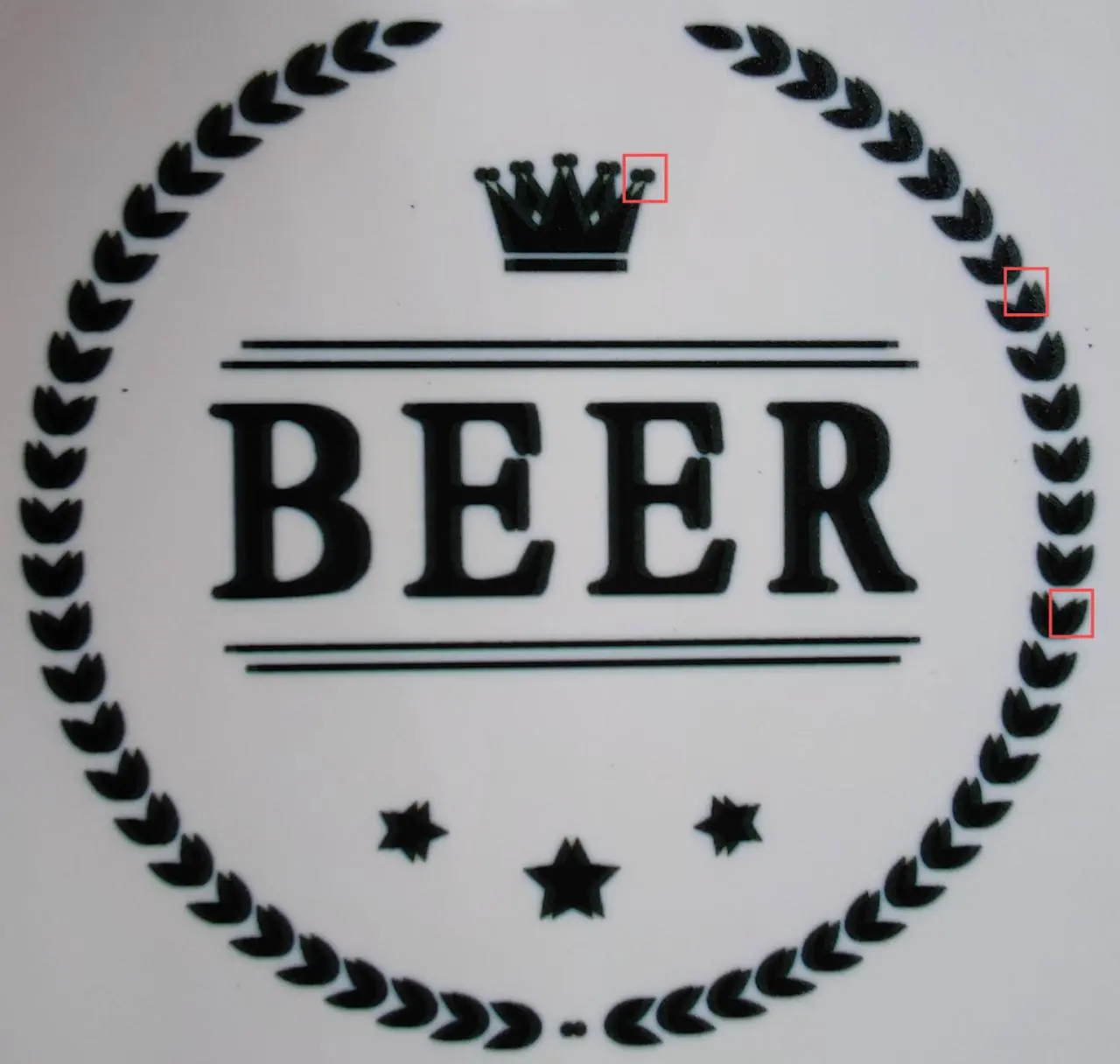
Print Quality: If images are blurred, adjust the print distance. If ink is wet, check the UV lamp status and replace it if faulty.
Calibration: Use the PrintEXP software to perform bi-directional calibration and nozzle spacing calibration if you notice double images or misalignment.
Practical help
Common problems
Software fails to open
Install the Microsoft C++ framework from the 'common question solving' folder on the provided USB stick.
Printer disconnected even after IP change
Ensure the printer is powered on, the network cable is connected, and your computer has a Gigabit network card.
Blurred images or flying ink
Adjust the print distance between the printhead and the object to the optimal 2-3mm.
Ink is wet after printing
Check if the UV lamp is on. If it is flashing, it may be faulty and needs replacement. You can also try increasing the UV lamp power.
Before use
- Remove all transport fixtures (tape and foam pads) from the front and rear.
- Place the printer on a stable, flat surface (70-80cm height).
- Ensure the environment is 20-28°C and 40-60% humidity.
- Install the PrintEXP software on a 64-bit Windows system.
- Configure the network connection to use a Gigabit network card.
Specs in practice
- Print distance
- The gap between the printhead and the object, optimal at 2-3mm.
- Operating environment
- Temperature 20-28°C and humidity 40-60% for best performance.
Images and diagrams
- Keypad: Controls for nozzle check, pause, cleaning, and carriage/platform movement.
- Handling: Shows correct lifting points to avoid damaging the platform.
- Calibration: Shows how to align bi-directional printing and nozzle spacing.
Model compatibility
- Requires Windows 7/8/10 64-bit.
- Requires a Gigabit network card for connection.
- Print distance must be 2-3mm; objects with >3mm height difference cannot be printed.

Manual page author
David Miller
Documentation analyst
Organizes user manual content into clear summaries, with attention to model details, product context, and everyday usability.