Electronics / Camera Stabilizers
User Manual for Hohem iSteady Q Stabilizing Stick
Quick guide for the Hohem iSteady Q stabilizing stick. Learn how to mount your phone, use desktop and handheld modes, connect via Bluetooth, and operate the remote control.
Table of contents
Manual images
Click an image to enlargeImportant Information
The Hohem iSteady Q is a 1-axis stabilizing stick designed for smartphones. It features a built-in 360-degree infinite rotary motor, remote control, and tripod functionality. To ensure proper operation, always mount your phone securely in the center of the clamp and ensure it clings to the rubber mat to prevent vibration or automatic shutdown.
Device Overview
The device consists of the following key components:
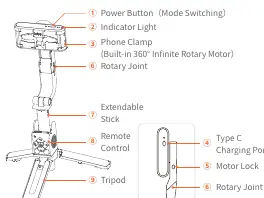
- Power Button: Used for powering on/off, mode switching, and calibration.
- Indicator Light: Displays battery status and working mode.
- Phone Clamp: Features a built-in 360-degree motor.
- Remote Control: Detachable control for shutter, navigation, and mode switching.
- Extendable Stick: Telescopic handle for extended reach.
- Tripod: Foldable legs for desktop use.
- Type C Charging Port: For battery charging.
Setup and Mounting
Handheld Use: The device can be used as a selfie stick. You can lock the phone clamp motor when in low power mode to prevent rotation.
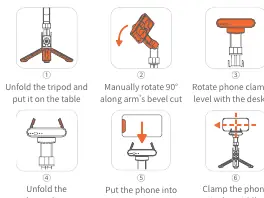
Desktop Use:
- Unfold the tripod and place it on a stable surface.
- Manually rotate the arm 90 degrees along the bevel cut.
- Rotate the phone clamp to be level with the desktop.
- Unfold the phone clamp, insert your phone, and ensure it is clamped in the middle.
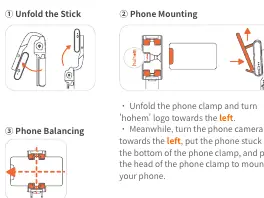
Phone Mounting:
- Unfold the stick.
- Unfold the phone clamp and turn the 'hohem' logo towards the left.
- Turn the phone camera towards the left.
- Place the phone into the bottom of the clamp and pull the head of the clamp to secure the phone.
Operating Modes
The device supports several modes controlled via the Power Button and M Button:
- Lock Mode (Default): The phone does not follow the handle rotation.
- POV Follow Mode: The phone follows the handle rotation slowly.
- Low Power Mode: Motor stops working to conserve battery; used as a regular selfie stick.
- Auto Rotation: Triple press the power button for 300-degree inception or 360-degree horizontal rotation.
- Auto Calibration: Press the power button 5 times on a flat surface if the device is drifting.
App and Connectivity
Download the Hohem Joy app from the App Store or Google Play to access advanced features like face tracking, gesture control, motion timelapse, and moment mode. Ensure Bluetooth is enabled on your phone and follow the prompts in the app to connect.
Indicator Lights
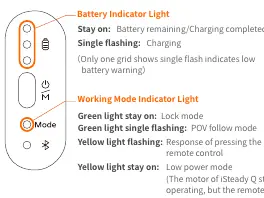
- Battery Indicator: Solid light indicates battery remaining/charging completed; single flashing indicates charging.
- Working Mode Indicator: Solid green for Lock mode; flashing green for POV follow mode; flashing yellow for remote response; solid yellow for Low power mode.
- Bluetooth Indicator: Solid for connected; off for disconnected; blinking for firmware update.
Specifications
- Model: iSteady Q
- Weight: 195g
- Operating Time: 3 hours
- Compatible Phone Weight: Up to 280g
- Compatible Phone Thickness: Up to 11mm
- Compatible Phone Width: 55.5mm to 100mm
Practical help
Common problems
Stabilizing stick vibrates or turns off automatically
Ensure the phone is clamped in the middle and clings to the rubber mat.
Remote control not working
Pair again: Turn on the stick, press the power button 7 times to enter pairing mode, then turn on the remote.
Bluetooth not connecting
Press the power button 9 times to cancel existing Bluetooth pairing and try connecting again.
Device is drifting or not level
Perform auto-calibration on a flat surface by pressing the power button 5 times.
Before use
- Charge the device fully before first use.
- Download the Hohem Joy app.
- Ensure the phone camera faces left when mounting.
- Balance the phone securely in the clamp.
- Ensure Bluetooth is enabled on your smartphone.
Specs in practice
- Operating Time
- 3 hours of continuous use on a full charge.
- Compatible Phone Weight
- Supports phones weighing up to 280g.
- Compatible Phone Thickness
- Supports phones up to 11mm thick.
- Mechanical Range
- 360-degree pan and roll capability.
Images and diagrams
- The overview diagram identifies the power button, indicator lights, phone clamp, remote control, and tripod legs.
- The desktop setup diagram illustrates the 6-step process of unfolding the tripod and positioning the phone.
Model compatibility
- App requires iOS 10.0 or above.
- App requires Android 6.0 or above.

Manual page author
Emily Carter
User documentation editor
Prepares concise manual descriptions and highlights the most useful setup, operation, and maintenance information for readers.