Mobile / Smartphones
User Guide for Honor 10i Smartphone
Quick guide for the Honor 10i smartphone. Learn how to use gestures, manage camera settings, transfer data with Phone Clone, configure security, and optimize battery life.
Table of contents
Manual images
Click an image to enlargeQuick guide from the manual
This guide provides essential information for operating your Honor 10i smartphone. It covers basic gestures, system navigation, data transfer, camera features, and various settings to optimize your device performance.
Essentials
Learn the basics of interacting with your device:
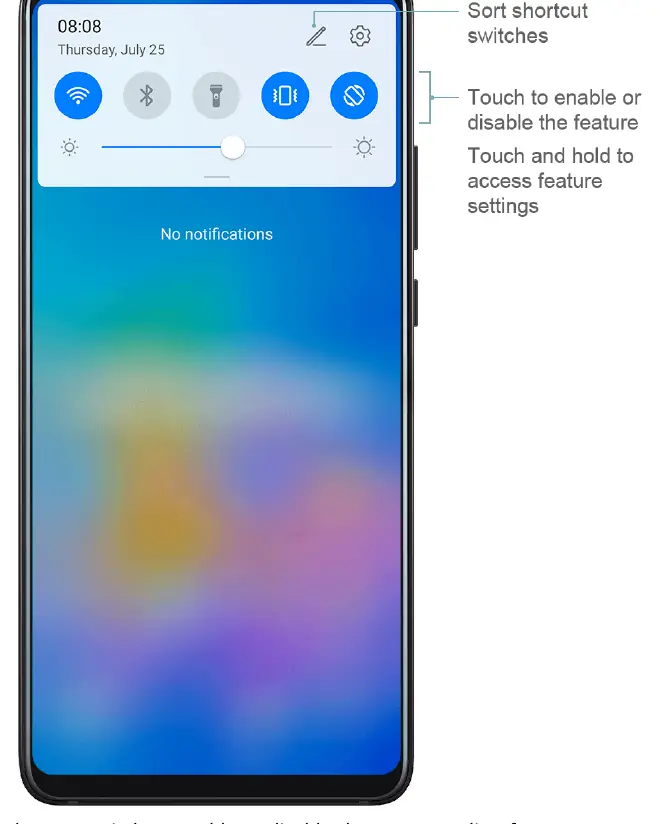
- Basic Gestures: Use three fingers to split the screen, pinch on the home screen to edit, and swipe from the status bar to open the notification panel.
- Button Shortcuts: Press and hold the Power button to power off or restart. Press Volume down and Power simultaneously to take a screenshot. Double-press Volume down when the screen is off for Ultra snapshot.
- System Navigation: Choose between Gesture navigation or Three-key navigation in Settings > System & updates > System navigation.
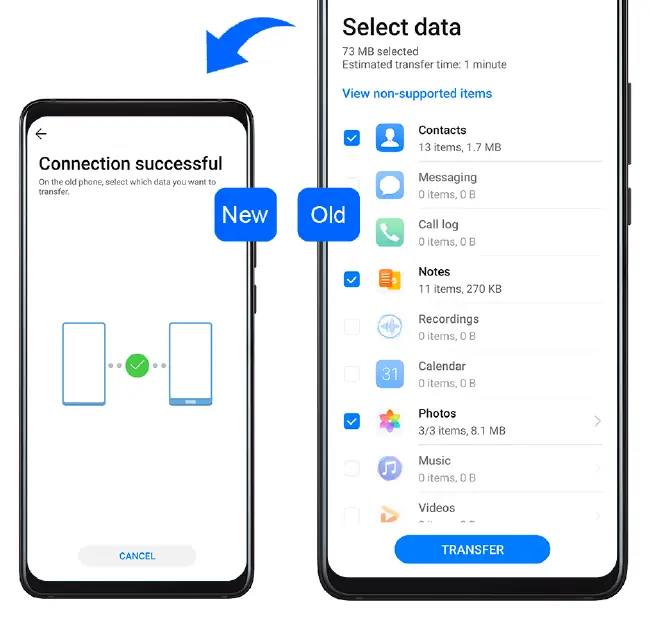
- Phone Clone: Use this tool to transfer contacts, calendar, images, and videos from your old phone to your new Honor device.
Smart Features
Utilize advanced connectivity features:
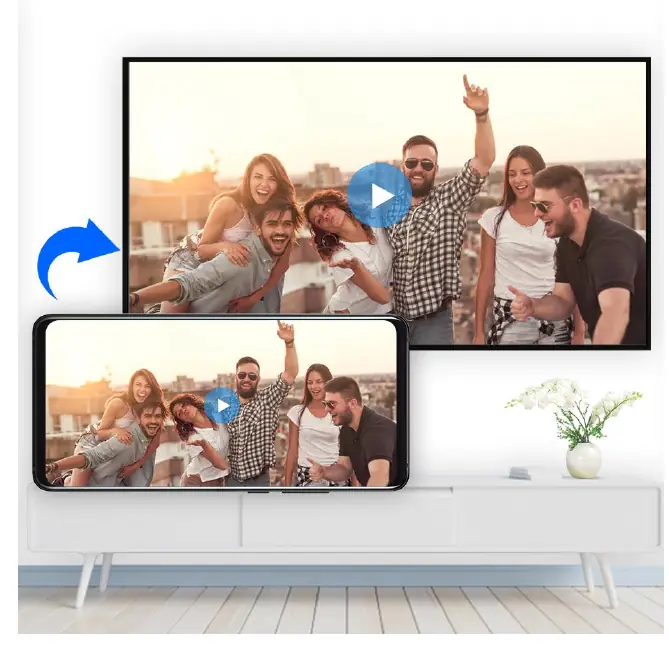
- Easy Projection: Connect your phone to an external display wirelessly using Miracast or a wireless HDMI adapter.
- Huawei Share: Quickly transfer files between Huawei devices or between your phone and a computer using Wi-Fi Direct and Bluetooth.
Camera and Gallery
Master your photography experience:
- Camera Modes: Access Portrait, Night, Wide Aperture, Panorama, Light Painting, and HDR modes via the Camera app.
- Taking Photos: Tap the viewfinder to focus, drag to adjust brightness, and pinch to zoom.
- Gallery Management: Organize photos into albums, edit images (crop, rotate, add filters), and manage deleted items in the Recently deleted folder.
Apps
Manage your daily tasks:
- Contacts: Create, import, export, and merge contacts. Manage contact groups for easier messaging.
- Phone: Manage call logs, set ringtones, enable call waiting, and block spam calls.
- Calendar: Add events, set reminders, and import meeting reminders from work emails.
- Clock: Set alarms, use the timer and stopwatch, and view world clocks.
- Notepad: Create notes and to-do lists, and organize them with tags.
- Recorder: Record audio and edit recordings by trimming or adding tags.
- Email: Add personal email accounts, send emails, and manage notifications.
Settings
Configure your device to your preferences:
- Wi-Fi & Bluetooth: Connect to networks and pair with devices. Use Wi-Fi Direct for faster file transfers.
- Display & Brightness: Adjust brightness, color mode, color temperature, and enable Eye Comfort mode to reduce blue light.
- Biometrics & Password: Enroll fingerprints and facial data for secure unlocking and app access.
- Battery: Monitor power consumption and enable Power Saving or Ultra Power Saving modes to extend battery life.
- Security & Privacy: Use App Lock to protect private data and manage app permissions.
- System & Updates: Manage language, date and time, perform backups, and check for software updates.
Manufacturer information
HONOR
Practical help
Common problems
Device won't turn on
Charge for 10 minutes and then power it on.
Moisture detected in USB port
Disconnect the phone from the USB port and wait until the port is dry.
Device not working or won't turn off
Force restart by pressing and holding the Power button for 10 seconds or longer.
Before use
- Charge the device using the standard adapter and USB cable.
- Ensure the device is within 10m of other Bluetooth devices for pairing.
- Check for system updates in Settings > System & updates.
- Back up data before performing system updates.
Specs in practice
- Performance mode
- Adjusts power settings for maximum performance, but drains battery faster.
- Ultra Power Saving mode
- Strictly controls background apps to extend battery life; limits usage to selected apps.
- Eye Comfort mode
- Reduces blue light and adjusts screen to warmer colors to relieve eye fatigue.
Images and diagrams
- Navigation gestures: Swipe inward from edges to go back, swipe up to go home.
- Button shortcuts: Power + Volume down for screenshot, Double-press Volume down for Ultra snapshot.
- Phone Clone: Use to transfer data from old device to new device.
Model compatibility
- Phone Clone is available on Android 4.4+ and iOS 8.0+.
- Huawei Share requires Wi-Fi and Bluetooth.
- App Twin works only with certain apps.

Manual page author
David Miller
Documentation analyst
Organizes user manual content into clear summaries, with attention to model details, product context, and everyday usability.