Mobile / Smartphones
User Guide for HONOR 10X Lite
Quick guide for the HONOR 10X Lite. Learn how to use navigation gestures, camera modes, smart features, and manage device settings.
Table of contents
Manual images
Click an image to enlargeQuick guide from the manual
The HONOR 10X Lite is a feature-rich smartphone. This guide covers essential operations, camera usage, and system settings to help you get started quickly.
Essentials
Navigation: You can use system navigation gestures or three-key navigation. Go to Settings > System & updates > System navigation to choose your preferred mode.
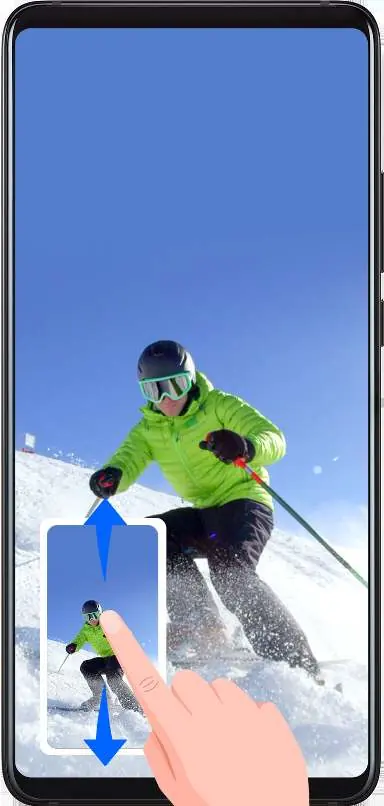
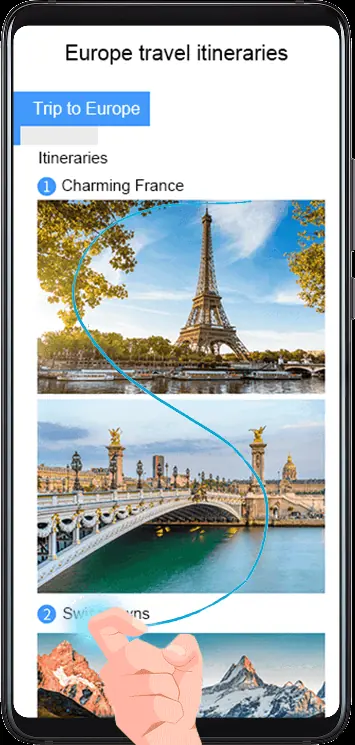
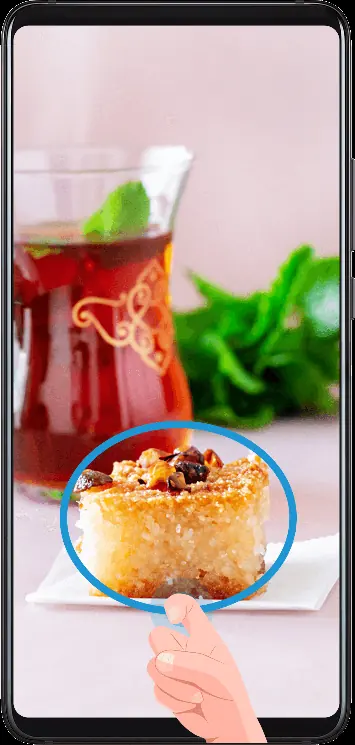
Screenshots: You can take a screenshot by pressing the Power and Volume down buttons simultaneously, or by knocking twice on the screen with a knuckle.
Phone Clone: Easily move data from your old phone to your new device using the Phone Clone app found in the Essentials section.
Camera and Gallery
Camera Modes: The camera supports various modes including Portrait, Night, Wide Aperture, Super Macro, and Pro mode. Access these modes by opening the Camera app and swiping through the options.
Master AI: This feature intelligently identifies scenes and optimizes camera settings. Ensure it is enabled in the camera interface.
Gallery Management: Photos are automatically categorized by time, location, and album. You can edit photos directly in the Gallery app using tools like crop, rotate, and filters.
Smart Features
AI Lens: Access AI Lens from the camera or search bar to scan QR codes, translate text, or identify objects.
Huawei Share: Use this feature for quick wireless file transfers between Huawei devices or computers. Enable it via the shortcut panel or Settings > More connections > Huawei Share.
Settings and Maintenance
Battery Management: Check power consumption in Settings > Battery. Use Power Saving or Ultra Power Saving modes to extend battery life.
Security: Set up fingerprint ID or facial recognition in Settings > Biometrics & password to secure your device and apps.
System Updates: Keep your device current by checking for updates in Settings > System & updates > Software update.
Manufacturer information
HONOR
Practical help
Common problems
Device won't turn on
Press and hold the Power button for 10 seconds or longer to force a restart.
Charging issues
Check for moisture in the USB port; ensure you are using the standard adapter and cable that came with the device.
Forgot lock screen password
Requires a factory reset, which will erase all data on the device.
Before use
- Charge the device fully
- Insert SIM card
- Connect to Wi-Fi
- Set up biometric security (fingerprint or face unlock)
- Configure system navigation preferences
Specs in practice
- Huawei Share
- Wireless technology for quick file transfer between Huawei devices.
Images and diagrams
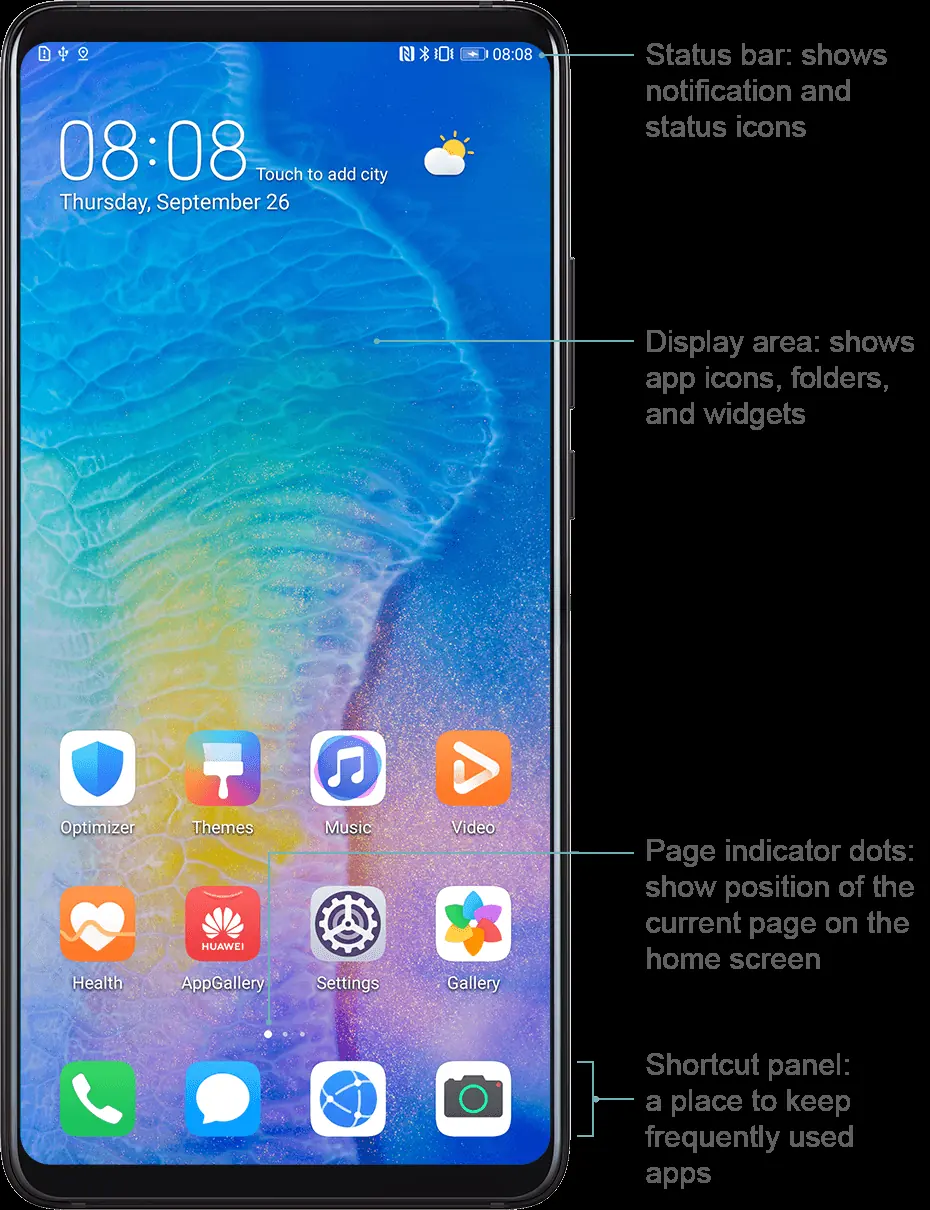
- Status bar icons indicate network, battery, and connectivity status.
- Navigation gestures allow back, home, and recent tasks control.
- Scrolling screenshot feature is activated by drawing an 'S' with a knuckle.
Model compatibility
- Phone Clone requires Android 5.0+ or iOS 8.0+.
- Huawei Share features vary by device and region.
- VoLTE requires support from your mobile carrier.

Manual page author
Emily Carter
User documentation editor
Prepares concise manual descriptions and highlights the most useful setup, operation, and maintenance information for readers.