General / Other Manuals
HP Victus 15-fa2008ua User Manual
Comprehensive user guide for the HP Victus 15-FA2008UA laptop, covering hardware components, software setup, network connectivity, power management, maintenance, and security features.
Table of contents
Product Overview
The HP Victus 15-FA2008UA is a high-performance laptop designed for both work and entertainment. This manual provides essential information on hardware components, software features, network connectivity, and system resources.
Safety and Setup
To ensure safe operation and prevent overheating, always use the computer on a hard, flat surface. Avoid blocking ventilation openings and do not keep the device directly on your lap for extended periods. Ensure the AC adapter is not in contact with skin or soft materials like pillows or clothing during operation.
Hardware Components
The laptop features various ports and indicators for connectivity and status monitoring:
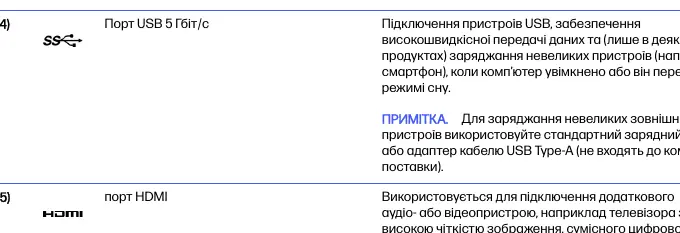
- Right Panel: Includes USB Type-C (with DisplayPort and HP Sleep and Charge), RJ-45 network port, USB 5 Gbps port, and HDMI port.
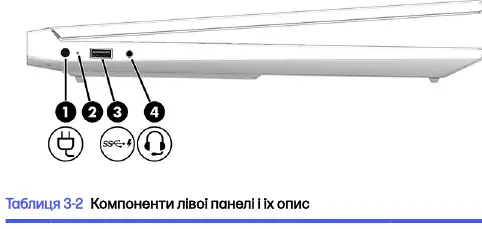
- Left Panel: Features the power connector, AC adapter/battery status indicator, USB 5 Gbps port with HP Sleep and Charge, and a combo audio jack.
- Display: Equipped with WLAN antennas, internal microphones, and a camera (with optional IR and privacy features).
Power Management
The device supports Sleep and Hibernation modes to conserve energy. You can manage power settings via the Windows power icon. The laptop also supports HP Fast Charge, allowing for rapid battery charging when the device is powered off and connected to an appropriate AC adapter.
Maintenance and Optimization
Regular maintenance is recommended to keep the system running optimally:
- Performance: Use Disk Defragmenter (for HDDs) and Disk Cleanup at least once a month.
- Cleaning: Use a microfiber cloth dampened with water to clean external surfaces. For disinfection, a 70% isopropyl alcohol solution is recommended. Avoid harsh chemicals, aerosols, or abrasive materials.
- Updates: Regularly update software and drivers via HP Support Assistant or Windows Update.
Security
Protect your data using Windows passwords and BIOS/Setup Utility passwords. Windows Hello is available on supported models for biometric authentication (fingerprint or facial recognition). Always keep antivirus software updated to protect against malicious threats.
Troubleshooting
If hardware issues arise, use the HP PC Hardware Diagnostics tools (Windows or UEFI versions) to identify and troubleshoot components. These tools can generate error codes to assist support services in resolving hardware failures.
Related manuals
Related manuals from the same brand or category.
General / Other Manuals
HP 12c Financial Calculator: Quick Start Guide
HPGeneral / Other Manuals
HP 126-inch Dual Roll Kit Introductory Information
HPGeneral / Other Manuals
HP Latex 126-inch Free-Fall Roll Kit User Guide
HPDocuments / Warranty Safety